Adding Custom Text Fields
Learn how to add more parameters or text fields to User Data and Hotspots.
If the project requires more user data fields or parameters for hotspots, you can add them here. Click the plus button to add a custom property. A dialog appears where you define the parameters of the custom property:
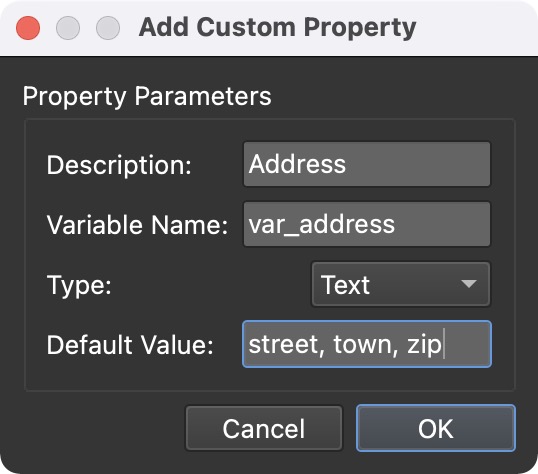
The custom property is a variable that is used in the skin. For Type, choose from Text, Number, or True/False as the variable type.
Once a skin is opened from the Web Output, the custom property created here will be added as a variable in the skin properties.


A custom property can also be created from an existing skin variable.
- Open a skin’s settings and add a variable if none have been added.
- Choose the variable source. After adding a variable or more in the skin’s variables table, click in the Source column and choose User Data or Hotspot as the source.
- Go to the User Data or Hotspots properties and Long press the plus button to add the custom property. Choose Create Property from Skin Variable. Choose the variable from the list or choose all to add all User Data or Hotspot type variables.
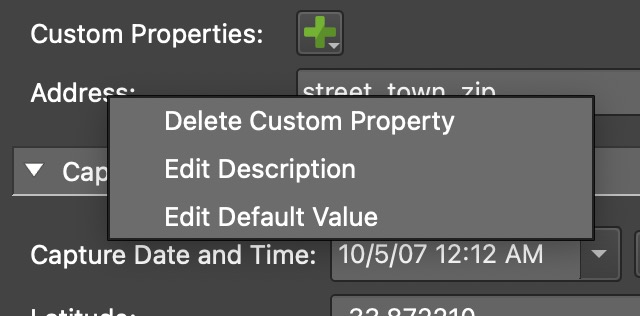
Right-click the label (description) of the custom property to change the default value and the description, and to delete the custom property.
Use the Copy button to copy the custom property to all nodes or to selected nodes in the Tour Browser.

Webinars
Check out the following webinars on custom properties for more information and for inspiration on how to use them.