Background Sounds
Learn how to add background sounds to your project and nodes.
Pano2VR has Project Background Sound and Node Background Sound. Your project will determine which to use.
In the skin, you’ll find the target _background. This will target all
background sounds.
Project Background Sound
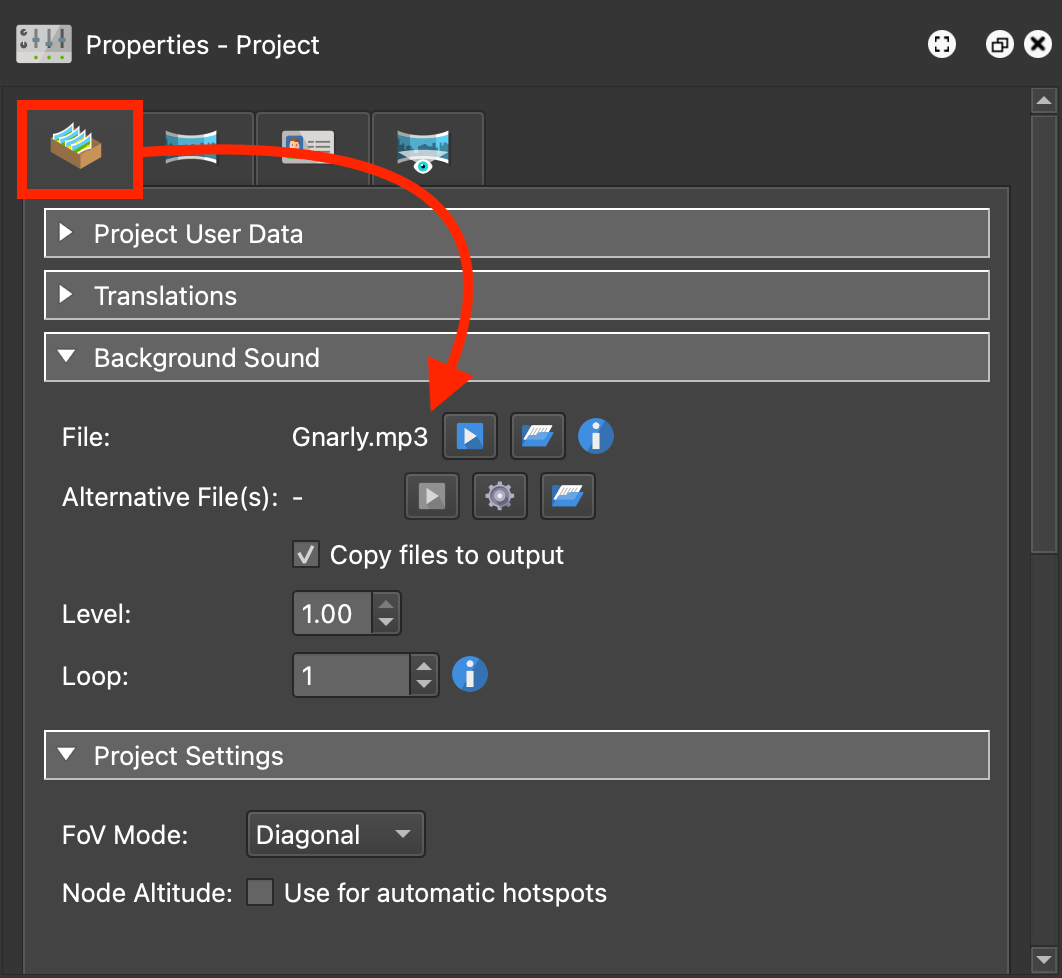
Project Background Sound, found in the Project Properties, will play back over the entire project. This is a good option if your project has only one background sound, like an ambient music track for the entire project.
If no background sound has been added to the nodes, then Project Background Sound will play back. However, if a node has background sound that is set to keep playing in other nodes, then the node’s background sound takes priority.
Add background sound in the Project Properties:
-
Open the Properties panel.
-
Open the Project Properties tab.
-
Scroll down to the Background Sound section.
-
Add a sound file by doing one of the following:
→ Choose, Open and navigate to your sound file.
→ Drag the file to Filename.
-
Adjust the level of the sound file. Consider lowering the audio level well below 100%.
-
Determine how many times the audio should loop. If you do not want the sound to begin at start up, choose a loop value of
-1. Choose0for an endless loop.
Node Background Sound
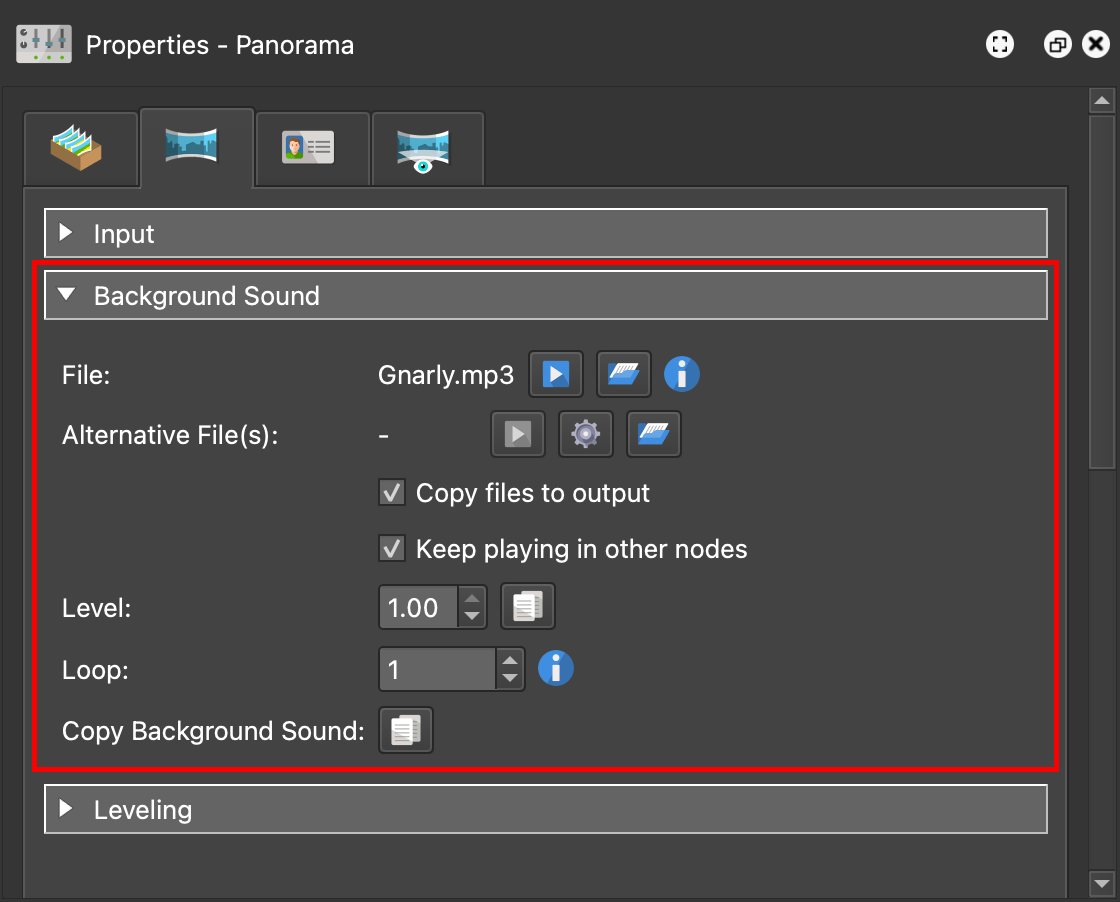
Each node can have a background sound and it’s added in the node’s properties. It is not a pinned sound. Background sound is good for adding background music specific to a node or group of nodes, or a sound effect.
These sounds will take priority over Project Background Sounds.
-
Open the Properties panel.
-
In the Background Sound section, add a sound file by doing one of the following:
→ Choose, Open and navigate to your sound file.
→ Drag the file to Filename.
-
Adjust the level of the sound file. Consider lowering the audio level well below 100%.
-
Determine how many times the audio should loop. If you do not want the sound to begin at start up, choose a loop value of
-1. Choose0for an endless loop. -
Click OK and test the panorama. Done!