Learn how to hide videos when they are not playing, how to fade videos in and out, and how to fill a video's container when there is an aspect ratio mismatch.
Hide videos when not playing
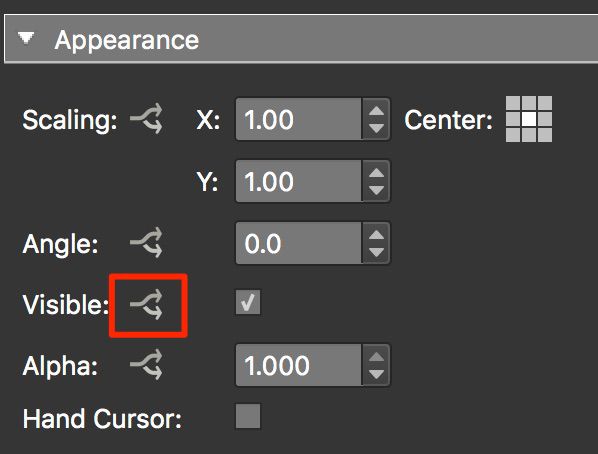
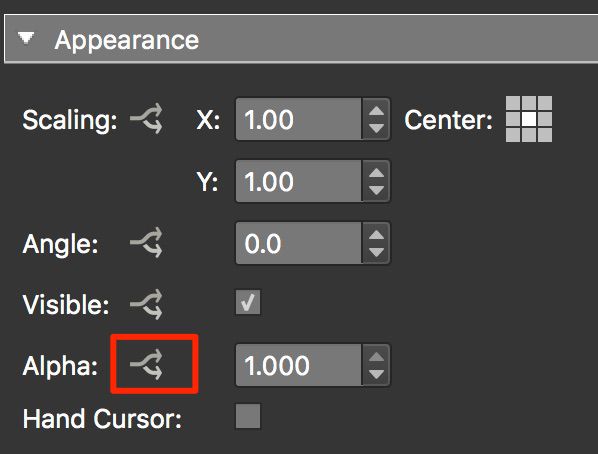
Click the arrows next to Visible to open the
Logic Block
for Visibility.
Logic Block for Visible
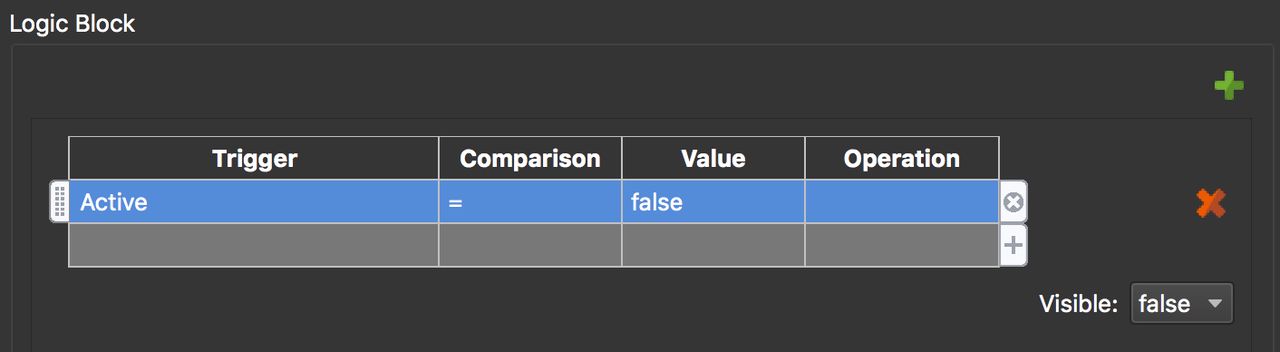
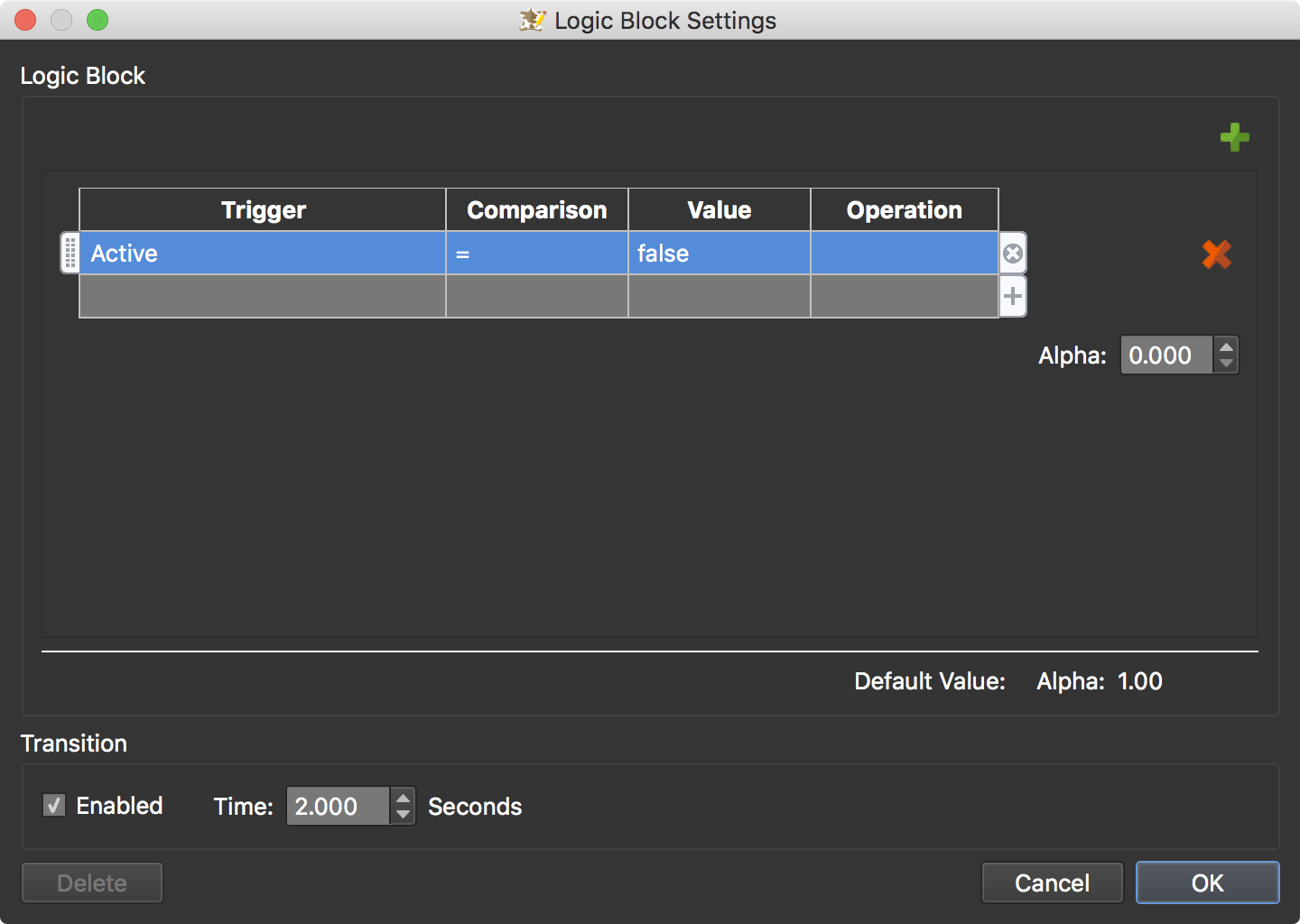
In the Logic Block, create the following expression:
Active Trigger in Visible Logic Block This
expression states that when the video is not playing it will not be visible;
it will hide itself.
★ Tip The Active trigger does not support YouTube and Vimeo videos.
Fade videos in and out
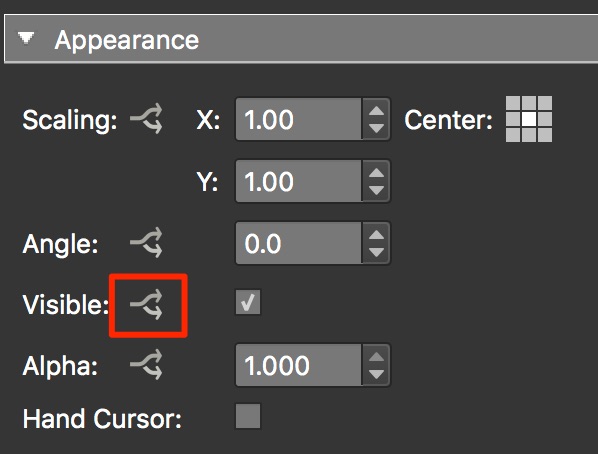
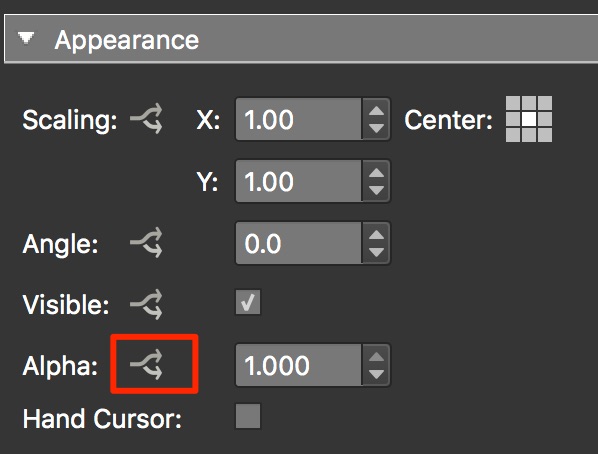
Click the arrows next to Alpha to open the
Logic Block
for alpha.
Logic Block for Alpha
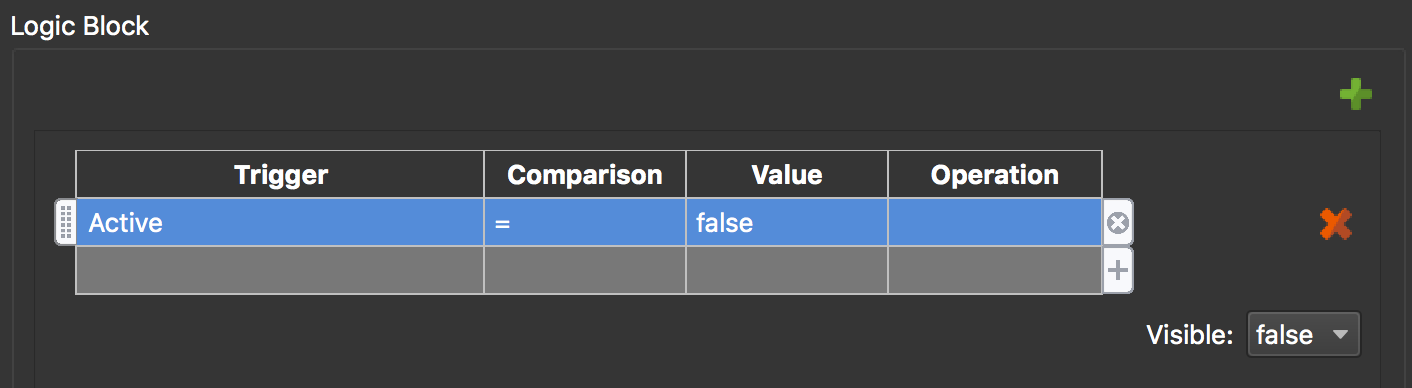
In the Logic Block, create the following expression:
Expression
Don’t forget to the set the transition time!
This expression states that when the video is not playing (not active), it will
hide itself with a transition from full opacity to transparent. So, if you have
a button that toggles play and pause, for example, the video will fade in and
out.
★ Tip The Active trigger does not support YouTube and Vimeo videos.
Filling the Video’s Container
Sometimes, a video’s container does not match the video’s aspect ratio. When
this happens you have a few ways to solve the problem.
Do nothing and just add the video to the element. The video will then resize
itself to fit within the borders of the container. Black bars may appear
left/right or top/bottom.
The other solution is to use a little CSS to make the video fill the container:
Open the video element’s Advanced pane.
In the field for CSS Style, add overflow: hidden.
And for CSS Styles Inner Element, add object-fit: cover.
✭ Note that this will work only for Video files and URLs but not for YouTube and
Vimeo videos.