This documentation is for an older version. View the current documentation.
Toolbar
Use the Toolbar at the top of the main project window to show or hide panels.

Click the buttons in the Toolbar to view/hide the following:
Input
Click the input button to add panoramas. You can also drag panoramas onto the Viewer and on to the Tour Browser to add them to the project. Click the input button to add panoramas. You can also drag panoramas onto the Viewer and on to the Tour Browser to add them to the project. Click the input button to add panoramas. You can also drag panoramas onto the Viewer and on to the Tour Browser to add them to the project.Edit
View
Tools
- Quick Share – Click to export the current panorama. The exported panorama will apply the default view so it is centered and if viewing limits have been applied, the image will be cropped to those limits.
Context Menu
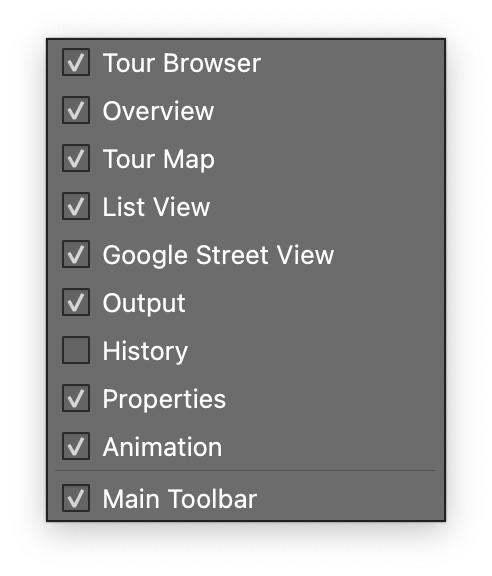
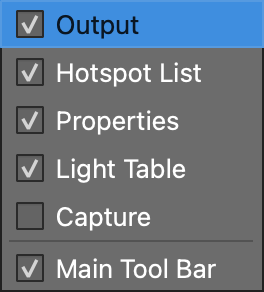
A context menu is also available, giving you another way to add the panels or to hide the toolbar. Right-click in the Toolbar or any panel header to bring up the menu.