Adding Sound
Use the Sound Mode to add directional and static sounds to your project.
Add Node Sounds
Node sounds are good for bits of narration or sound effects within a node.
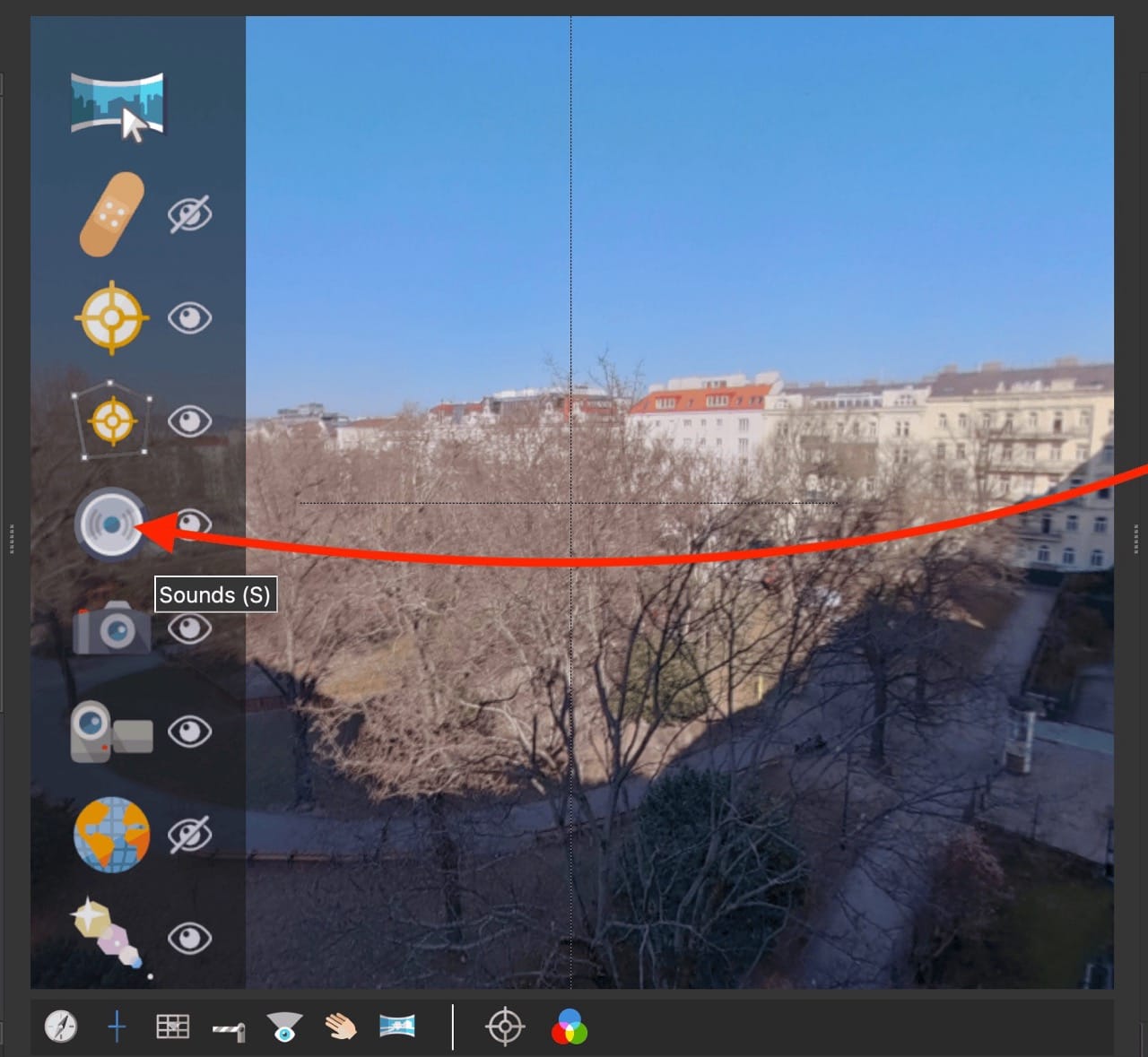
Add a sound by dragging it to the Viewer. The Viewer change to Sounds mode
and the default sound type will be a Directional Rectangular and will have
visible sound fields. Change any the settings listed below as necessary.
You can also manually activate Sounds mode:
-
Activate the Sounds mode in the Viewer.
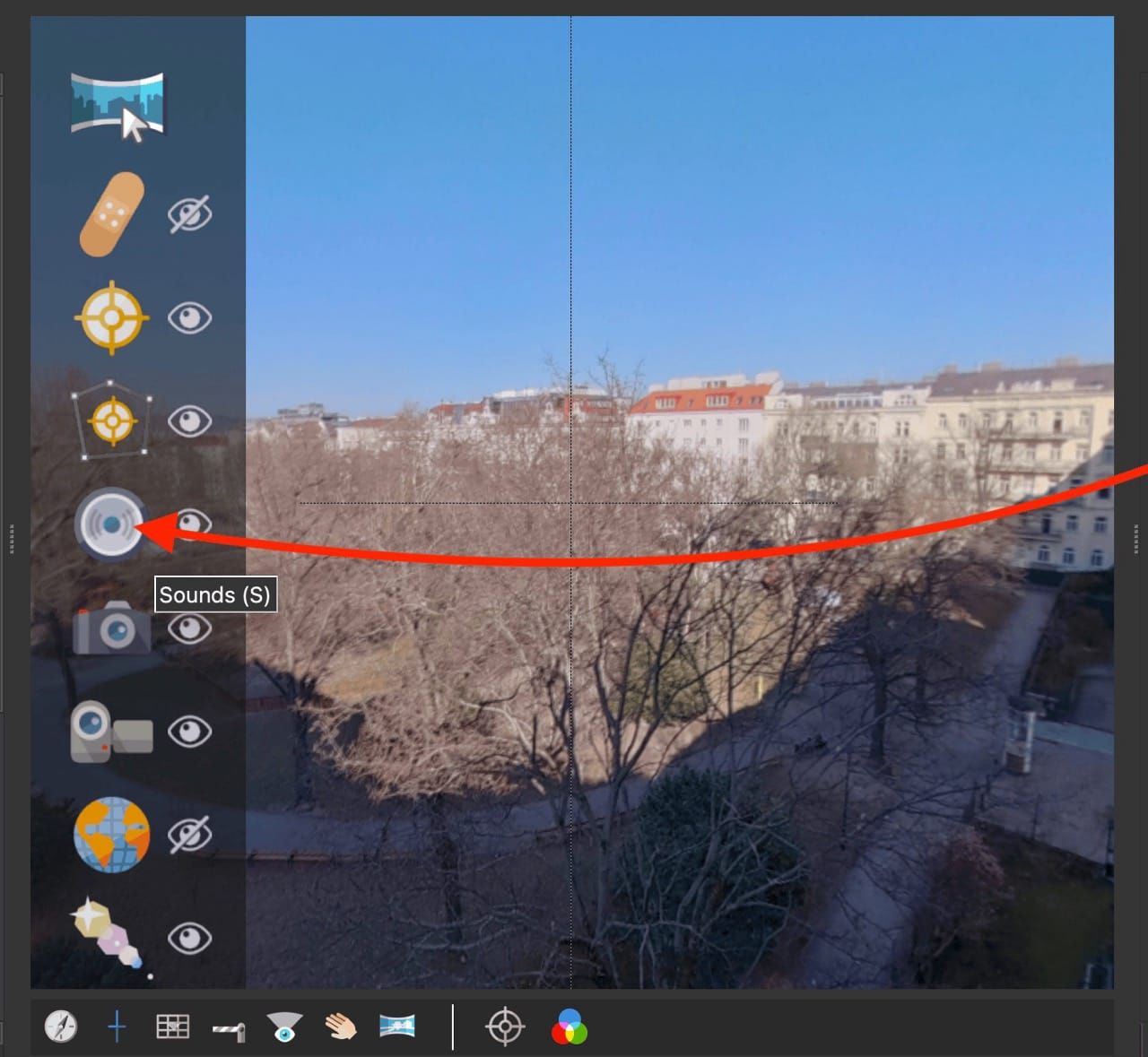
Sounds Mode -
Double-click in the Viewer to add a sound.
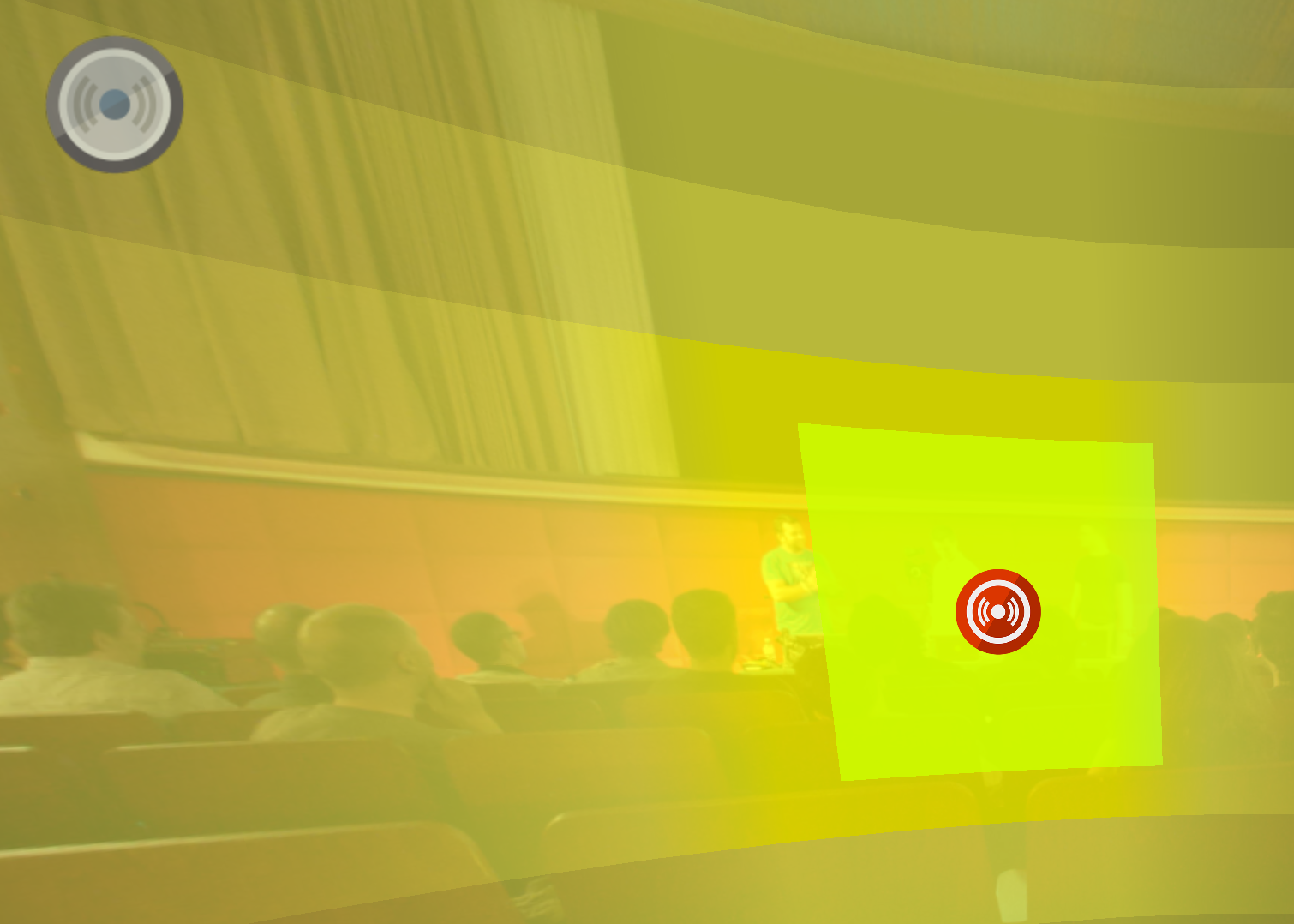
Once added, the default sound mode (directional rectangular) is applied and a yellow overlay, which is a visual representation of how the sound will be heard, appears.
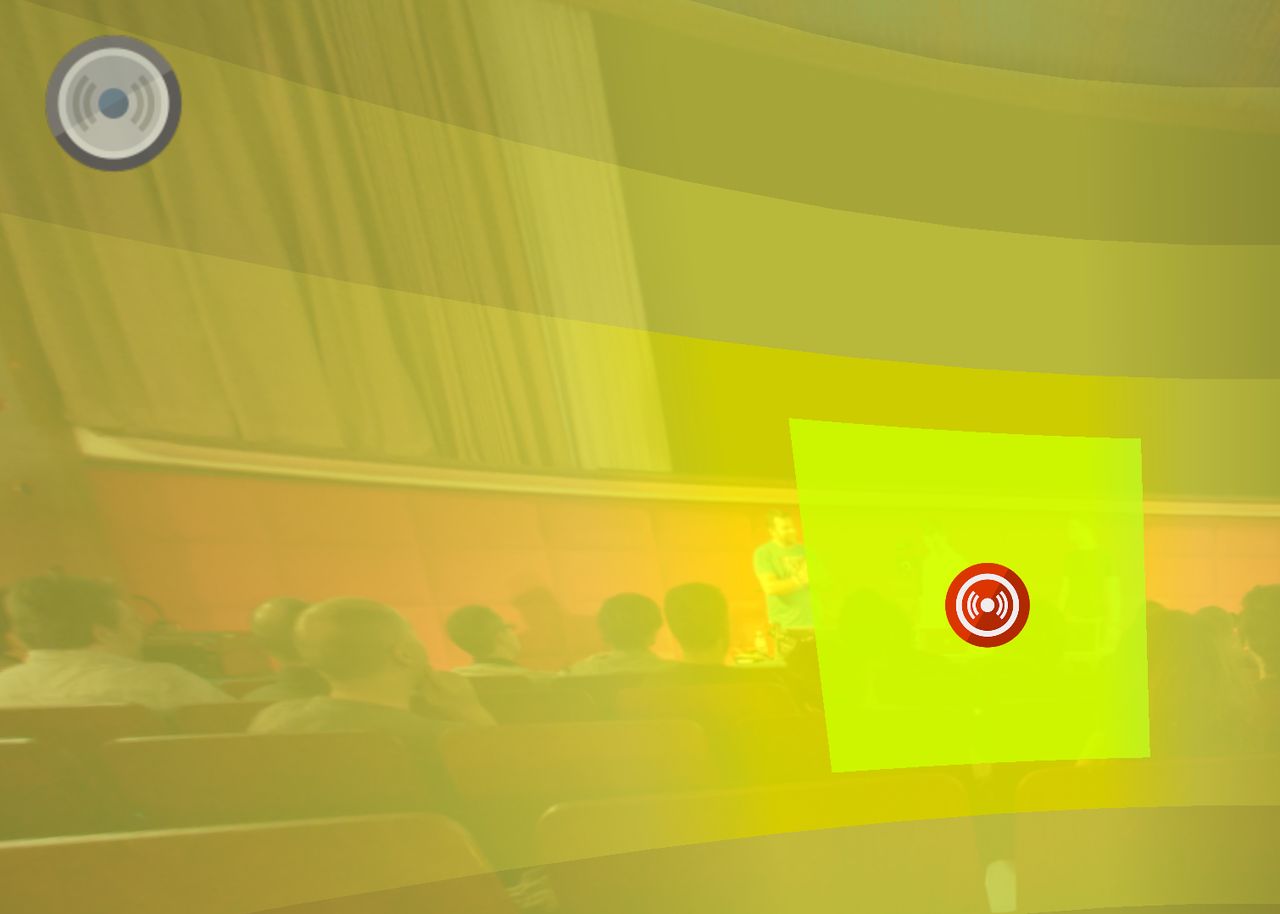
Directional Sound -
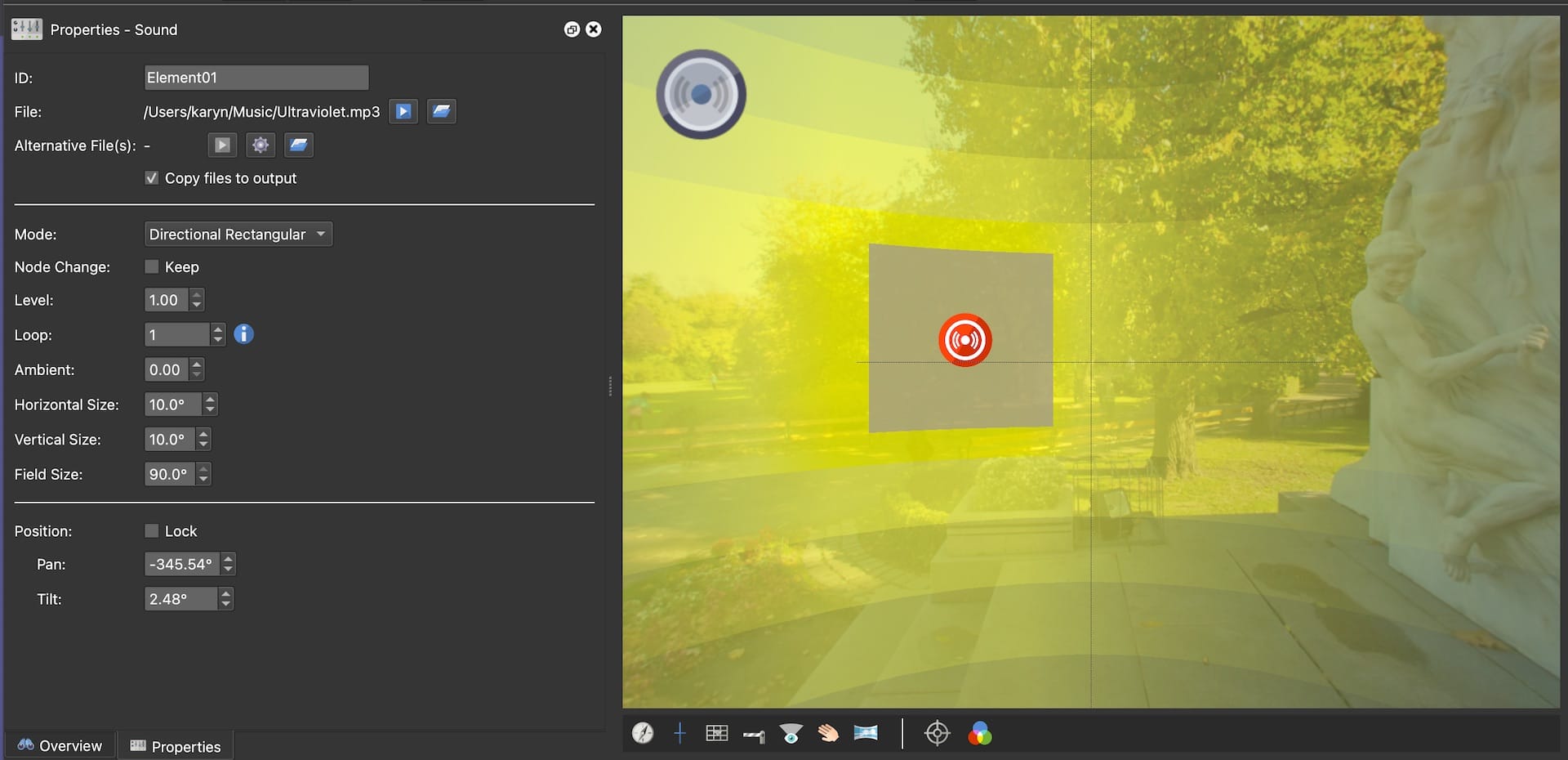
In the Sound Properties, modify the sound (all are optional):
→ Change the Mode.
→ Choose to keep the sound playing when changing nodes (
Keep) or not.→ Adjust the volume or Level. The default is 1.00 or 100%.
→ Change Loop.
0is an endless loop and-1prevents and automatic start.→ Set the Ambient level. This will allow the sound to be audible outside of the defined field (directional modes only). If the level is at
0, no sound will be heard outside of the field.→ Set the Horizontal/Vertical Size. This will change the horizontal/vertical size of the center portion of the overlay or where the audio is at 100%.
→ Set the Field size.
★ Tip If the sound field is getting in your way for placing other elements, change the type to Static. The settings will keep when you need to return to directional. -
Finally, output your project as a web output.