Add a Polygon Hotspot
Polygon hotspots require you to draw a shape as opposed to creating a single point of interactivity.
To add a polygon hotspot:
-
In the Viewer, open the Viewer Modes and select the Polygon Hotspot mode.
Or use the keyboard shortcut, O, to activate Polygon Hotspot mode.
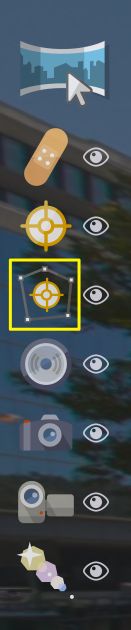
Polygon Hotspot Viewer Mode -
Draw the hotspot by first double-clicking in the image. Then move to the next point, click, and continue until the shape is finished. Double-click to finish the shape. It will have a red fill:
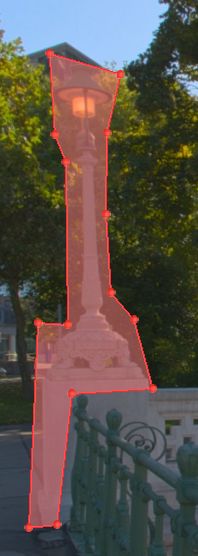
Drawn Polygon Hotspot in the Viewer ★ Tip You can also finish the polygon hotspot by pressing the button on the right or by hitting the ESC key. -
Select the Hotspot Type and add a Title and Description if necessary.
-
Select to use the default colors of the hotspots or customize them. The default colors are set in the Web Output Properties.
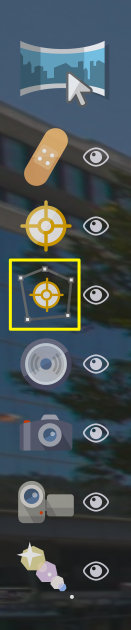
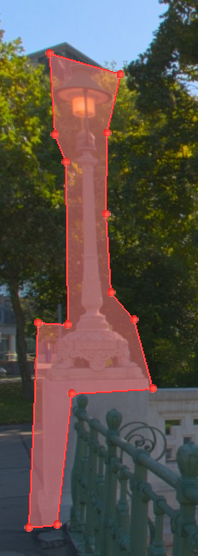
Edit the Hotspot
Once the polygon hotspot has been drawn, adjust the shape by dragging the handles (red dots).
To add more handles, click on the border of the hotspot
To remove a handle, right-click it.
To move the entire hotspot, click the move handle and drag the hotspot.
Delete a Polygon Hotspot
-
Select the hotspot (it will turn red) and hit the delete key. Poof!
-
In List View, select the hotspot and either hit the delete key or click the “x” to the right.