Skin Modifiers
Use modifiers to affect a skin element's behavior. Open the Modifiers panel and double-click in the table or click the plus sign to the right to open the Modifier Settings.
Modifier Settings
Double-click in the Modifiers area or hit the plus sign to the right to open the Modifier Settings.
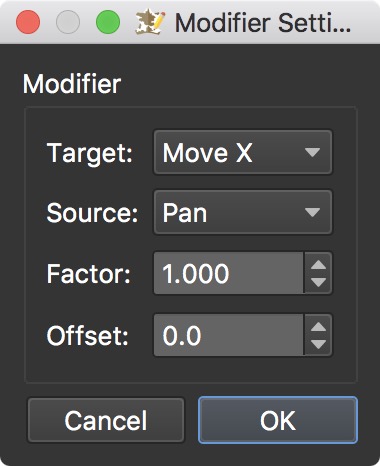
Target – Choose from the menu how the object will be modified. The element can be modified to Rotate, and Scale and Move along the X and Y axes.
Source – Choose what causes the selected Target value. For example, if you had a radar image, you would want that image to rotate in relation to the panning movement of the panorama. Therefore, you would set the Target Value as Rotate and the Source Value as Pan.
Factor – Set the level of the Target value. For example, if the loading bar should only scale to its original size, the Factor should be set to 1. If the the loading bar should scale to twice its size, the Factor should be set to 2.
Offset – Set from where the Source value begins. An offset of 0 means it starts from its original position. Or, in the case of Scaling, an offset of 1, for example, will start the scaling later so a portion of the loading bar is seen from the beginning of the load time.
Target Value
Target Value is what the element will do (move, scale etc.).
Move X
This will move an element along the X axis.
Move Y
This will move an element along the Y axis.
Scale
This will scale an element’s size along both the X and Y axes.
Scale X
The will scale an element along the X axis only.
Scale Y
The will scale an element along the Y axis only.
Rotate
This will rotate an element.
Source Value
Source Value determines what action will generate the values used by the Target Value.
Pan
When the panorama is panned the resulting angle data will affect the Target Value.
For example, add this to the target value, Rotate, and the element will rotate as the image is panned.
This could be used to show direction.Pan North
When North is correctly set in User Data, this can be used for skin elements like a Compass or Map.
Set North in your image and then add a radar beam with the Pan North modifier. It will point in the correct direction, with North being in the 12:00 direction. You can see this applied in the controller_new_radar built-in skin.
Tilt
When the panorama is tilted up or down, the angle of tilt is sent to the Target Value.
For example, use this with the target value of Move Y, and as the panorama tilts up and down, an element would also move up and down.
FoV
When zooming in or out of a panorama or object, the FoV data is passed on to the Target Value.
If Move Y is the target value, as you zoom in and out, the element would move up and down.
Example: Use to give a visual indication of level of zoom.
Roll
When the panorama is rolled, as when used on a mobile device, this is passed on to the Target Value.
Use this to keep skin icons rolling with the panorama. Set
Rotate as the Target and Roll as the Source. Use a factor
of -1.0 to keep skin icons rolling with the panorama.
cos(Pan)
cos(Tilt)
This source value is commonly used with Scale Y when making radar beams. When the panorama tilts up and down, this scales the beam so it looks as if the beam moves up and down.
tan(FoV)
This source value is to be used with the Scale Target Values. tan(FoV) changes the scale of an element with regards to FoV (zoom).
For example, when used with Scale X, tan(FoV) will adjust the width of a radar beam when zooming in and out.
Zoom
This will scale the element relative to FoV.
For example, add this to a Hotspot template and as you zoom in and out, the hotspot will get smaller and larger.
Mouse X
Commonly used with Move X to have an element follow the mouse along the X axis.
Mouse Y
Commonly used with Move Y to have an element follow the mouse along the Y axis.
Loading
Commonly used with the Scale Target Values to build loading bars, etc.
Factor
This is a multiplier for the Source Value. It determines how much, and how fast the Target Value will be affected.
★ Tip: When using the Zoom modifier to scale an element with zoom, you may need to adjust the factor to correct the element’s size.
Offset
If something is not the correct size or direction, use this to make adjustments.
★ Tip: When used with rotate with pan, use this to correct the starting position.