Generate an Alternative Video File
An alternative video file can be converted from within the Video Mode's properties.
-
Set the converter up as FFmpeg is needed.
-
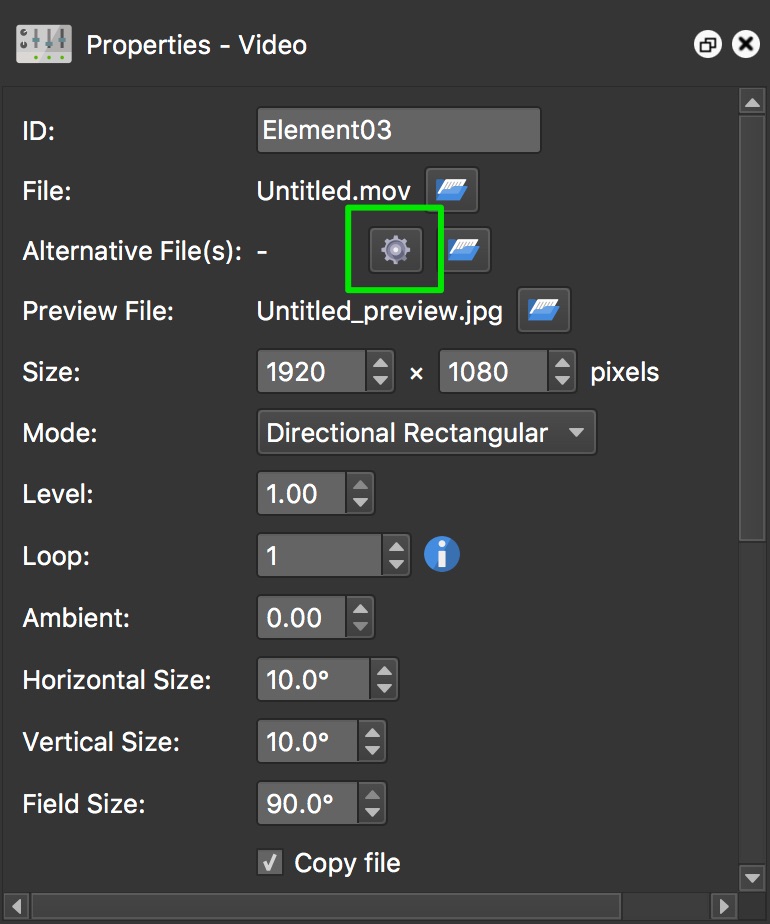
With the video selected, open the Properties panel if not already opened.
-
For Alternative File, click the gear icon to open the converter.
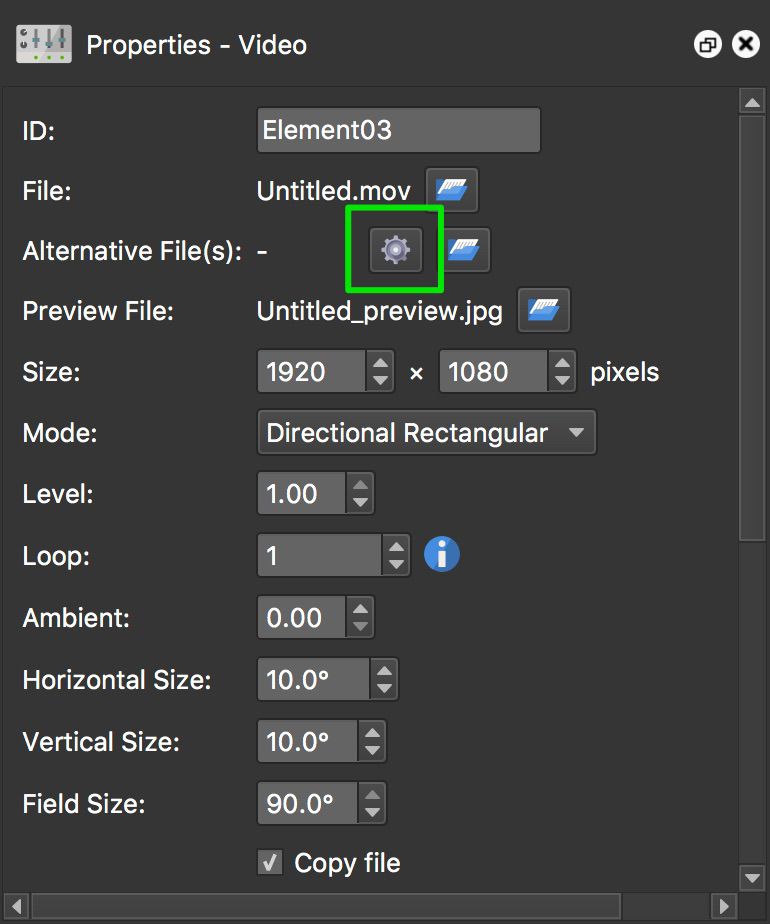
Click the gear icon to open the converter. -
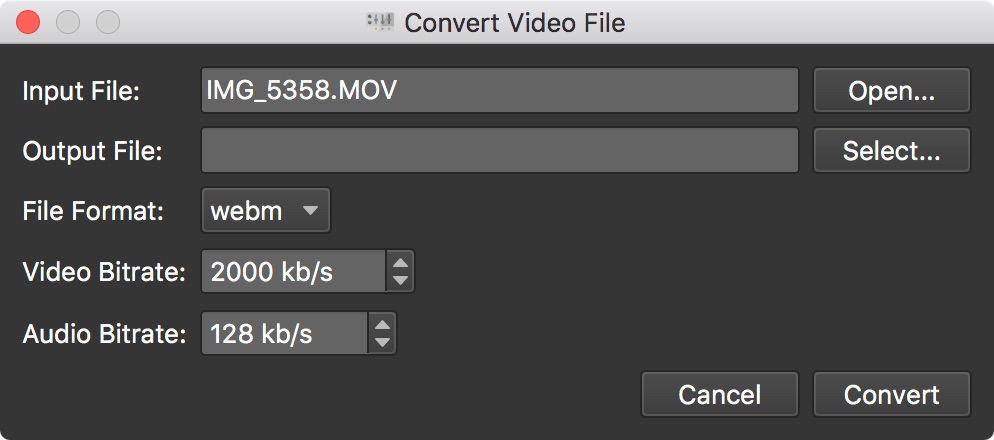
In the Convert Video File dialog, input file path will be populated. But if this needs to be changed, click Open.
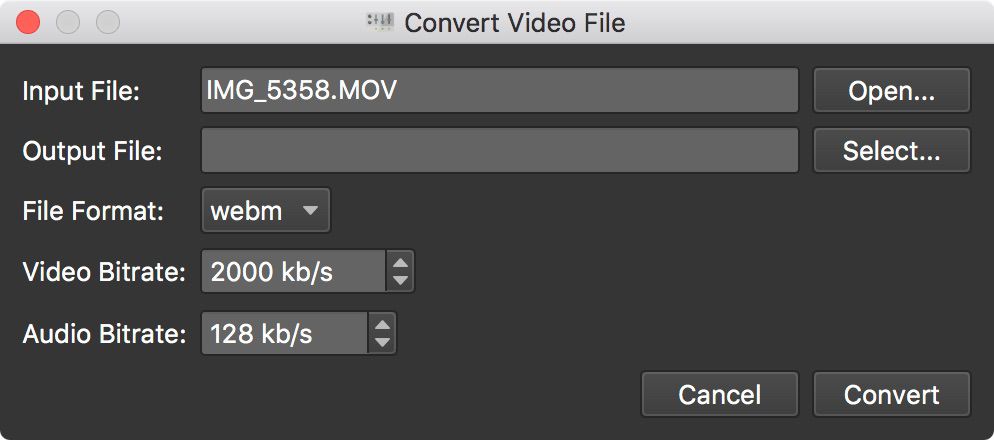
Convert Video File dialog -
For the Output File, click Select to choose the output folder and filename.
-
Select the file format.
-
Change the bit rates. The suggested video bit rate of 2000 kbps is good. For good quality video, it’s best to not go below this. The audio bitrate can be raised to 192 kbps but will produce a larger file.
-
Click, Convert. Once the conversion begins, you’ll see a progress bar and a Details button. Click this to watch the log. Once it’s finished the generated file will appear in the Alternative Files list, with the option to add another generated file.