Adding Point Hotspots
Point Hotspots are points of interactivity within the project. Learn how to add them to your project.
To add a point hotspot:
-
Open the Viewer Modes drawer by hovering the mouse over the right edge of the Viewer. Select the Point Hotspot mode.
Or, use the keyboard shortcut, P, to activate Point Hotspot mode.
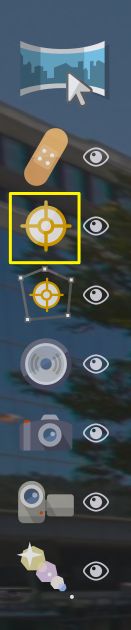
Point Hotspot Viewer Mode -
Double-click anywhere within the Viewer to add a point hotspot. A red target icon, will appear representing this point.
The current hotspot (that is being edited) is red and is edited in the Properties. A non-active hotspot is blue.
Drag to Add
You can also drag videos, YouTube URLs, Vimeo URLs, images, website URLs, and PDFs into the Viewerwhen the point hotspot viewer mode is activated. Each element will be recognized appropriately and the correct hotspot type applied.
Notes
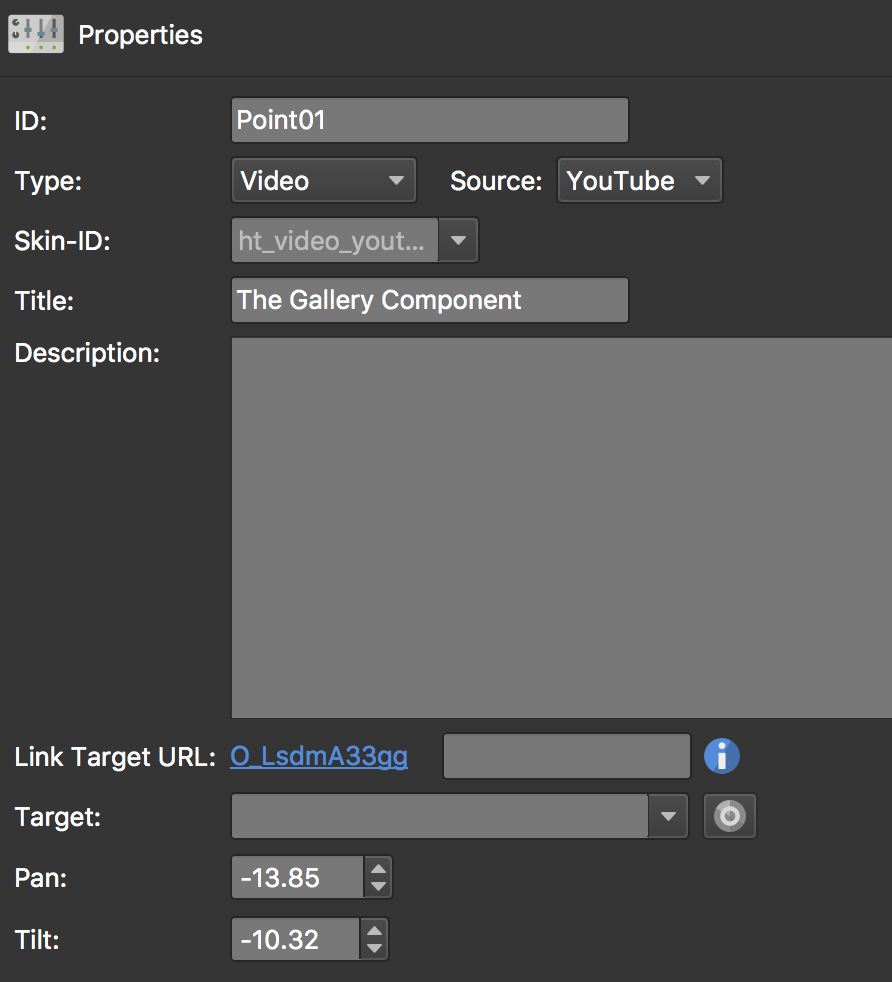
When dragging a video (local file, URL, YouTube, Vimeo) to the Viewer, the Type and Source will be automatically selected. YouTube and Vimeo links will be added along with their video titles.
For Video URL source hotspots, add the web address of the video (if other
than Vimeo or YouTube): https://www.example.com/myvideo.mp4.
If using Vimeo or YouTube, add the video’s URL:
https://vimeo.com/159223909
URLs with timestamps are supported:
https://youtu.be/jC6GJ4FRq0M?t=67https://vimeo.com/73214621#t=3m13s
Delete a Point Hotspot
To delete a point hotspot, do any of the following:
- Select the hotspot (it will then be red) and hit the delete key. Poof!
- In List View, select the hotspot and either click the “x” to the right, or right-click and choose, Delete.
Lock Hotspots
Point Hotspots can be locked in the Viewer so they are not accidentally moved or deleted.
In the Viewer, Shift-click the point hotspot to lock. Alternatively, select Auto Place/Lock Position in the hotspot’s properties.