Auto-hide Skin Elements
Learn to use a Timer's logic block to hide elements, like a menu, during user interaction.
The basic set-up to hide elements
-
Open the Skin Editor.
-
Add an element. A Text Box, for example.
-
Add a Timer element by first selecting it in Toolbar and then drag around the Text Box in the Canvas. The Text Box will become a child of the Timer.
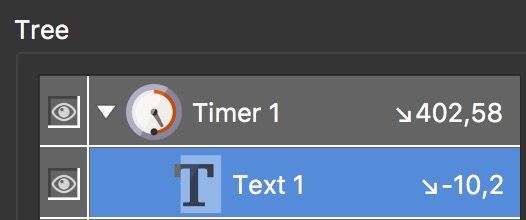
Text as a child of a Timer -
In the Timer properties, open the Timer panel and select Player Inactive for Type.
-
Set Timeout to
2seconds. Keep Repeat set to One Time. -
In the Appearance panel, notice that the arrows next to Visible are orange. This means there is already a Logic Block applied. Click the orange arrows to open the logic block.
The Logic Block states that if the Timer is not active, the Timer (and all of its child elements) will not be visible. This is an expression with one condition.
We just need to make one adjustment to this expression so that the text box hides when we interact with the panorama.
-
Change the Value from false to true.
Now it states if the player is inactive (meaning, no user interaction) and the Timer is is now active (value = true), then the Timer and all its children will hide (visible = false). Then, after 5 seconds (the timeout set in the Timer properties) the Timer becomes inactive and the Logic Block falls back to the default value of Visible = true.
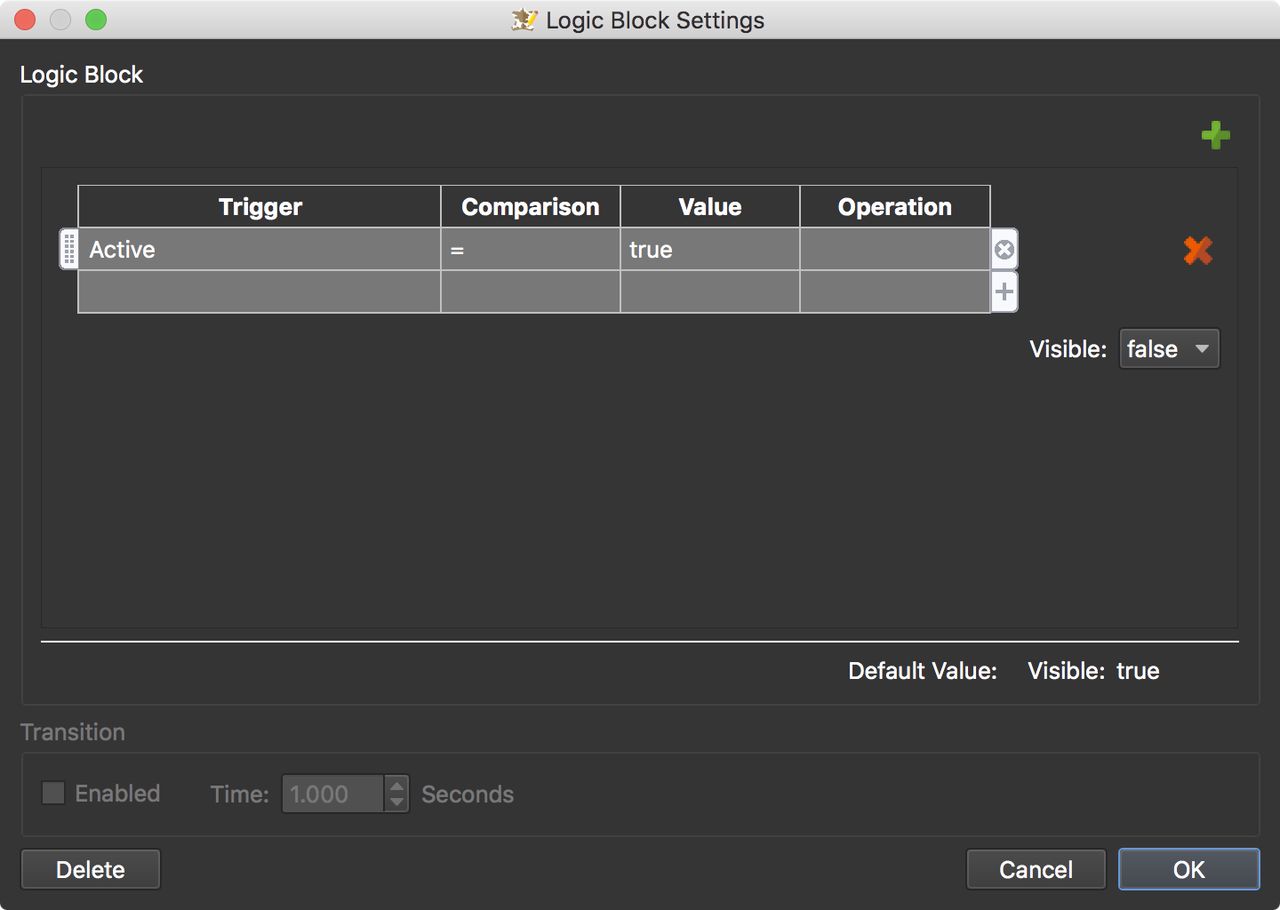
Timer hides elements Click OK to close the settings.
-
Use Live Preview to see it in action. When you spin or interact within the player, the text box will hide and when you stop interacting, the text box will appear again.
-
Save the skin.
Hide elements only during interaction
In the above example, the Text Box starts hidden and doesn’t appear until after interaction. But, what if you had a menu showing initially and only wanted to hide it during interaction? For, this, you’d have to not make the Text Box (or menu) a child of the Timer. Again, we’ll use the Text Box as an example, but you could hide an entire menu or even the entire skin in this manner.
-
Add a Timer to the Canvas.
-
Add a Text Box to the Canvas.
-
Add a variable. Open the Skin’s Properties (click anywhere outside of the Canvas) and add the following variable:
Name Type Init Value var1 True/False false -
In the Timer’s properties, add a few actions:
Source Action Type Target Activate Visibility Hide Element Text 1 Add an Action Filter: Trigger = var1; Comparison ==; Value = true.Source Action Type Target Deactivate Visibility Show Element Text 1 Source Action Variable Name Operation Value Deactivate Set Variable Value var1 Set(=) true -
Save the project and test the output. The element should show initially, then hide when you interact with the panorama. And then it should return to being visible.