Direct Node Access
Direct node access (DNA) allows you to link directly to a node by using it’s internal node ID.
To enable this feature:
-
Create a web output.
-
In the HTML template settings, select Direct node access.
Once the project is outputted, append the hash character and the node number at
the end of the URL: http://ggnome.com/example/tour/index.html#node2
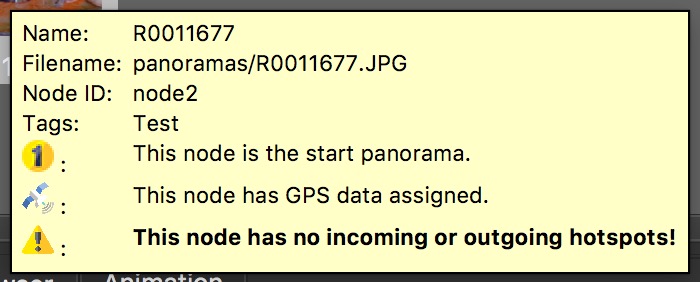
To show each image’s node ID go to Pano2VR’s Settings/Preferences, and select Show internal node ID in the Advanced tab. You will then see the node number in the tooltip that appears in the tour browser.
Custom Node ID
Each node can also have a custom node ID that can be used in place of the internal node ID.
In the User Data panel, add the ID to the Custom Node ID field. You can then
link to the node directly using that ID:
http://ggnome.com/example/tour/index.html#kitchen
✭ Custom IDs should not have any spaces or special characters.
Specify the Starting View
Starting views can be specified by appending pan, tilt, fov, and projection values separated by comma:
http://ggnome.com/example/tour/index.html#node5,0.0,90.0,120.0,9
This will have a starting view of looking up, with a stereographic projection, and a wide fov.
Projections: 4 = rectilinear 9 = stereographic 12 = fisheye
Show Node ID in Browser
All the instructions above are for manually adding the node ID to the URL to link directly to a node. To always show the Node ID in the browser’s address bar do the following:
- In the skin, add a Container.
- Give it the follow
action: → Source = Node
Changed → Action = Go to URL → URL =
javascript: history.replaceState({}, player.userdata.title, location.href.replace(location.hash,"") + '#' + player.getCurrentNode());→ Target = blank
Now, when you open the project, the URL will contain the node ID:
https://vtour.cloud/c0ri5xnp/skybox/index.html?ts=2910190975#node7
If you’re using custom node IDs, use the following in the URL field for the
container’s action:
javascript: history.replaceState({}, player.userdata.title, location.href.replace(location.hash,"") + '#' + player.userdata.customnodeid);
The URL will use the custom node ID:
https://vtour.cloud/c0ri5xnp/skybox/index.html?ts=364843769#crow