Setting Up a Google Maps API Key
In order to use Google Maps in the Tour Map, or to add Place IDs for Street View, or to use Google Maps in the skin, you will need a Google Maps API key. Google requires this key for anyone wishing to use or embed their Maps JavaScript API (Google Maps).
If you want to use Google Maps in the Tour Map and for Place ID for Street View and for the map element in the skin, we suggest creating multiple keys. One key for use in Pano2VR and for Place ID, and one for the Tour Map and skin. The latter should be domain locked.
The workflow is:
- Create an account on the Google Cloud Platform.
- Add a billing account.
- Create a Project.
- Add APIs.
- Receive the API key.
- Restrict the key.
Get the API Key
-
Go to the Google Cloud Platform.
Click Finish Account Set Up. Follow the prompts to set up your account.
If you have already added a credit card, click, Get Started in the upper right corner to log in or go directly to the Google Cloud Console as instructed in the video above.
-
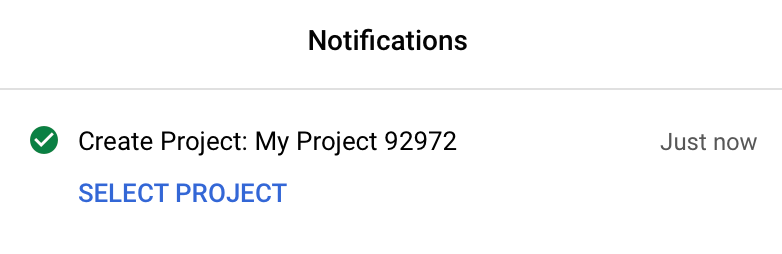
Create a new project and name it accordingly. You will need to select a billing account. Once the project is created, open the notifications and click, Select Project.
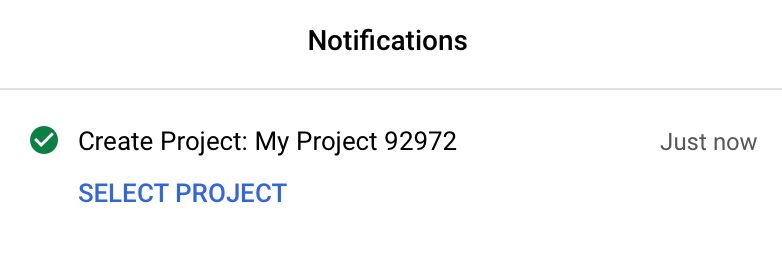
New Project created. -
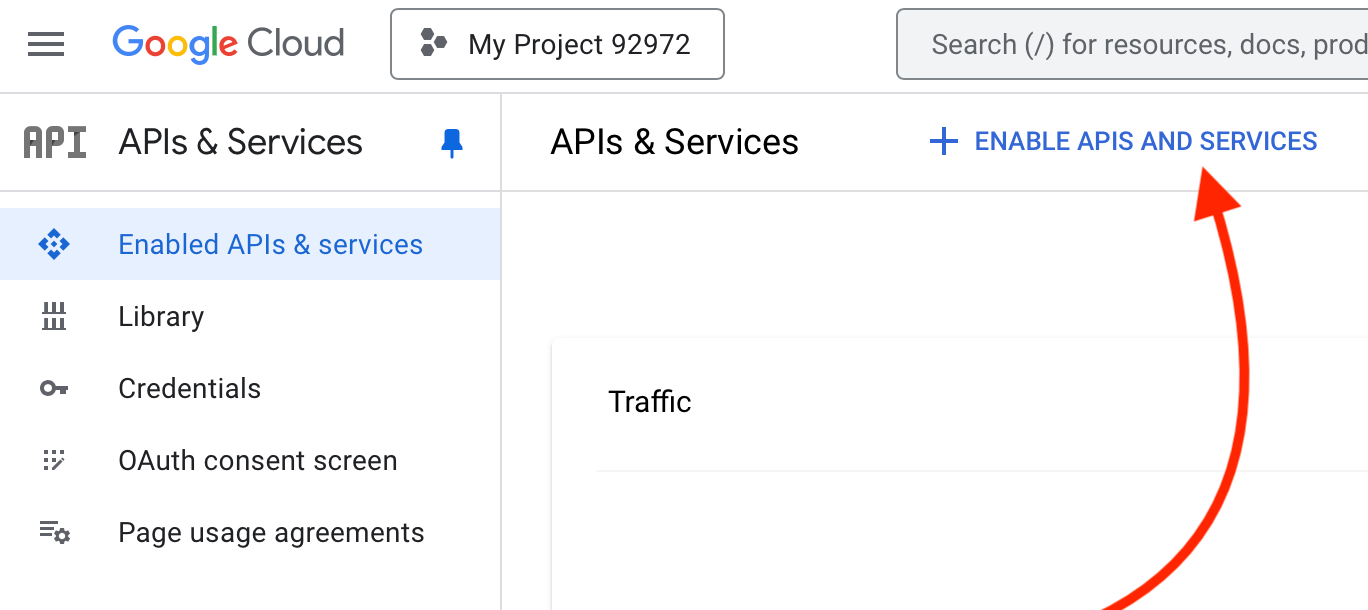
Enable some APIs. Go to the APIs & Services page and click, Enabled APIs & services. Click Enable APIs and Services.
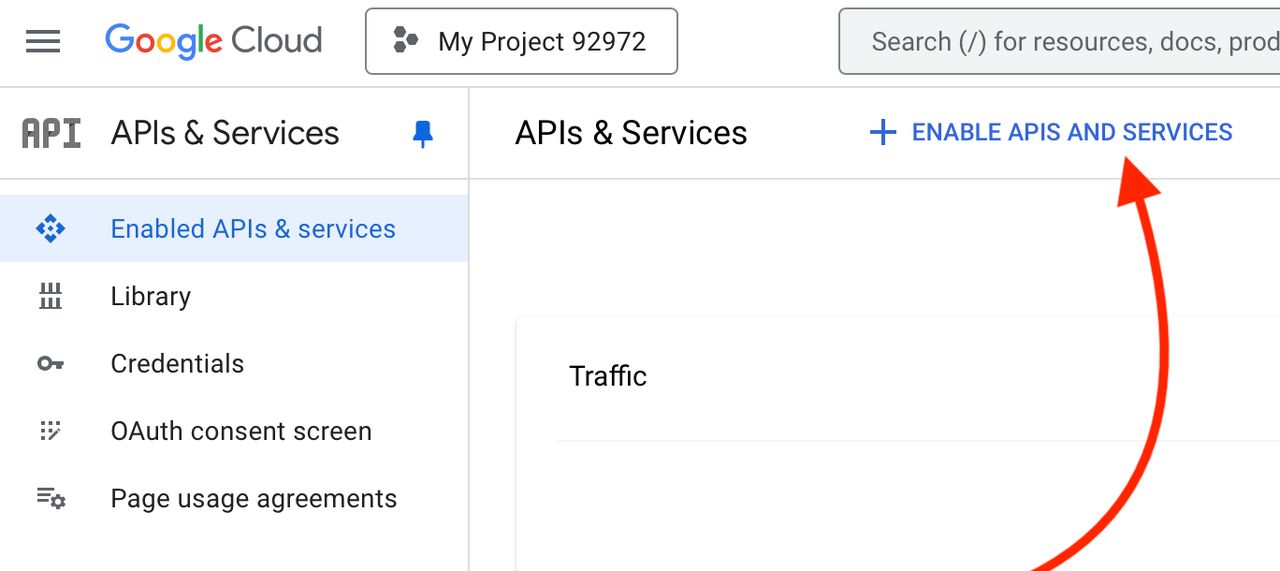
Enable APIs -
Add the Maps JavaScript API.
After adding the first API, you will receive your key. This API is used in the two API keys we suggest to create. Now you can move on to customize the API key according to the next instructions.
API Key for Google Maps in Pano2VR
This API key is for use within Pano2VR. That is, for viewing Google Maps in the Tour Map and for Street View (adding a Place ID).
We recommend restricting the key to a few APIs, but to not add a domain lock.
-
In the Google Cloud Platform, go to the project that is associated with the key.
-
Make sure the following API’s are enabled:
- Maps JavaScript API
- Places API (required up to Pano2VR 7.1.8) or Places API (new) (required for Pano2VR 7.1.9 and later)
- Geocoding API
You can find out what you have enabled by going to APIs & Services > Enabled APIs & Services.
★ Tip Optionally, add the Elevation API as well if you are using Altitude. -
Restrict the key to these APIs. Go to Keys & Credentials.
-
Click on the key.
-
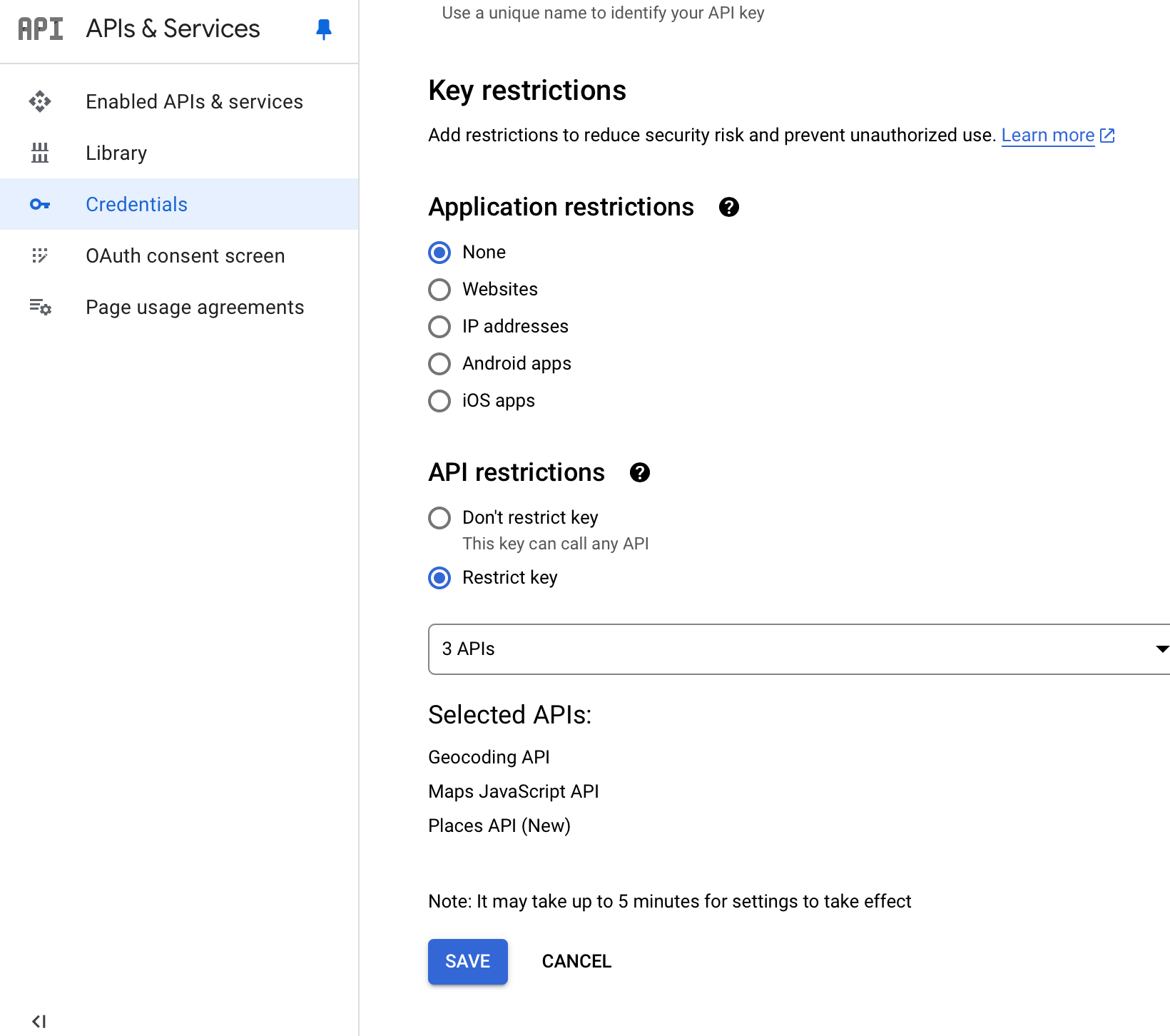
Under Key Restrictions, go to the API restrictions tab. Select the Maps JavaScript API, Places (new) API, and Geocoding API. Make sure None is selected for Application restrictions.
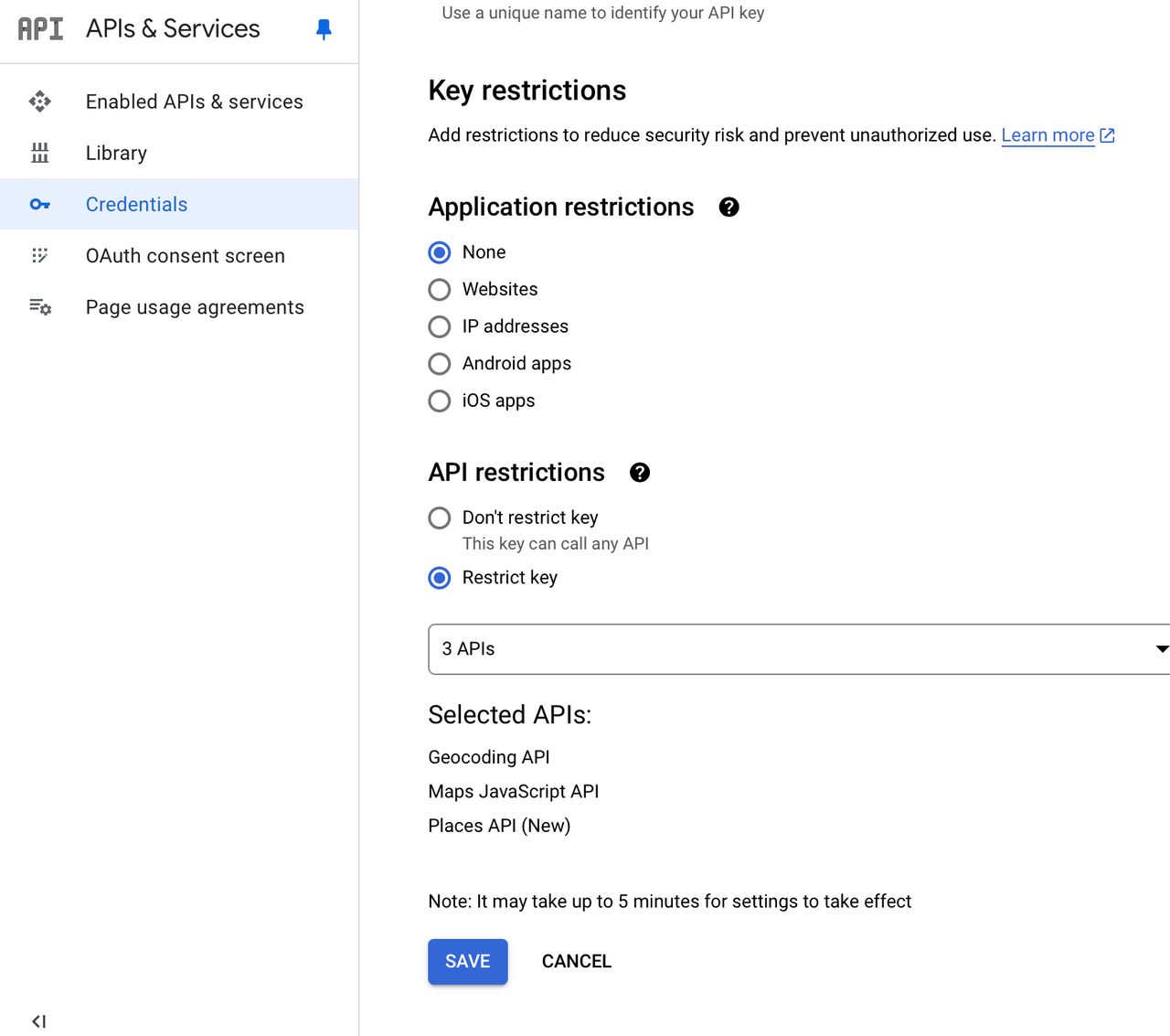
Restrict APIs -
Save.
-
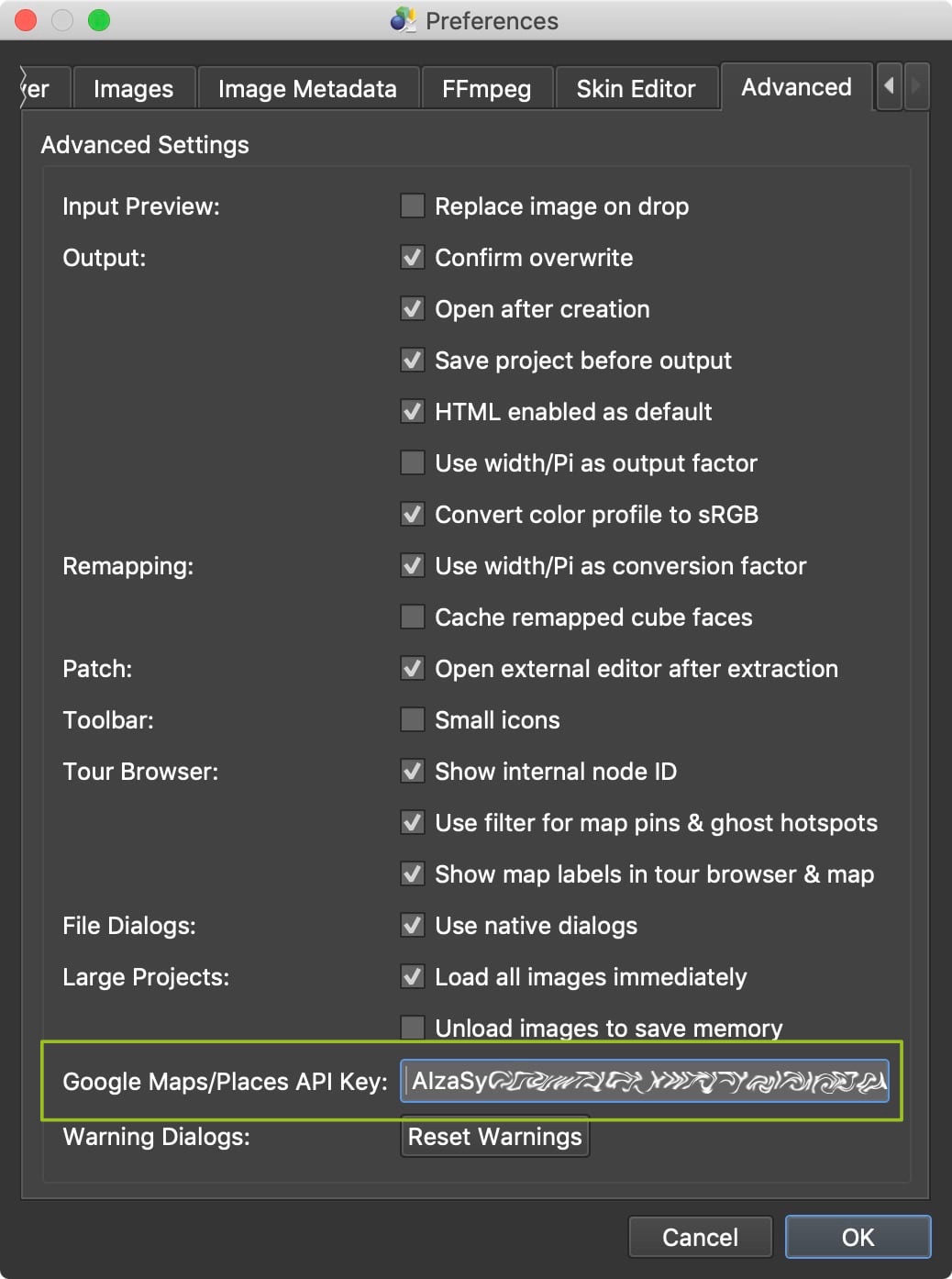
Open the Settings/Preferences in Pano2VR and add your key to the API field under the Advanced tab.
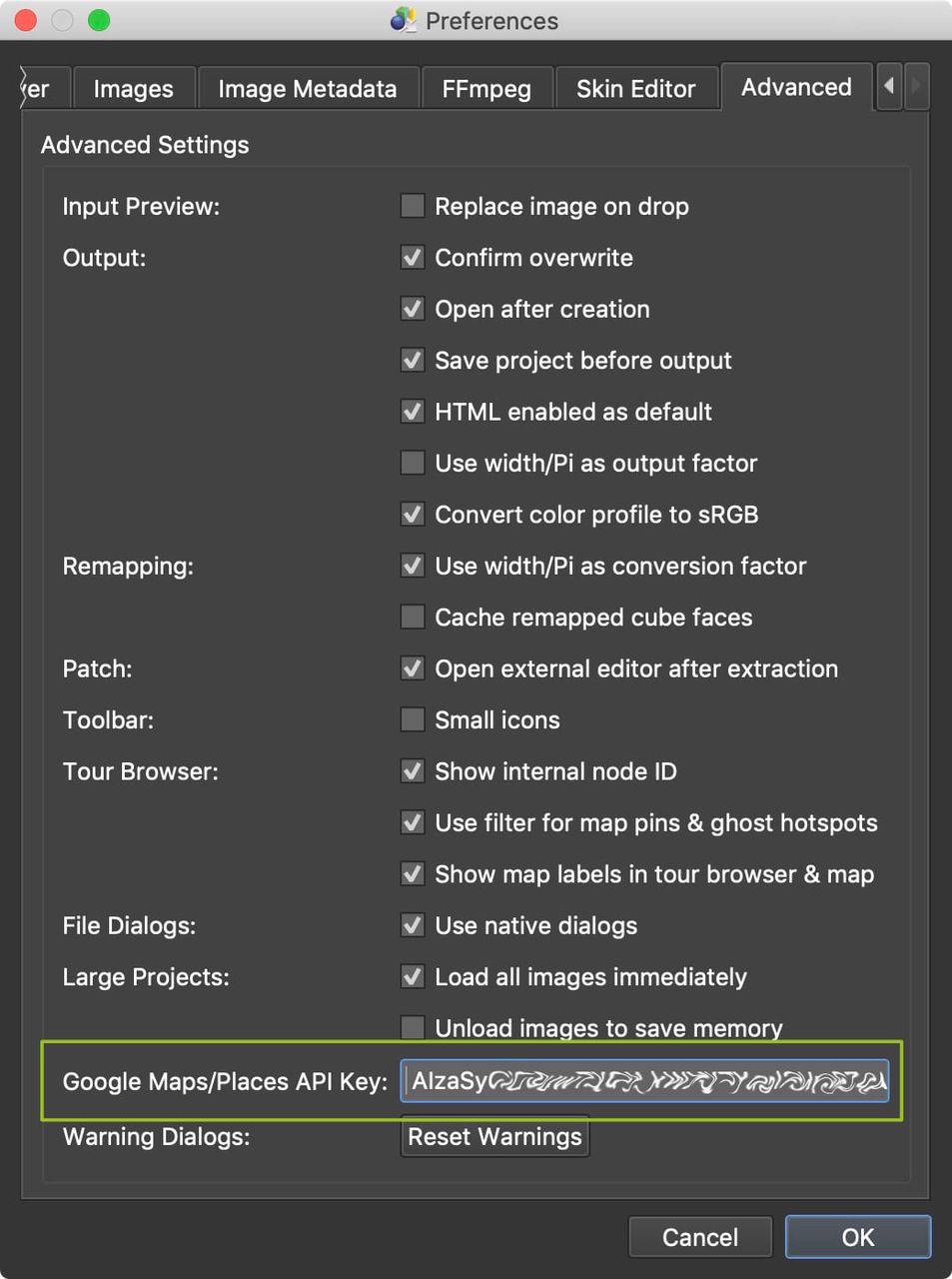
Add your API key to Pano2VR’s settings.
If you’d like to have another key that is used for the output and restricted to a domain, create a new key and follow the instructions for creating a key for the Tour Map.
API Key for Tour Map
These instructions are for a key that will be used in the In the Tour Map and Map Element in the skin. And therefore, will be used in the output. It’s best practice to have a new key for every project. This way if you need to block a key, not all maps are gone for all projects.
Once you have your key, we recommend restricting the key to a few APIs and a domain.
-
In the Google Cloud Platform, go the project that is associated with the key. You will probably already see a warning by Google.
-
Enable the following API: Maps JavaScript API. You can find out what you have enabled in Enabled APIs & services.
-
Go to APIs & Services > Credentials.
-
Click on the key to restrict.
-
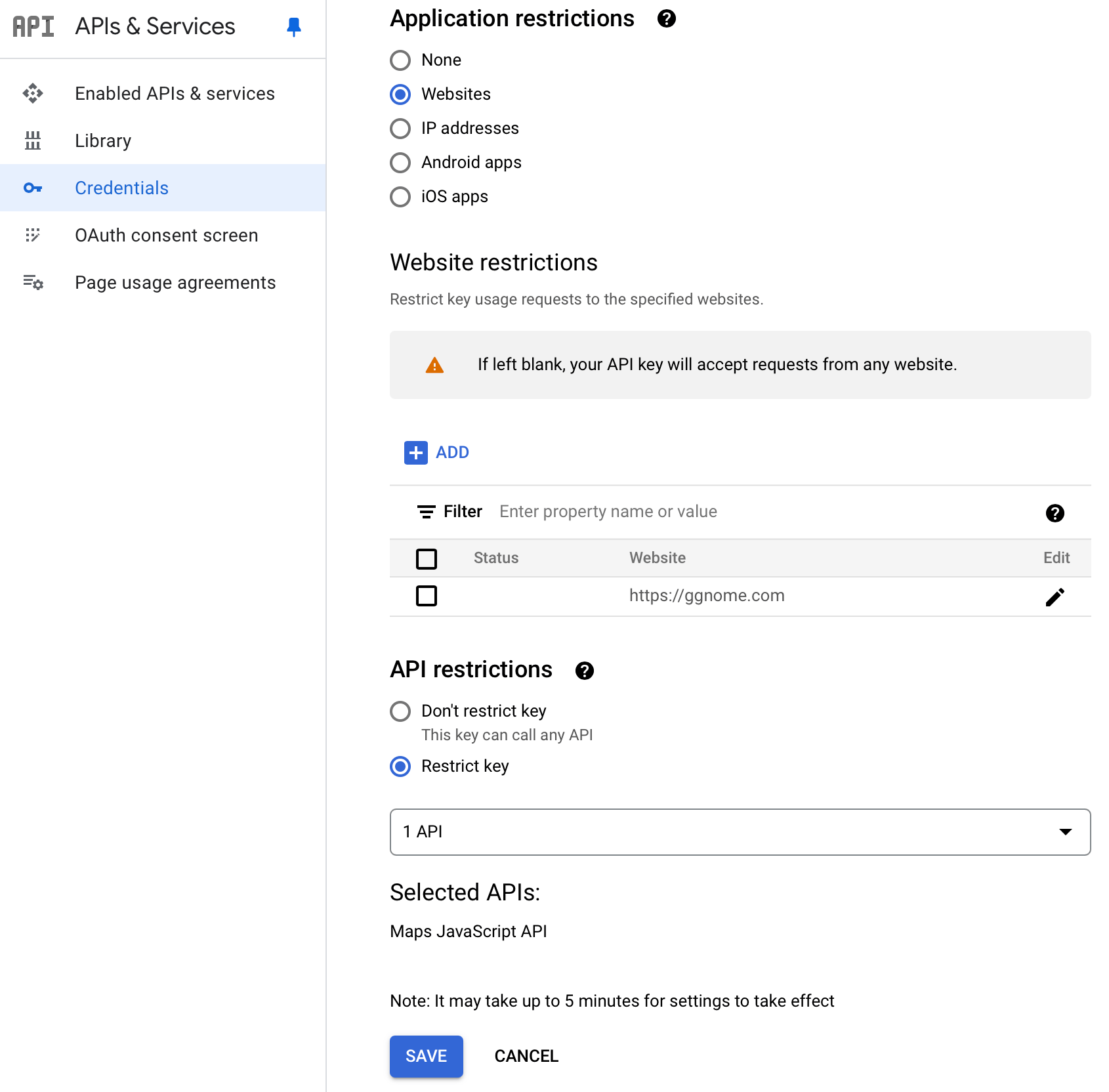
Under Application restrictions, Select Websites. Click Add and then enter the domain to lock the key to.
-
For API restrictions, select Maps JavaScript API.
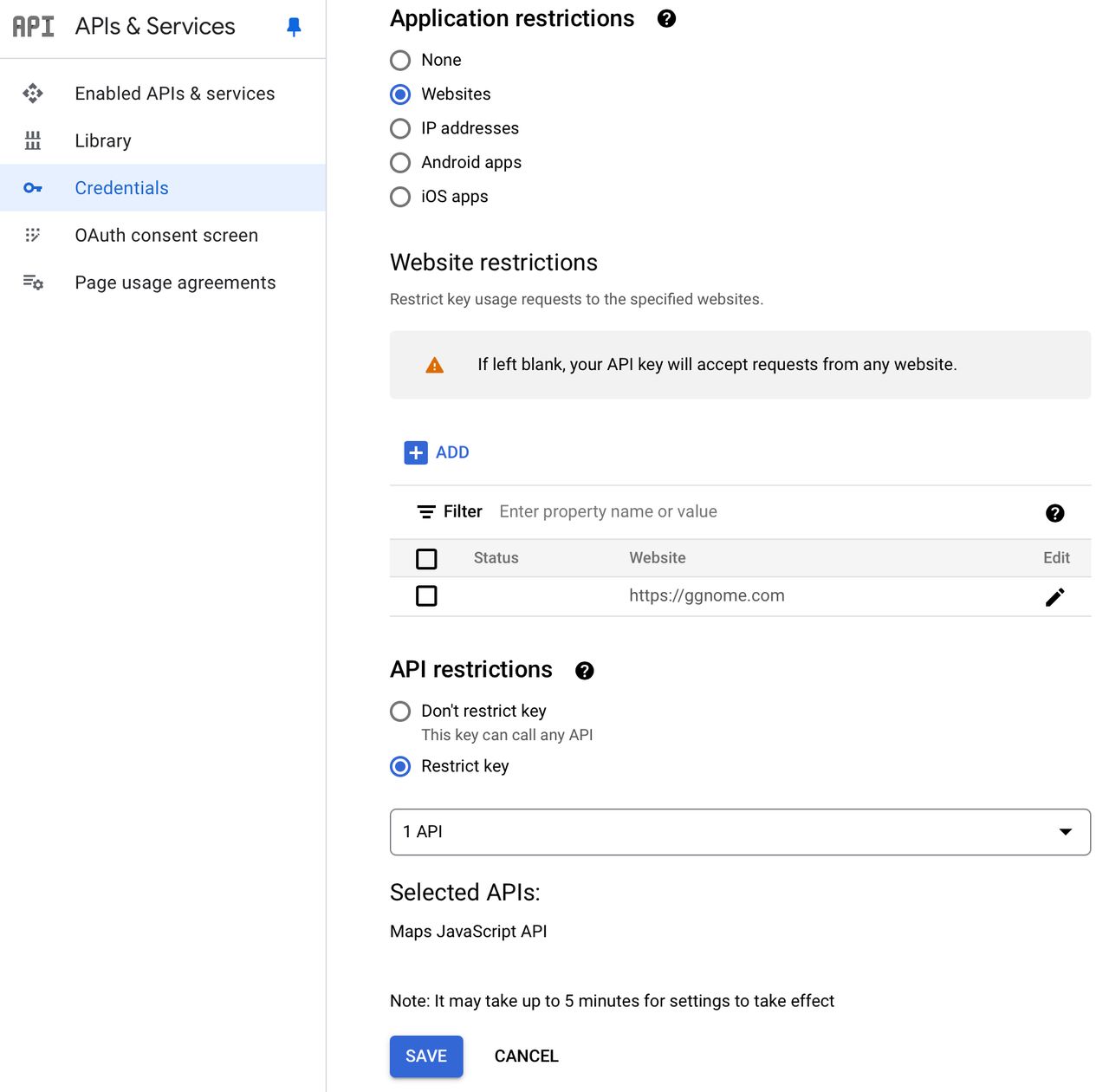
Restrict API to a Domain -
Save.
-
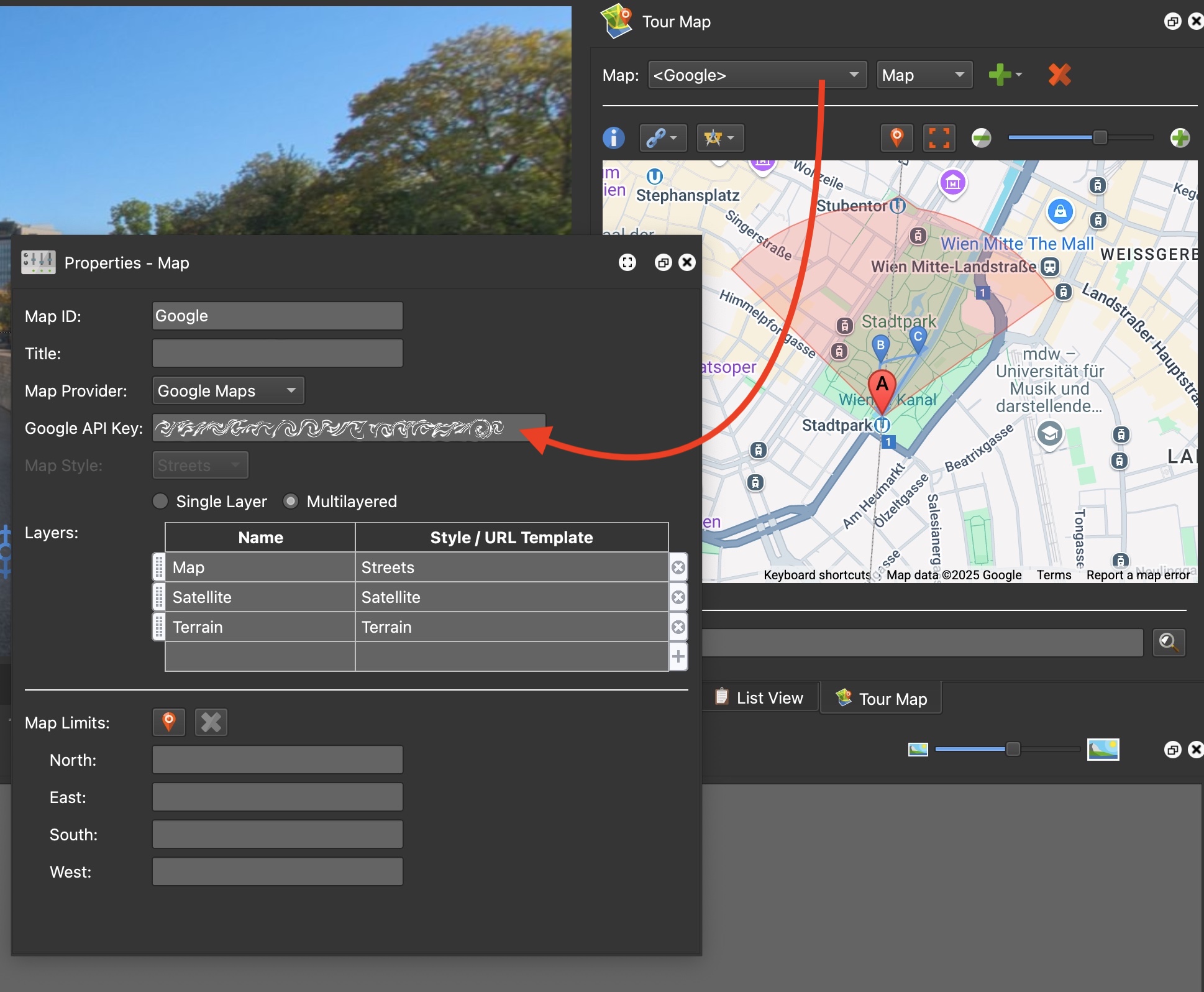
Open Pano2VR and add your key to the API setting Tour Map settings.
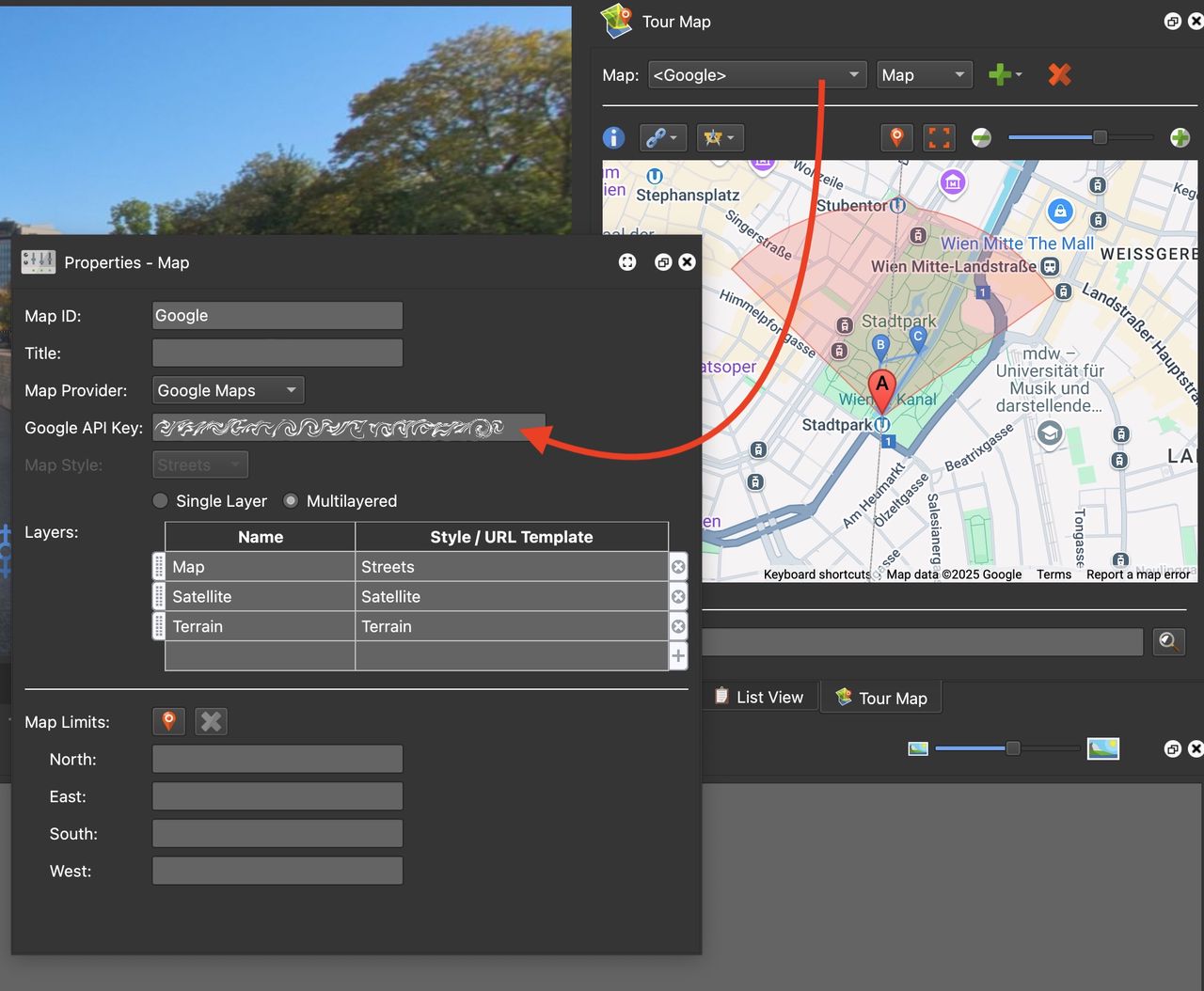
Add your API key to the Map element settings.