History Panel
The History panel shows you a list of all the actions you've done. And you can go back in history by clicking up the list (similar to Photoshop).
The History panel acts just like the other panels and can be rearranged to your liking.
Moving through history
To move backwards and forwards through time, just click through the list and your project will be as it was at that time.
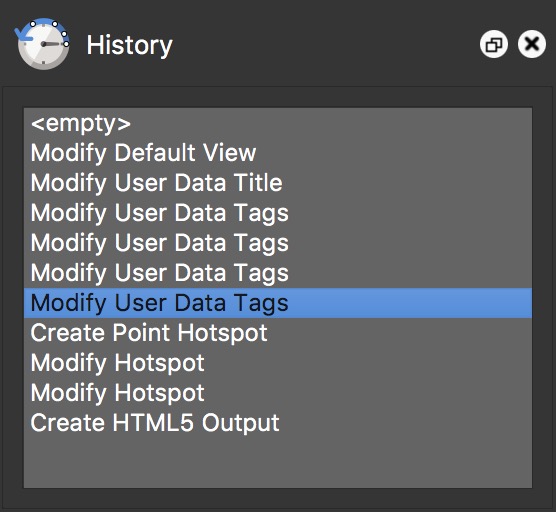
If you move back in time by selecting an action (Modify Tags in our example) and then create a new action at that point, like adding a sound, all actions after that point will be removed.
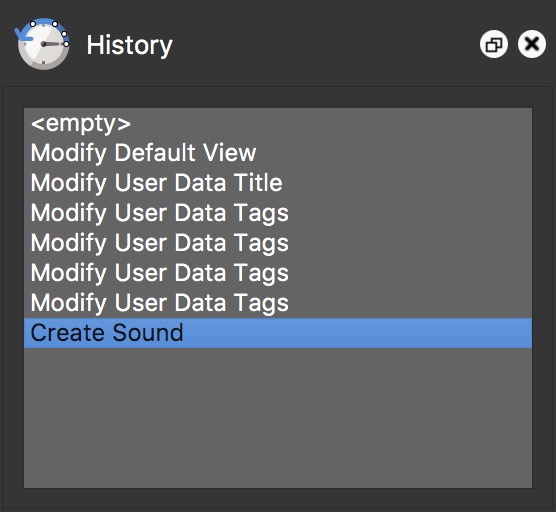
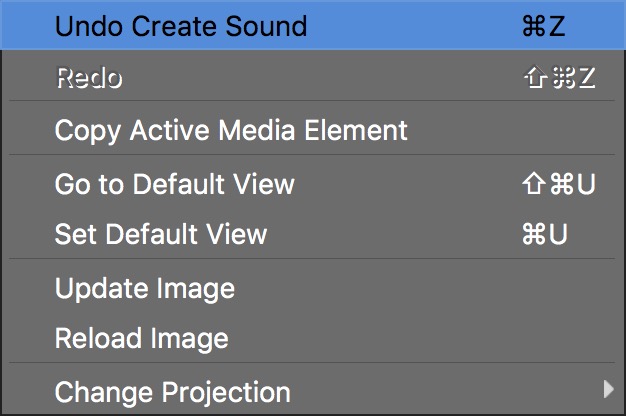
You can also move through history with Undo and Redo
- Right-click in the Viewer to bring up the context menu. Choose Undo or Redo.
-
Use the keyboard shortcuts for undo (⌘Z or Ctrl-Z) and redo (⇧⌘Z or Shift-Ctrl-Z).
-
Go to the Edit menu in Menu bar and select Undo or Redo.