History Panel
The History panel lists the changes you've made to the project. Click an entry to go back to that point, much like the History panel in Photoshop.
The History panel lists every change you’ve made to the project since you opened it, with the most recent change at the bottom. Like the other panels, it can be rearranged to your liking. Open it from the Window menu or the Toolbar, or press Option-Shift-H on macOS or Alt+Shift+H on Windows.
Moving Through History
Click an entry in the list to return the project to the state it was in after that change. Click a later entry to move forward again.
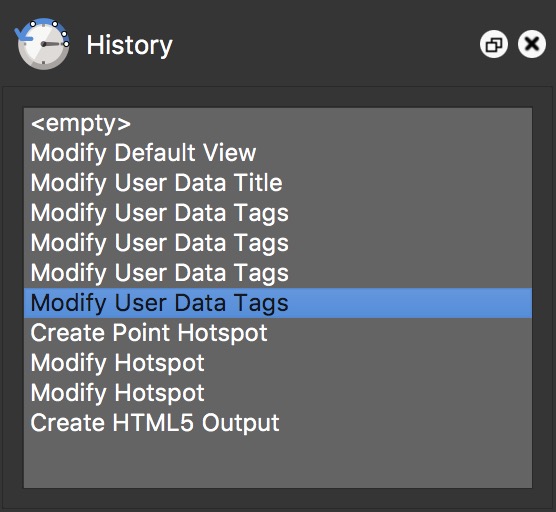
If you move back in time by selecting an action (Modify Tags in our example) and then make a new change at that point, like adding a sound, all actions after that point are removed.
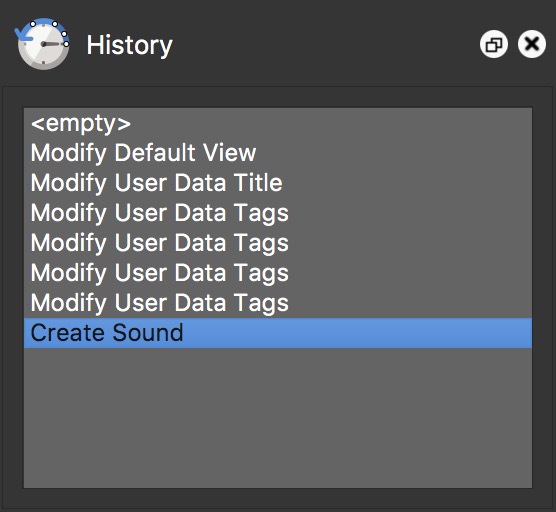
You can also move through history with Undo and Redo:
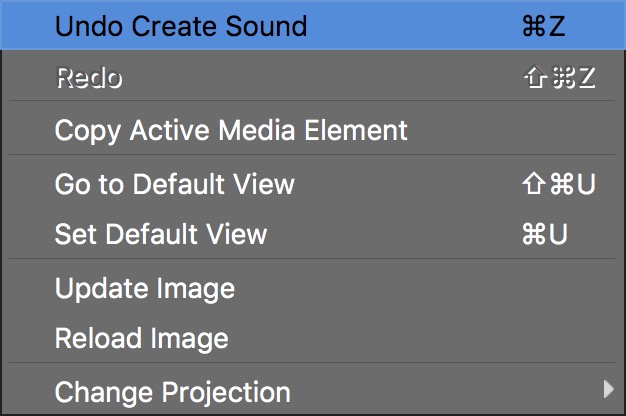
- Right-click in the Viewer (Control-click on macOS) and choose Undo or Redo.
-
Press Command-Z on macOS or Ctrl+Z on Windows to undo, and Shift-Command-Z on macOS or Ctrl+Shift+Z on Windows to redo.
-
Choose Edit > Undo or Edit > Redo.