Pinning Video to a Panorama
Use the Video Mode to pin video to a panorama.
To pin a video do the following:
-
In the Viewer, open the Viewer Modes and select the Video mode. Or hit the
vkey on the keyboard. -
Double-click anywhere within the panorama to add the video and a dialog will pop up. Navigate to the video and click, Open. Alternatively, drag in the video file to the Viewer.
-
Choose to have a preview file or not.
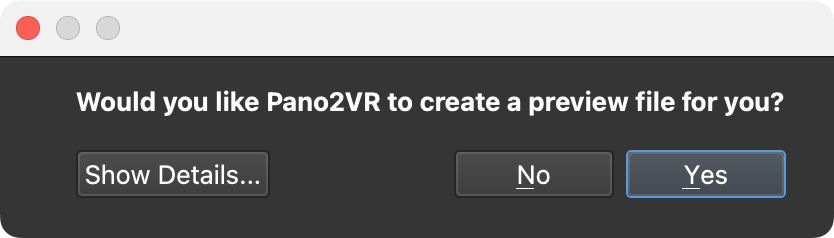
Create preview file? You’ll be asked if you want Pano2VR to create a preview of the video for you. If you choose yes, Pano2VR will create a preview file that will be used in the panorama player as a poster image before the video is started. This way, if the video is not fully loaded, at least there is something there and not a black “hole”. If you’ve chosen to create a preview file, name that file and select a location for it.
If your video has audio, the audio field of the video will be visible:
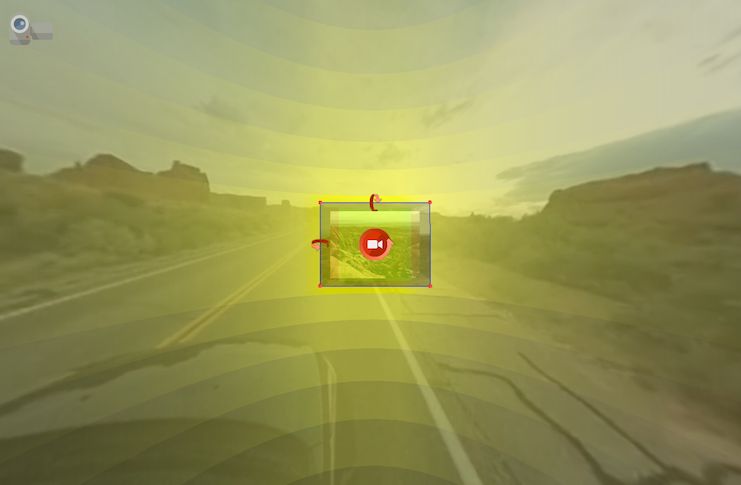
Pinned Video added -
In the Properties Panel, add an Alternative File in the case that the main file cannot be played by the browser.
-
Adjust the audio if needed.
-
Adjust the video to the panorama by doing one or all of the following:
- Drag the center icon to move the whole element into position.
- Drag the red corner handles onto the corners of the spot where the video belongs, for example a TV screen. Pano2VR fits the video’s position, rotation, field of view, and vertical stretch to the four corners. Select Lock next to Vertical Stretch to keep the video’s aspect ratio while it’s fitted.
- Drag the top arrow up or down to rotate the element on the horizontal axis.
- Drag the left arrow up or down to rotate the element on its vertical axis.
- Drag the center arrow up or down to rotate the element on its central axis.
★ Tip Command-drag (macOS) or Ctrl+drag (Windows) the arrows for finer adjustments. -
(Optional) Enter
-1for Loop to prevent the video from playing back at loading. -
Choose a Click Mode.
-
Output the panorama and test the result.
To remove the video, do any of the following:
-
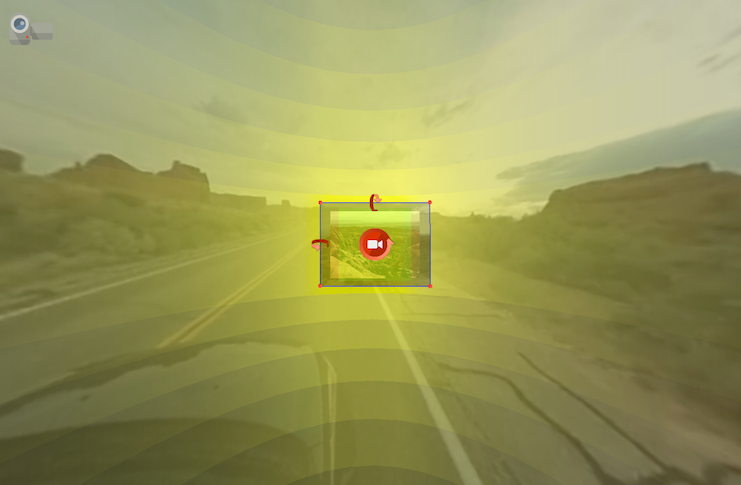
Select the video in the Viewer (its icon turns red) and press Delete.
-
In List View, select the video and press Delete, or click the “x” to the right.
Copy and paste pinned videos by selecting the video (its icon turns red), right-clicking anywhere in the Viewer, and choosing Copy Active Element. Right-click anywhere in the Viewer again and choose Paste Media Element to paste it. You can also copy and paste pinned videos in the List View panel.