Layout Customization
Arrange Pano2VR's panels the way you like, float them in their own windows, and save your favorite layouts as window arrangements.
Show Panels
To show a panel, do any of the following:
-
Click the panel’s button in the Toolbar.
-
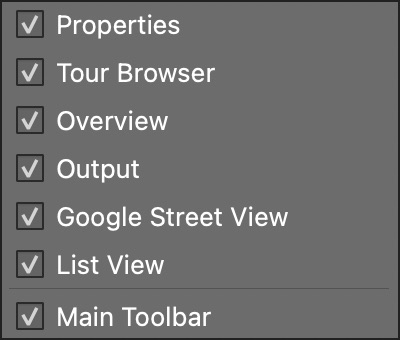
Right-click any panel’s title bar or the Toolbar (Control-click on macOS) and choose the panel from the shortcut menu.
-
Choose the panel from the Window menu.
Hide Panels
To hide a panel, do any of the following:
-
Click its button in the Toolbar again, or deselect it in the shortcut menu or the Window menu.
-
Click the × in the panel’s title bar.
To hide all panels at once and give the Viewer the whole window, choose **Window
Hide Panels** (Option-Tab on macOS, Ctrl+Tab on Windows). The Viewer Settings stay visible. Choose Window > Show Panels, or press the shortcut again, to bring the panels back.
Arrange Panels
To rearrange the panels, drag a panel’s title bar and drop it at another edge of the window. Some panels only dock at certain edges: the Animation Editor docks at the top or bottom, and Properties, Output, Overview, List View, Tour Map, and Google Street View dock at the left or right.
Drag a panel away from the edges, or click the dock button in its title bar, to make it a floating panel in a window of its own. Click the dock button again to put the panel back where it was docked, even if you have moved the floating window around the screen in the meantime.
To stack panels, drag a panel’s title bar and drop it onto another panel. The background of the panel is highlighted when it can accept the panel. The stacked panels are then shown as tabs along the bottom edge. Floating panels can be stacked the same way.
If several panels are stacked, dragging the title bar drags the entire stack. To drag one panel out of a stack, drag its tab at the bottom edge.
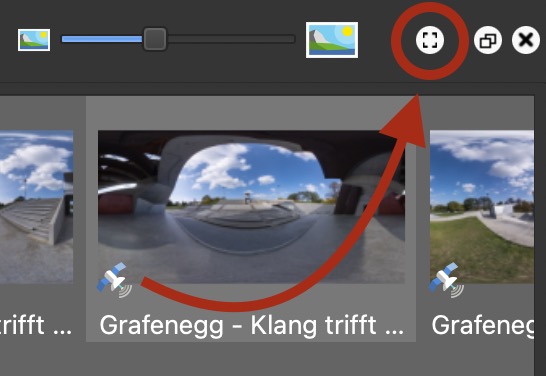
To expand a panel, first make it float to get the expand button. Click this button to expand the panel to fill the screen.
Right-click any panel’s title bar or the Toolbar to bring up a shortcut menu that shows or hides the panels.
Save the Layout
Pano2VR saves your panel layout when you close it and restores it the next time. To keep several layouts, for example one for building tours and one for animations, use Window > Window Arrangements:
- Standard – Returns to the standard layout: Properties on the left, the Tour Browser at the bottom, the Output panel, and the Viewer Settings. All other panels are closed. Press Option-1 on macOS or Alt+1 on Windows.
- Your saved arrangements – Choose one to switch to it. The first eight get the shortcuts Option-2 to Option-9 on macOS and Alt+2 to Alt+9 on Windows.
- Save – Saves the current layout. Enter a title for it, using letters, digits, and spaces; other characters are left out. A title that already exists replaces that arrangement, and Standard can’t be used as a title.
- Delete – Choose a saved arrangement to delete.