Move and Adjust a 3D Model
Learn how to move, rotate, and scale a 3D model in a virtual tour, and how to move around inside the model in the Viewer.
Move and Adjust the Model
When you add a model, Pano2VR centers it and scales it to a workable size. To place it exactly, use the 3D Widget in the Viewer:
-
Select the model node in the Tour Browser.
-
If Lock 3D Model is selected in the 3D Model properties, deselect it.
-
Choose Manipulate 3D Model mode (M) in the Viewer Modes. The 3D Widget appears on the model, and the 3D Controller at the bottom of the Viewer switches to Move.
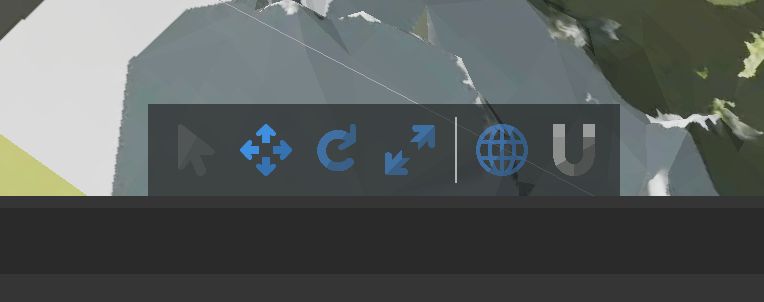
The 3D Controller. 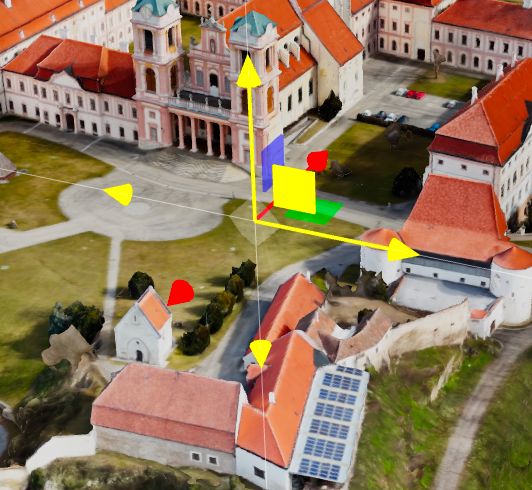
The 3D Widget. -
Drag the widget’s handles to move the model. The handle under the mouse turns yellow.
-
Click Rotate in the 3D Controller, or press 2, to rotate the model. Click Move, or press 1, to go back to moving it.
-
Click Scale, or press 3, to change the model’s size.
-
When the model is in place, select Lock 3D Model again so that you do not move it by accident.
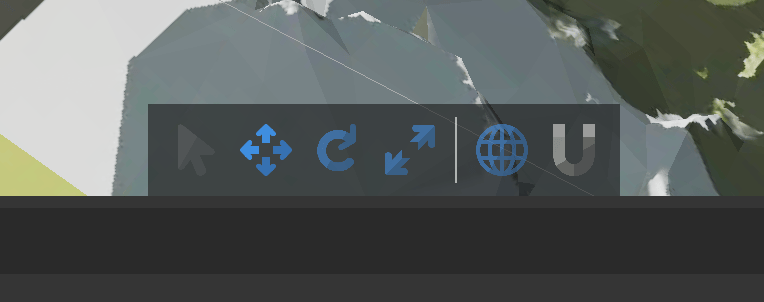
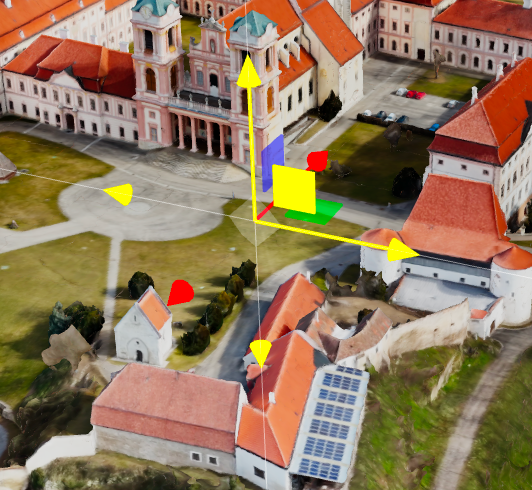
You can also type exact values for Position, Rotation, and Scale in the 3D Model properties. See Manipulate 3D Model for every button of the 3D Controller.
Move
Drag the 3D Widget’s arrows to move the model:
- Red – Move along the X axis.
- Green – Move along the Y axis.
- Blue – Move along the Z axis.
Drag one of the squares between the arrows to move along two axes at once, or drag the center of the widget to move the model freely.
Rotate
In Rotate mode, the 3D Widget shows rings:
- Red – Rotate around the X axis (tilt up or down).
- Green – Rotate around the Y axis (turn left or right).
- Blue – Rotate around the Z axis (roll).
Click Toggle Rotation Snapping in the 3D Controller, or press 6, to rotate in 45° steps.
Scale
In Scale mode, the 3D Widget shows block handles. A model has a single scale, so whichever handle you drag, the model grows or shrinks evenly in all directions.
World vs Local Space
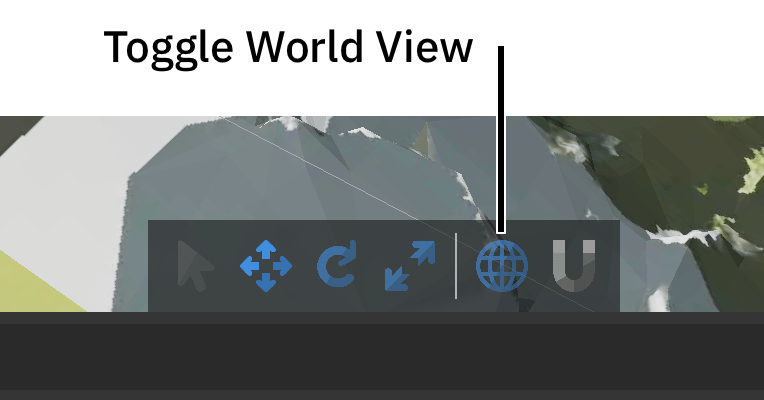
Click Toggle World/Local Space in the 3D Controller, or press 5, to choose which axes the 3D Widget follows:
-
World Space – The widget follows the scene’s axes and keeps the same orientation whatever you have selected. Use it for general alignment.
-
Local Space – The widget follows the selected object’s own axes. Use it for fine adjustments along a rotated object, for example to move a hotspot along a door that is at an angle.
Moving in the Model
Navigate the model with the mouse and the keyboard. Click in the Viewer first so that it receives the keys:
- W or Up Arrow – Move forward.
- S or Down Arrow – Move back.
- A and D – Move left and right.
- Q and E – Move up and down.
- Left Arrow and Right Arrow – Turn left and right.
- Page Up and Page Down – Look up and down.
Camera Modes
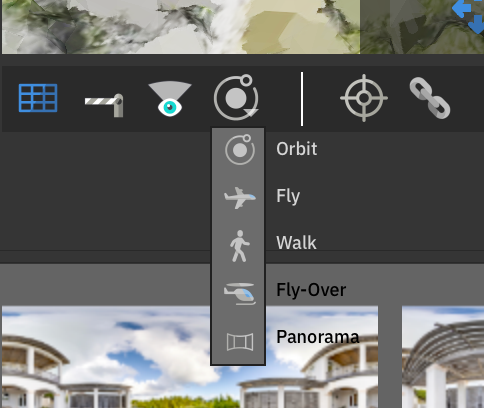
Camera modes control how you move around and within the model. Switch them with the camera mode button in the Viewer Settings bar. Depending on the camera mode, you move around a pivot point or around the camera itself:
- Orbit and Fly Over circle around a pivot point, shown as a cyan dot.
- Fly, Walk, and Panorama turn around the camera.
In every mode, Option-drag (Alt+drag on Windows) or dragging with the middle mouse button does the mode’s second movement: in Orbit it moves the pivot point, in Fly Over it circles around the pivot point, and in the other modes it moves the camera.
Orbit – Look at the model from outside. Drag to circle around the pivot point and scroll to zoom.
Fly – Move freely through 3D space, as in first-person flight. Drag to look around and scroll to fly forward or back.
Fly Over – Glide above the model like a helicopter. Drag to move over the scene.
Walk – Move at eye height through the model, as if walking through the scene. Drag to look around and scroll to walk forward or back.
Panorama – Stand still and look around, as if the model were a panorama.
To enter Walk mode from outside the model:
-
In Orbit or Fly Over, Option-drag or middle-drag to move the pivot point (the cyan dot) near the floor of the room you want to walk in.
-
Close the collisions gate in the Viewer Settings bar so that you do not move through walls.
-
Switch to Walk mode.