Pinning Video to a Panorama
Use the Video Mode to pin video to a panorama.
To pin a video do the following:
-
In the Viewer, open the Viewer Modes and select the Video mode. Or hit the
vkey on the keyboard. -
Double-click anywhere within the panorama to add the video and a dialog will pop up. Navigate to the video and click, Open. Alternatively, drag in the video file to the Viewer.
-
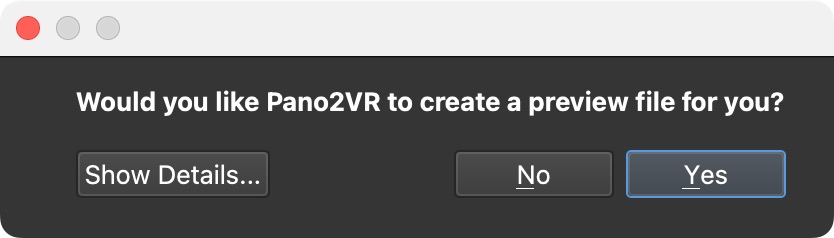
Choose to have a preview file or not.
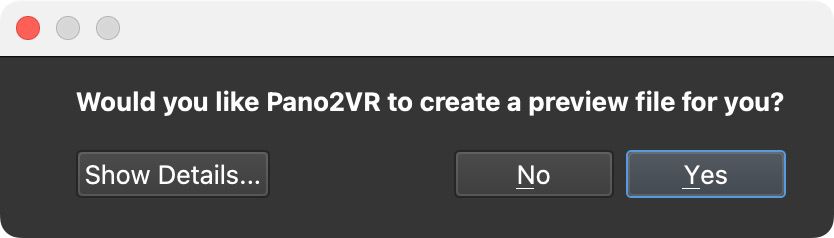
Create preview file? You’ll be asked if you want Pano2VR to create a preview of the video for you. If you choose yes, Pano2VR will create a preview file that will be used in the panorama player as a poster image before the video is started. This way, if the video is not fully loaded, at least there is something there and not a black “hole”. If you’ve chosen to create a preview file, name that file and select a location for it.
If your video has audio, the audio field of the video will be visible:
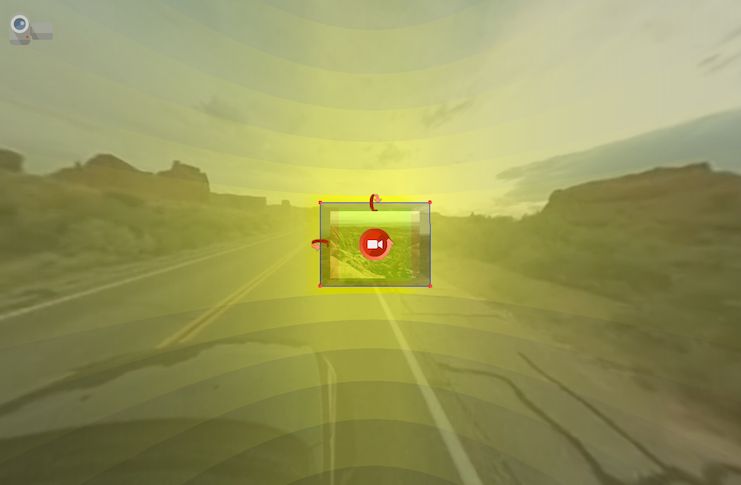
Pinned Video added -
In the Properties Panel, add an Alternative File in the case that the main file cannot be played by the browser.
-
Adjust the audio if needed.
-
Adjust the video to the panorama by doing one or all of the following:
→ Click on the center icon and drag to move the entire element into position.
→ Move on the handles (red corner dots), to match it/pin it to its environment.
→ Click the top arrow and drag in a vertical motion to rotate the element on the horizontal axis.
→ Click on the left arrow and drag in a vertical motion to rotate the element on its vertical axis.
→ Click and drag on the center arrow in a vertical motion to rotate the element on its central axis.
✭ Tip: If, for example, you’re trying to fit the video within a TV set, use the Vertical Stretch option to fit it vertically. ✭ Tip: Hold down Control (Win) or Command (macOS) while dragging the positioning arrows for more precise placement.
-
(Optional) Enter
-1for Loop to prevent the video from playing back at loading. -
Choose a Click Mode.
-
Output the panorama and test the result.
To remove the video, do any of the following:
-
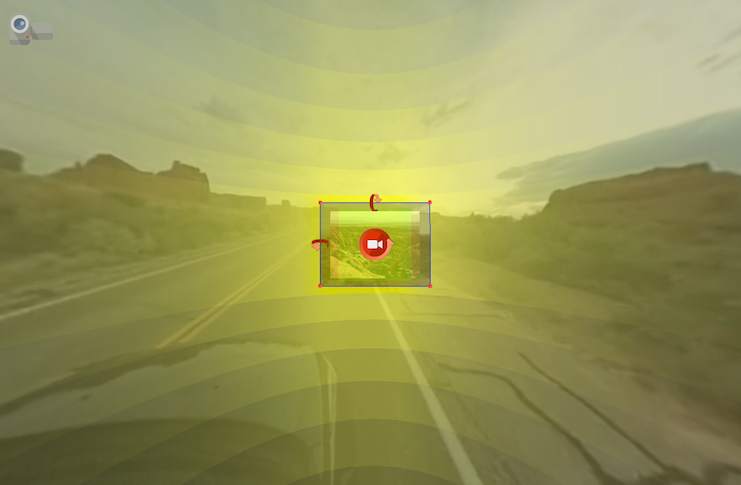
Select the video in the Viewer (the icon will turn red) and hit the delete key. Poof!
-
In List View, select the video and either hit the delete key or click the “x” to the right.
★ Tip: Use the History page to go back and undo a deleted hotspot.
Copy and paste pinned videos by first making sure the pinned video you want to copy is active (red) and then right-click anywhere in the Viewer and choose Copy Active Media Element. Right-click anywhere in the Viewer and again and select Paste Media Element to paste. You can also copy and paste pinned videos in the List View panel.