Viewer Settings
The Viewer Settings show viewing options for the Viewer.
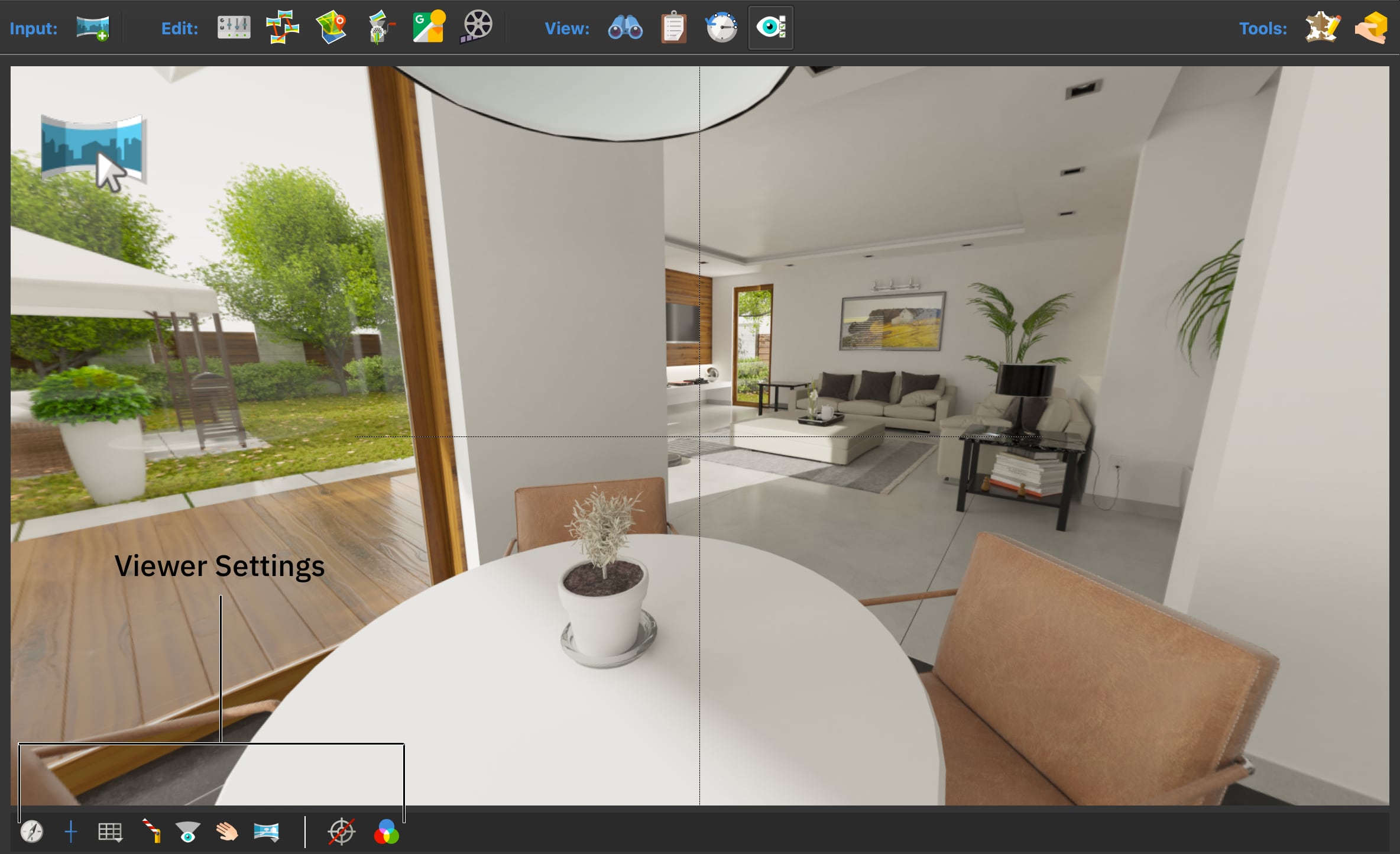
The viewer settings will open at the bottom edge of the Viewer.
The settings from left to right:
Compass – Toggles a compass overlay in the Viewer.
Center marker – Toggles vertical and horizontal center lines that help you to straighten panoramas and line up landmarks for setting north.
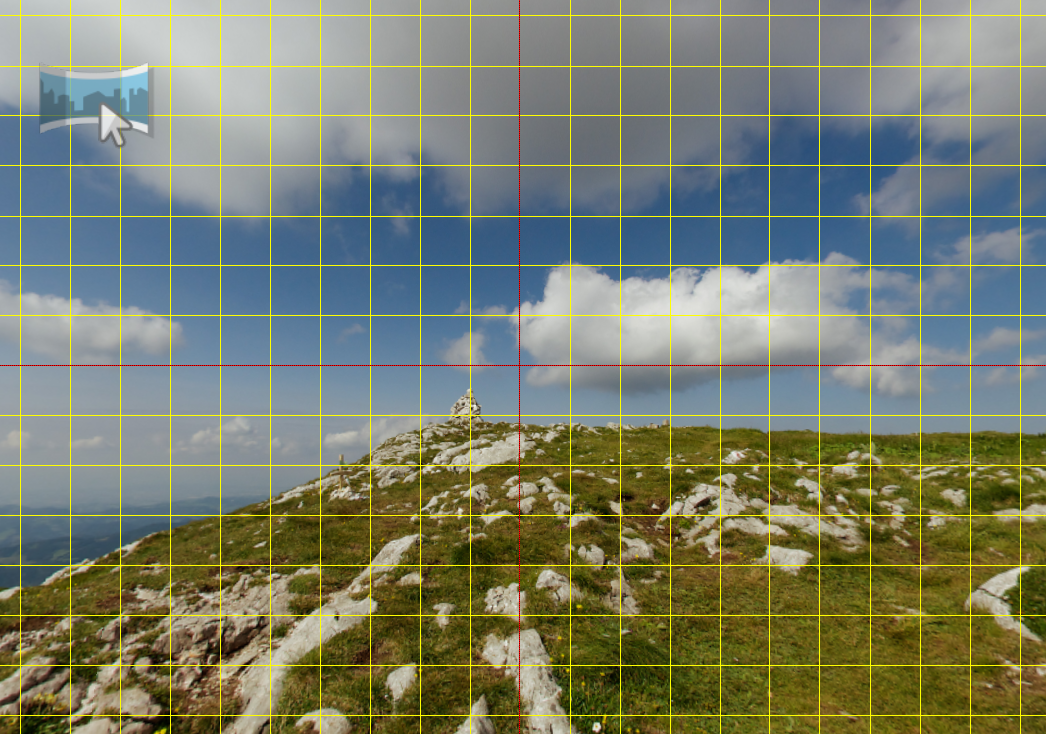
Grid – Click to toggle a grid on and off. This is especially useful for leveling panoramas. Long press the button to set how many lines are in the grid with Steps and to change the color of the grid.
Ignore Limits – Toggles viewing limits. If you have made viewing limits in Viewing Parameters, then turning this on will ignore them in the Viewer. They will not be ignored on output.
Open Nodes in Default View – When this is turned on, the Viewer will open a node facing its default view.
Drag Mode – This changes how you spin the panorama in the Viewer. This toggles between two drag modes. When the hand is showing, the panorama “sticks” to the mouse. when the four-way arrow symbol is showing, the panorama spins with inertia for as long as the mouse is pressed.
Switch Projection – Select the type of projection for the Viewer. Hold down the mouse (long press) to show the projection options.
Ghost Hotspots – Shows and hides ghost hotspots which show where other hotspots are located or where they could be located.
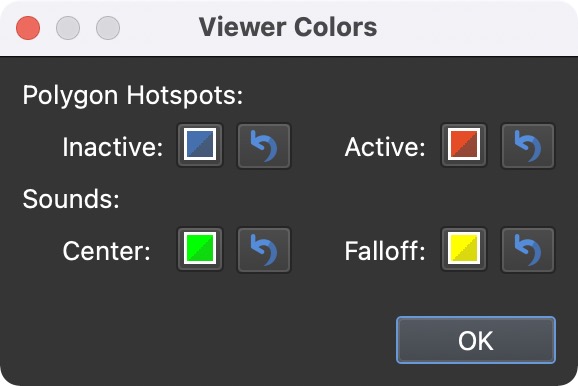
Viewer Colors – Customize the colors of Polygon Hotspot and Sound viewer elements. Click on the color wells to pick colors. Use the buttons next to the color wells to return the colors back to their defaults. ★ These colors will not appear on output. If you want to customize the colors for Polygon hotspots for the output, change them in the Polygon Hotspot Properties.