A Note on Sound
Audio can be tricky on the web due to the varying support of formats and how browsers handle audio playback. Read on to learn more about using audio in your projects.
Sound Formats and Quality
Not all sound files are the same. MP3 files are the most supported across all browsers. Also, not every bitrate will be supported.
When adding sound, we recommend using MP3 sound files that have a bitrate of 128 kbps and a sample rate of 44.1 kHz. If the audio filesize is too large, you can lower the bitrate to 96 kbps. However, if your audio is dynamically wide, then you may hear a difference in quality at 96 kbps. If your sound is not dynamic, like a button click sound, then 96 kbps will be enough. If the audio is orchestral with a wide dynamic range (very soft and very loud sounds), then a higher bitrate will be necessary to keep the sound’s integrity.
Pano2VR supports MP3 and OGG file formats.
Sound Playback
Keep in mind, that some browsers may require user action to start the sound, especially on mobile devices which require the use of Play/Pause buttons. Volume control via the skin on mobile devices is also restricted.
If your project has audio, we recommend starting your project with a splash screen which requires the visitor to interact with the project. All of our built-in skins now have a splash screen that uses two sound icons: Sounds On and Sounds Off. “Sounds on” will trigger the action, Start Autoplay Media. “Sounds off” will trigger the “mute” action.
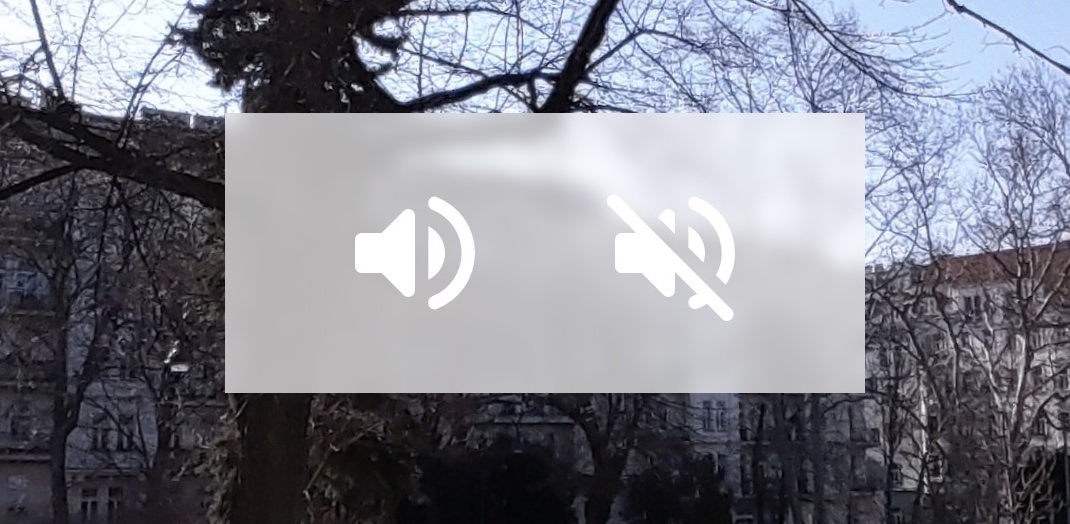
This splash screen’s buttons use the logic block trigger, Sounds Permitted, to test if sound is permitted to autoplay in the browser. It uses a small, inaudible sound file that is exported with every project to test the browser. This sound is found in the media folder.
If there’s no interaction with the splash screen, i.e. the user clicks in the panoarama instead of the splash screen, the splash screen will hide. Pano2VR will still test the browser, but sound then must be turned on with a button to play, or switch nodes and return to trigger the playback.
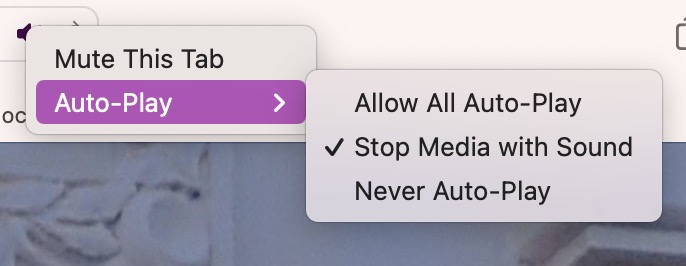
Most browsers also have a setting to change how sound is played back. For example, in Safari, when sound is playing, a speaker icon appears in the URL bar. Right-click that icon to open the sound settings. The default is set to not play sound, but you can change this to always allow auto-play.
Note that iOS only allows one sound to play back at a time. Check this project example on the forum to see how to manage multiple elements with sound in a project.
Video
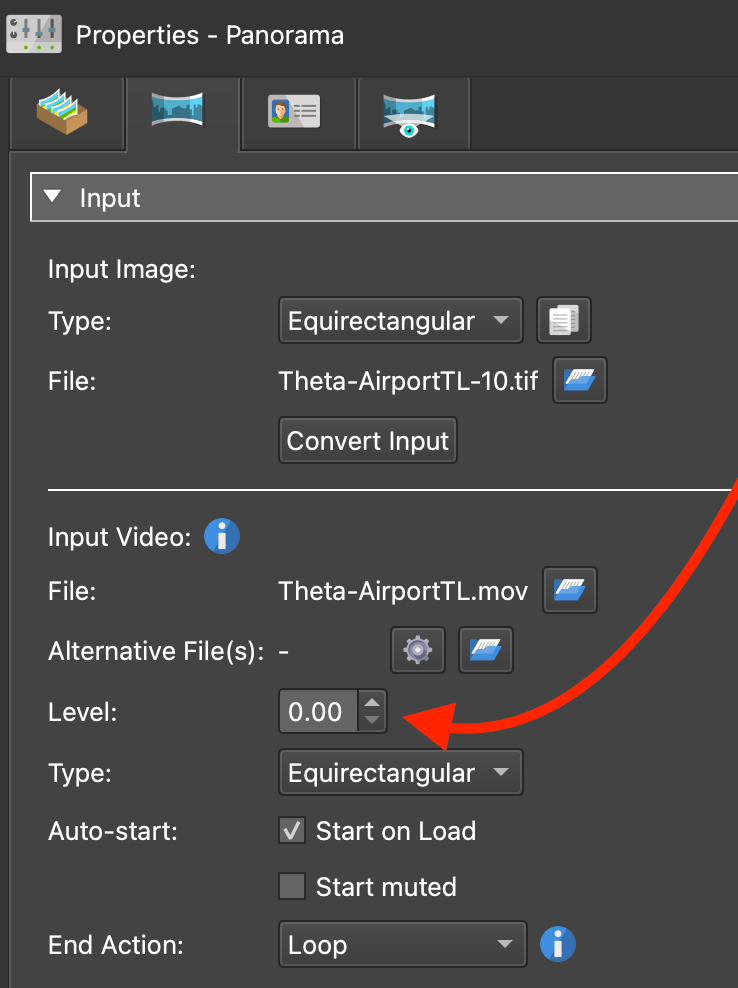
The splash screen will appear for videos added to the project as well. However,
Pano2VR does not detect if the video file has an audio track or if the audio
track is muted, so the splash screen will be triggered. If you prefer to not
show the splash screen, set the video’s Level to 0.