This documentation is for an older version. View the current documentation.
Pinned Images
The Image Mode will allow you to pin images to your panoramas.
Workflow
Select the panorama or tour node to add a pinned image. Then, activate the Image
Viewer Mode in the Viewer by choosing it
from the Viewer mode drawer, selecting it from the Elements
menu, or by using the Keyboard
Shortcut, i.
Then, double-click in the viewer to add an image or drag in the image to the Viewer.
Add the file and then use the Properties panel to adjust the images’s settings.
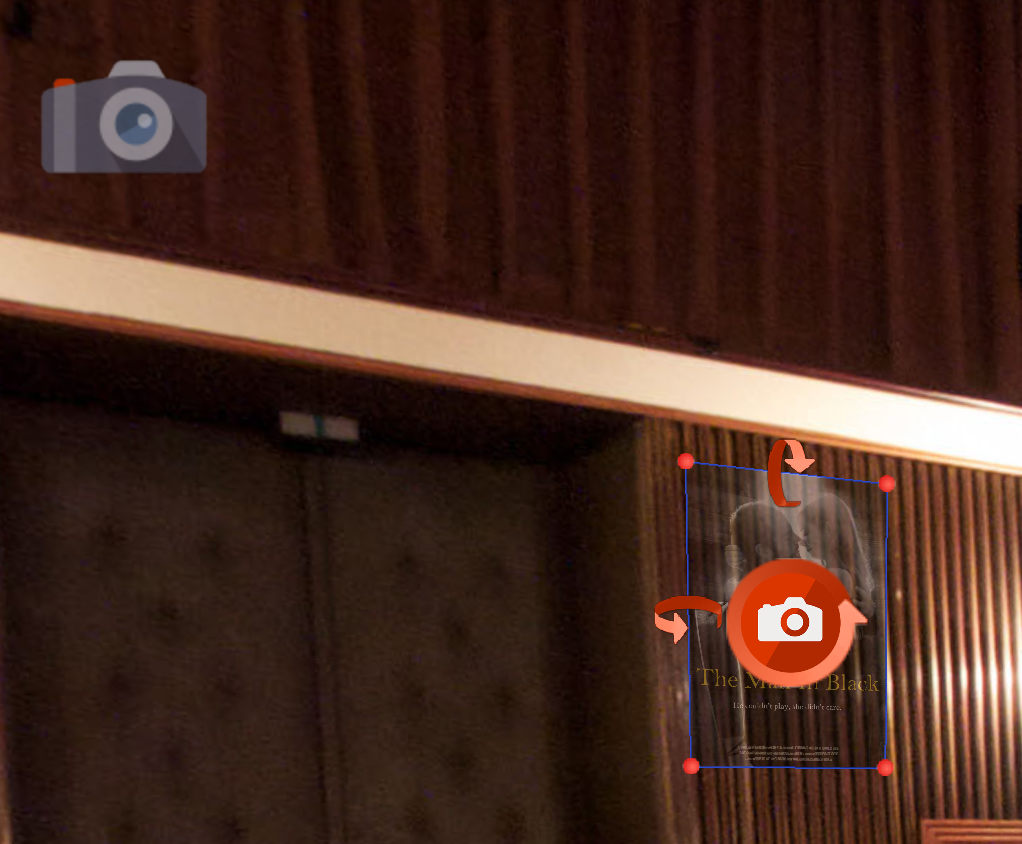
Pinned Images can also be created by converting Patches. This is useful if you want your patch image to be interactive.