Joomla Plugin
We provide a package format to make it easy for you to embed your panoramas on your CMS site or blog. Below are the instructions for Joomla.
These instructions were written using Joomla version 3.9.26.
Install the Joomla Plugin
-
Download the plugin from: https://ggnome.com/ggpkg.
-
Log in to the administration area of your Joomla site.
-
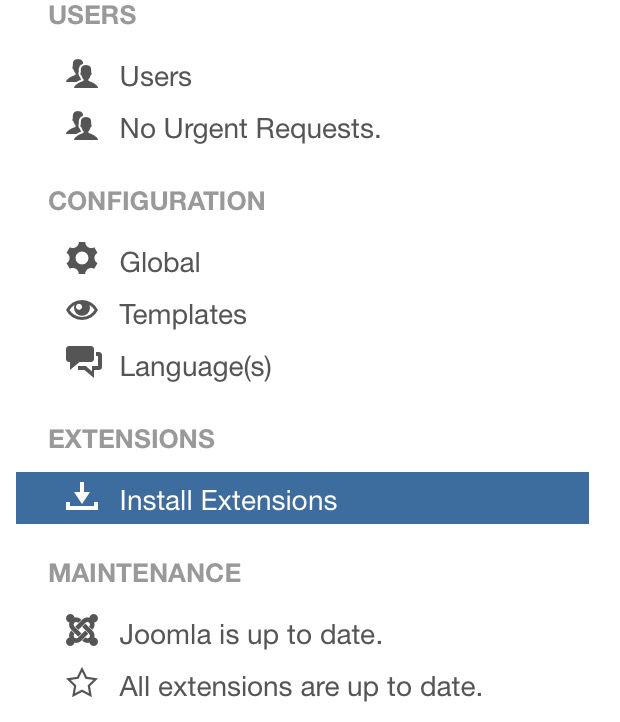
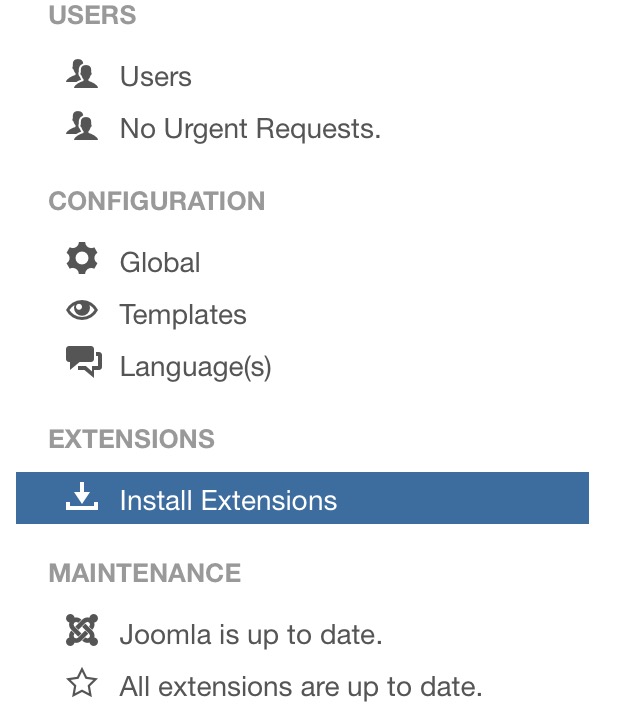
Go to the Install Extensions in the Control Panel.
-
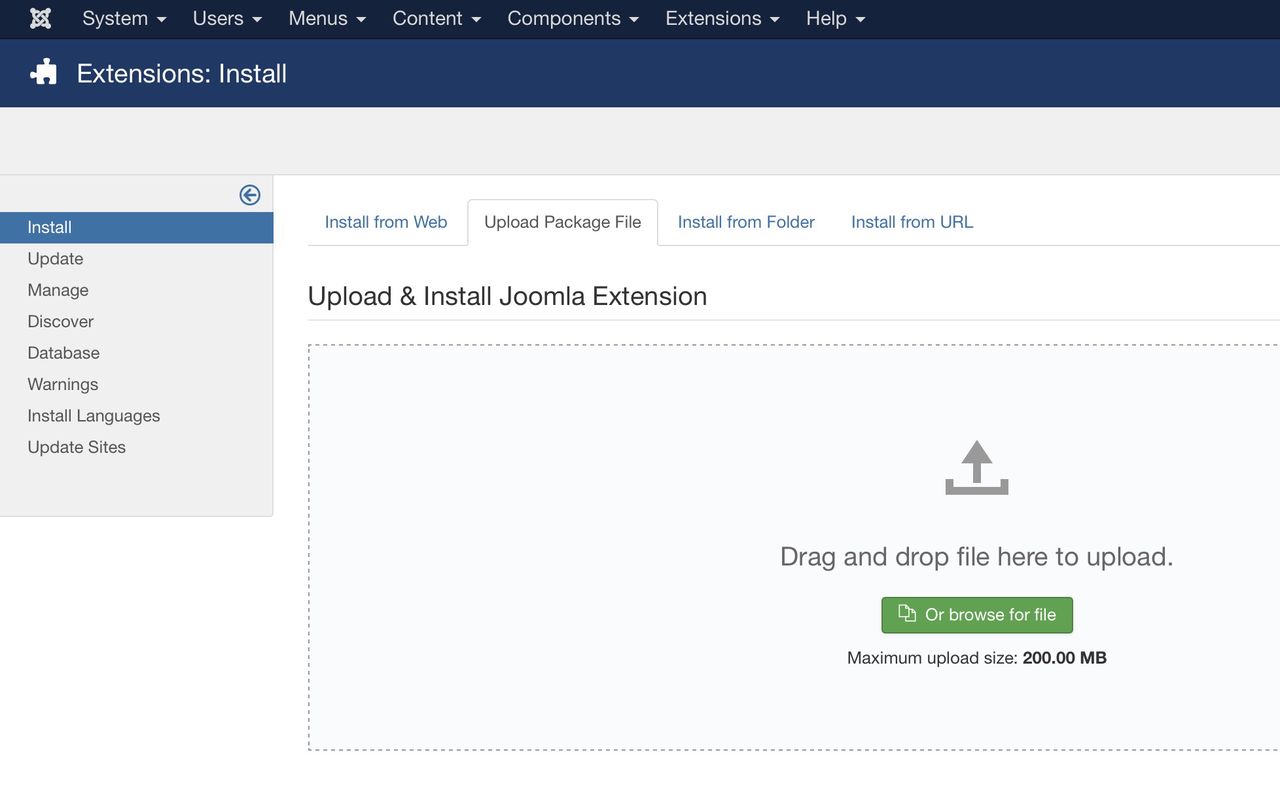
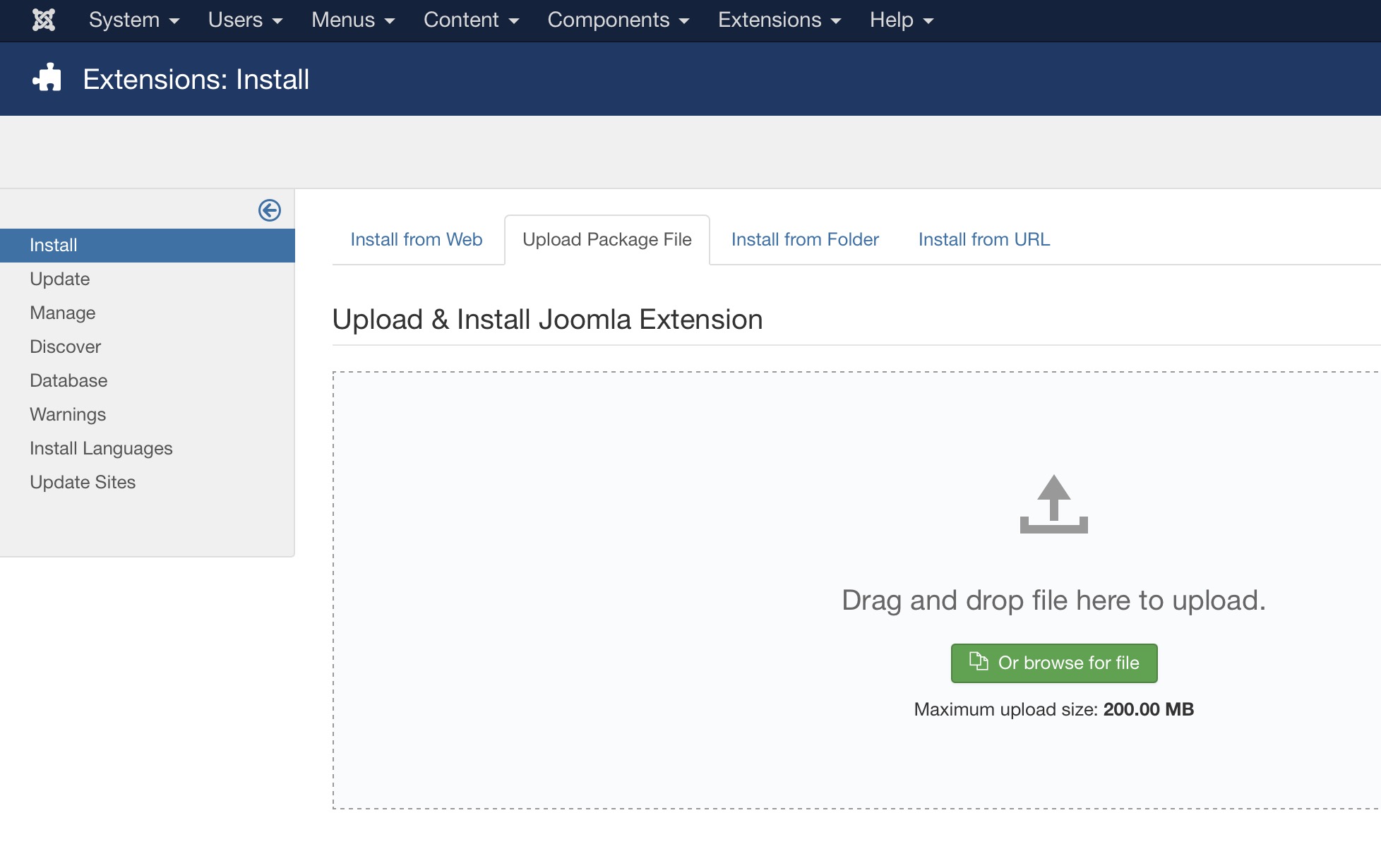
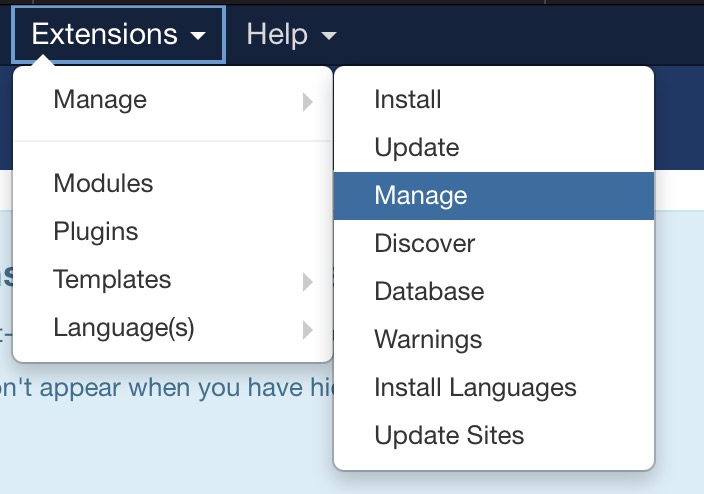
Go to Extensions: Install and open the Upload Package File tab.
-
Upload the Joomla package file (
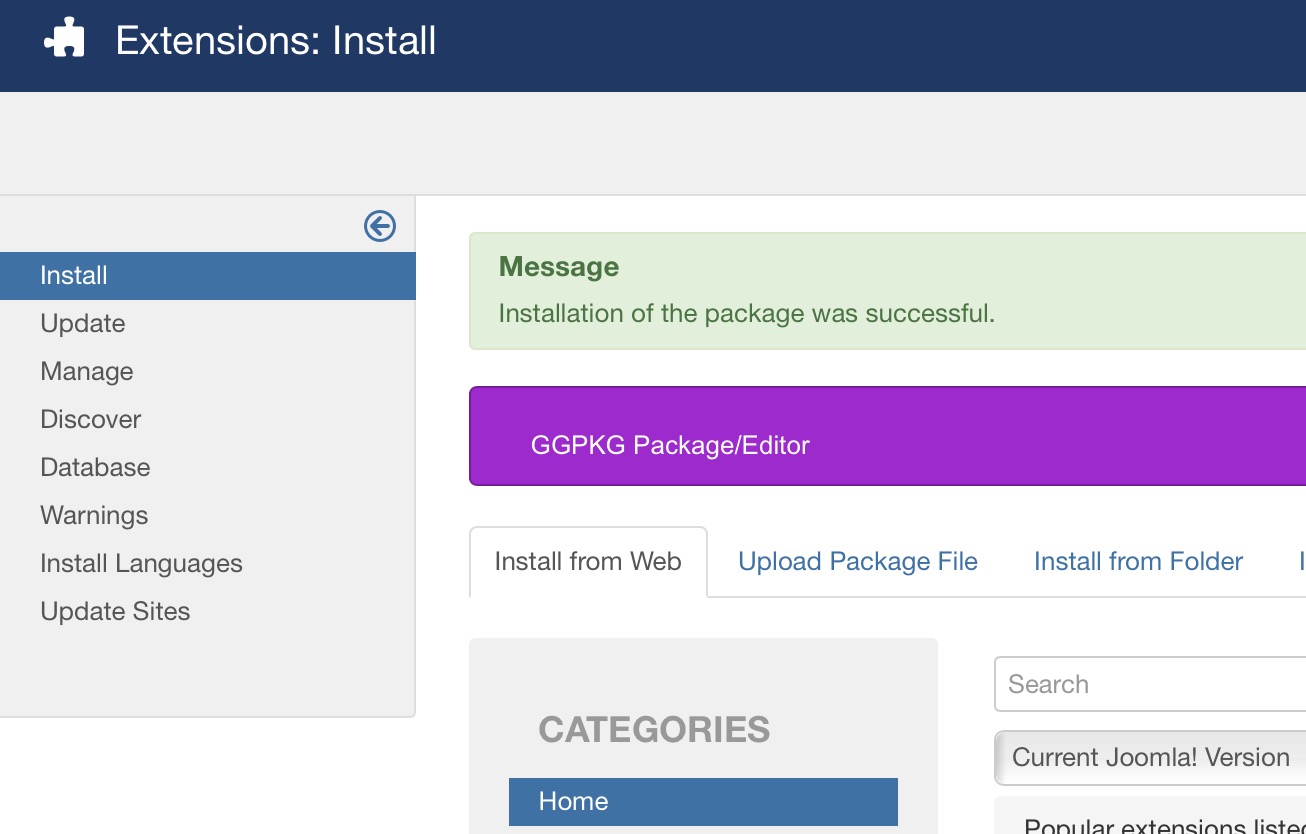
ggpkg_joomla_2_0_0.zip). It will install itself.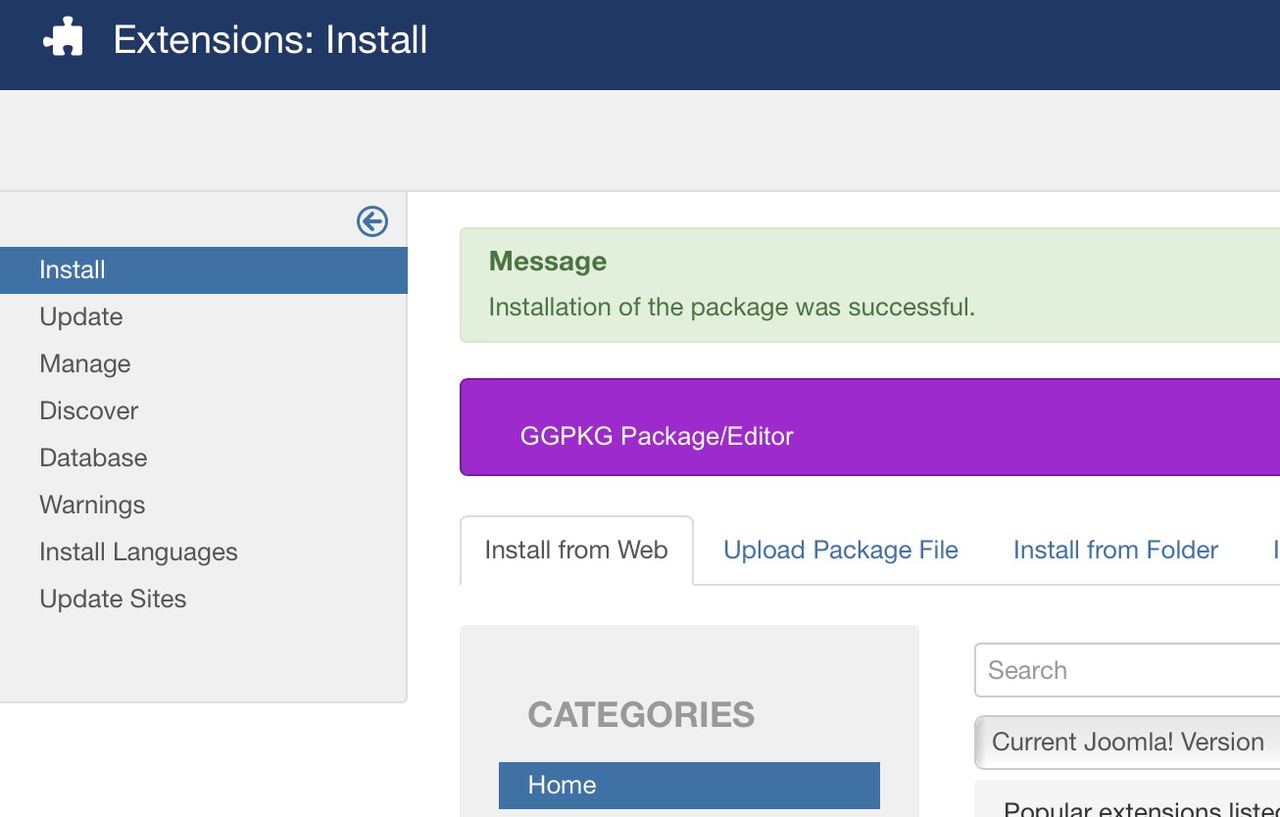
-
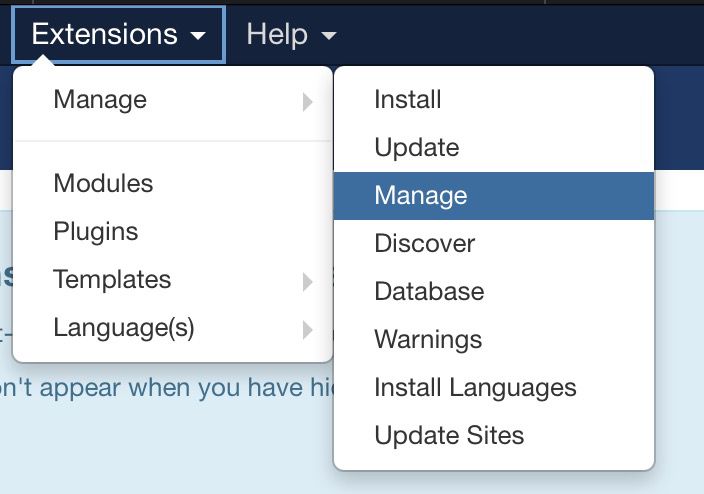
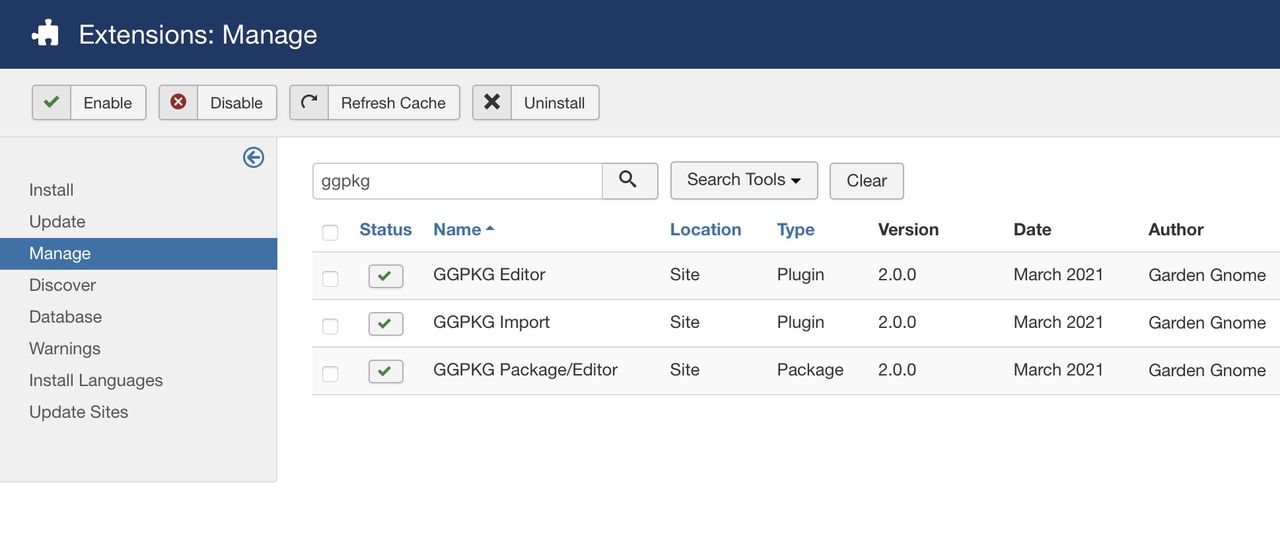
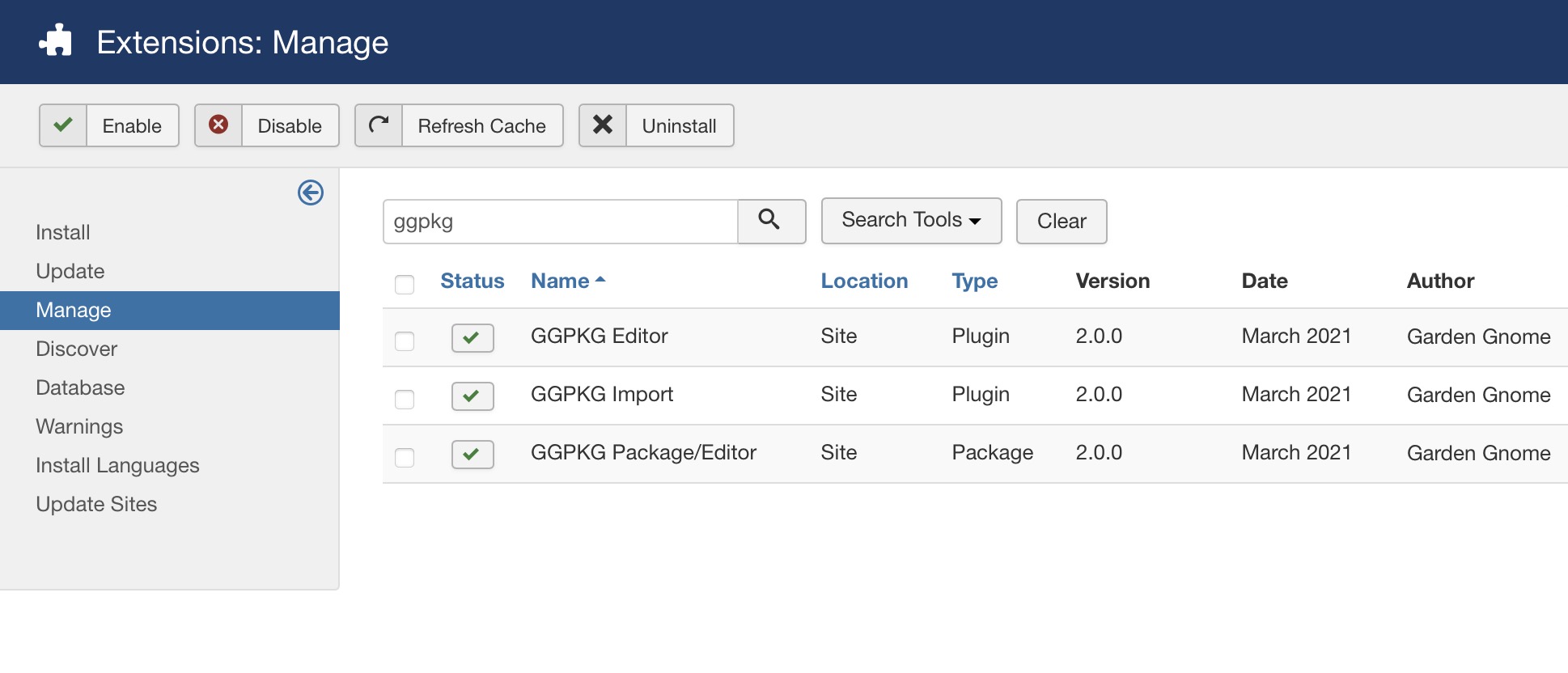
Go to Extensions: Manage. Find the plugin/extension and check that its status is enabled.
Add Package to an Article
-
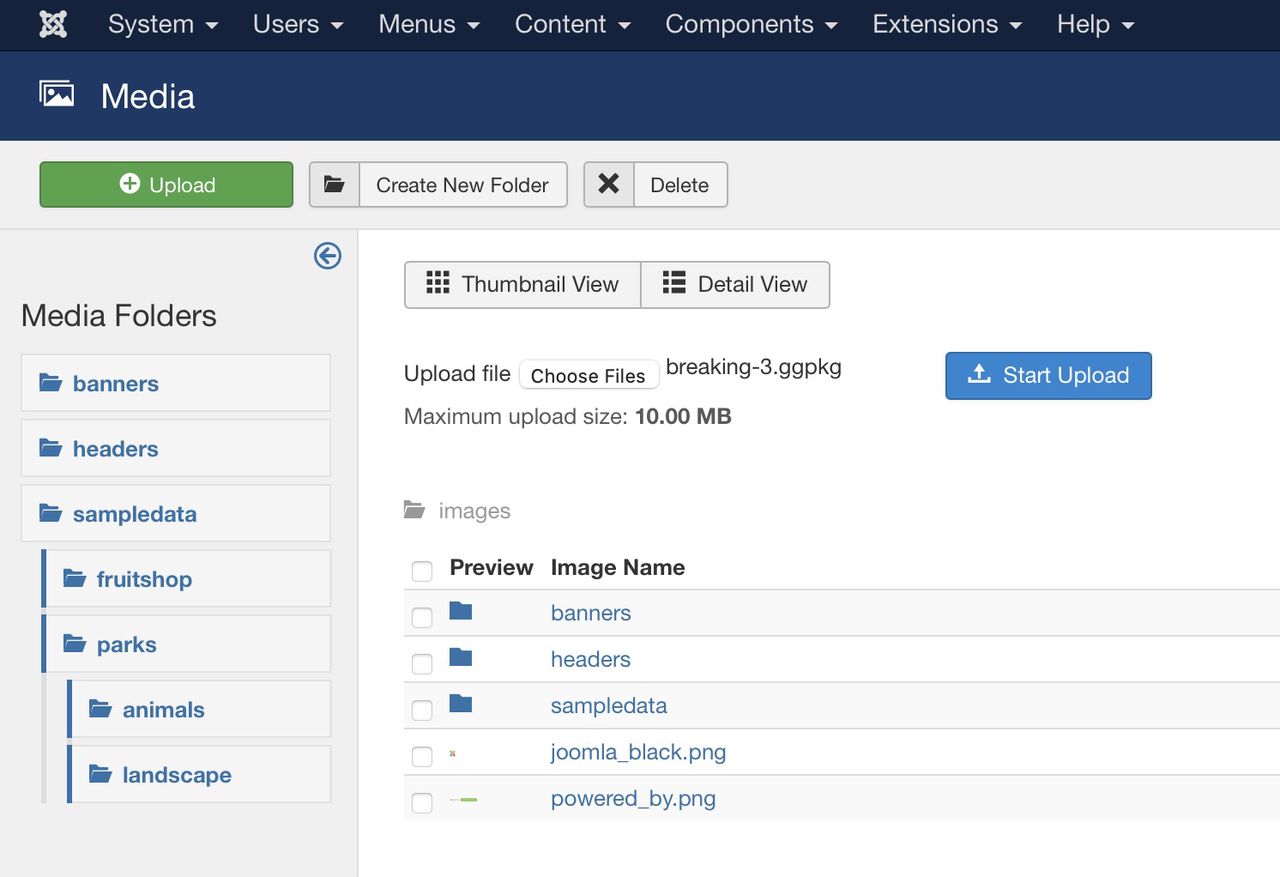
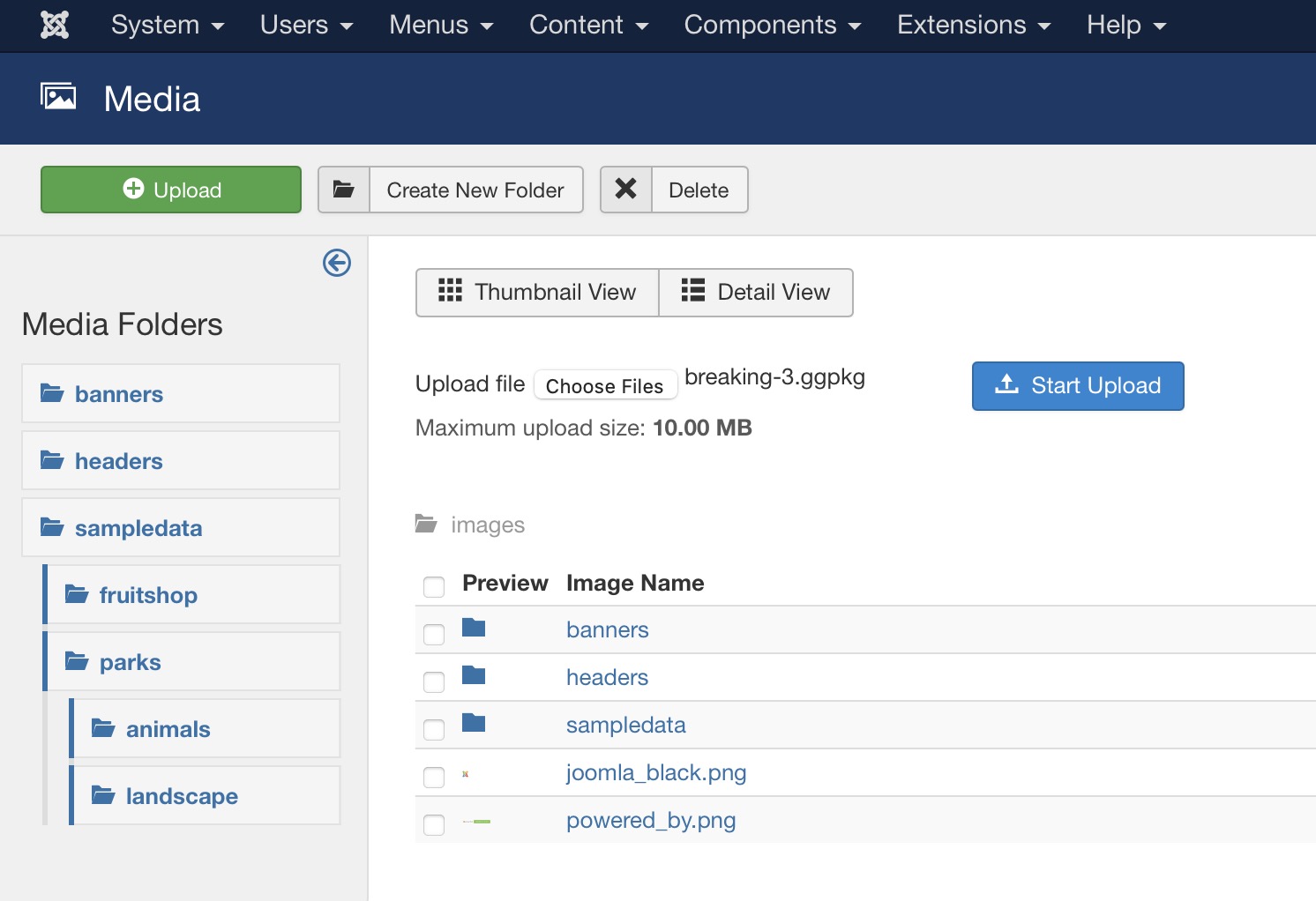
Upload a .ggpkg file.
-
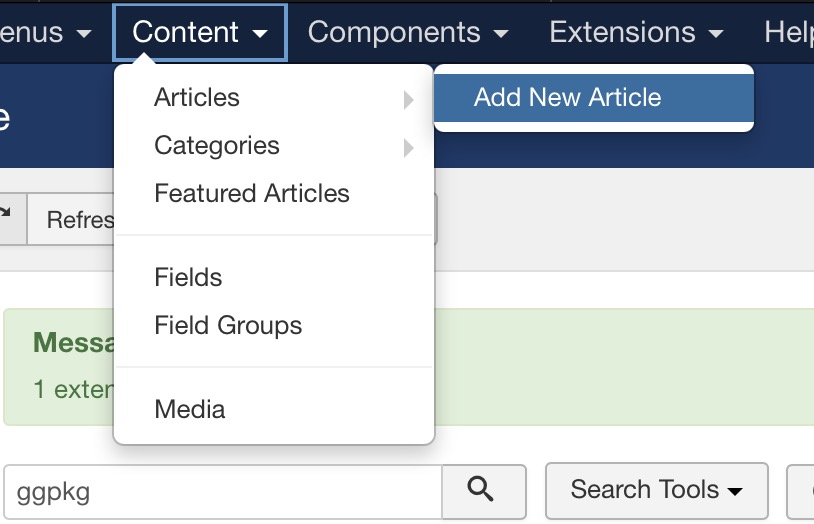
Go to Content ➝ Add New Article. (Or add to an existing article.)
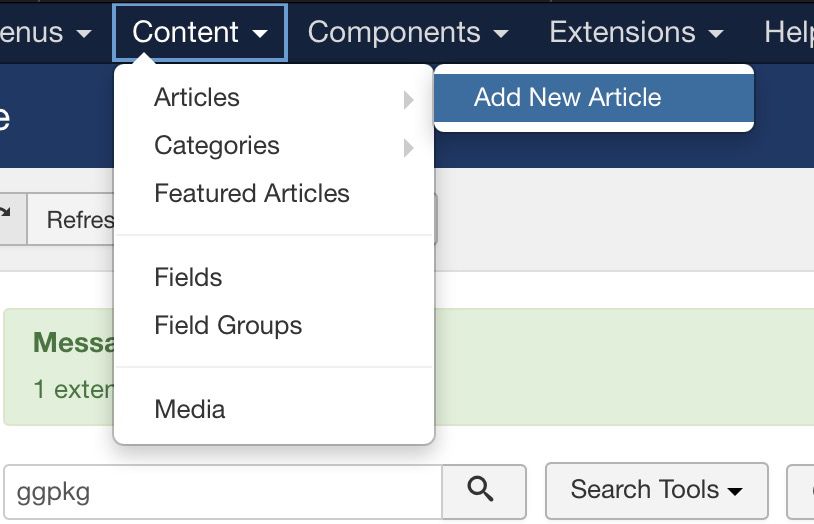
Add a new article: Content ➝ Article Manager ➝ Add new article.
-
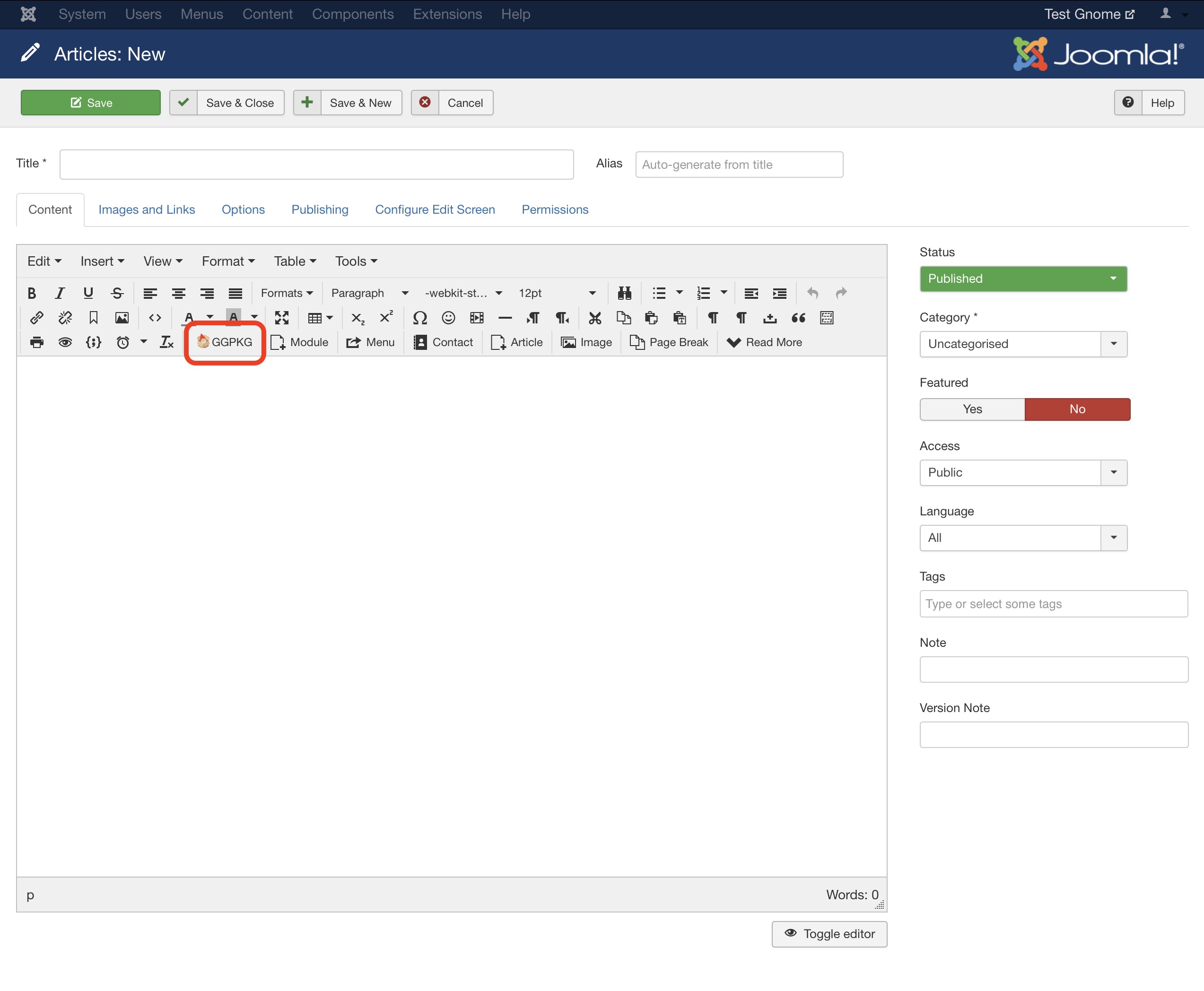
Add the .ggpkg package to the body text of the article. Click on the GGPKG button and then choose your package to insert it into the article body. When the package is selected, you can choose to have a Start Preview, and you can change the width and height of the player window.
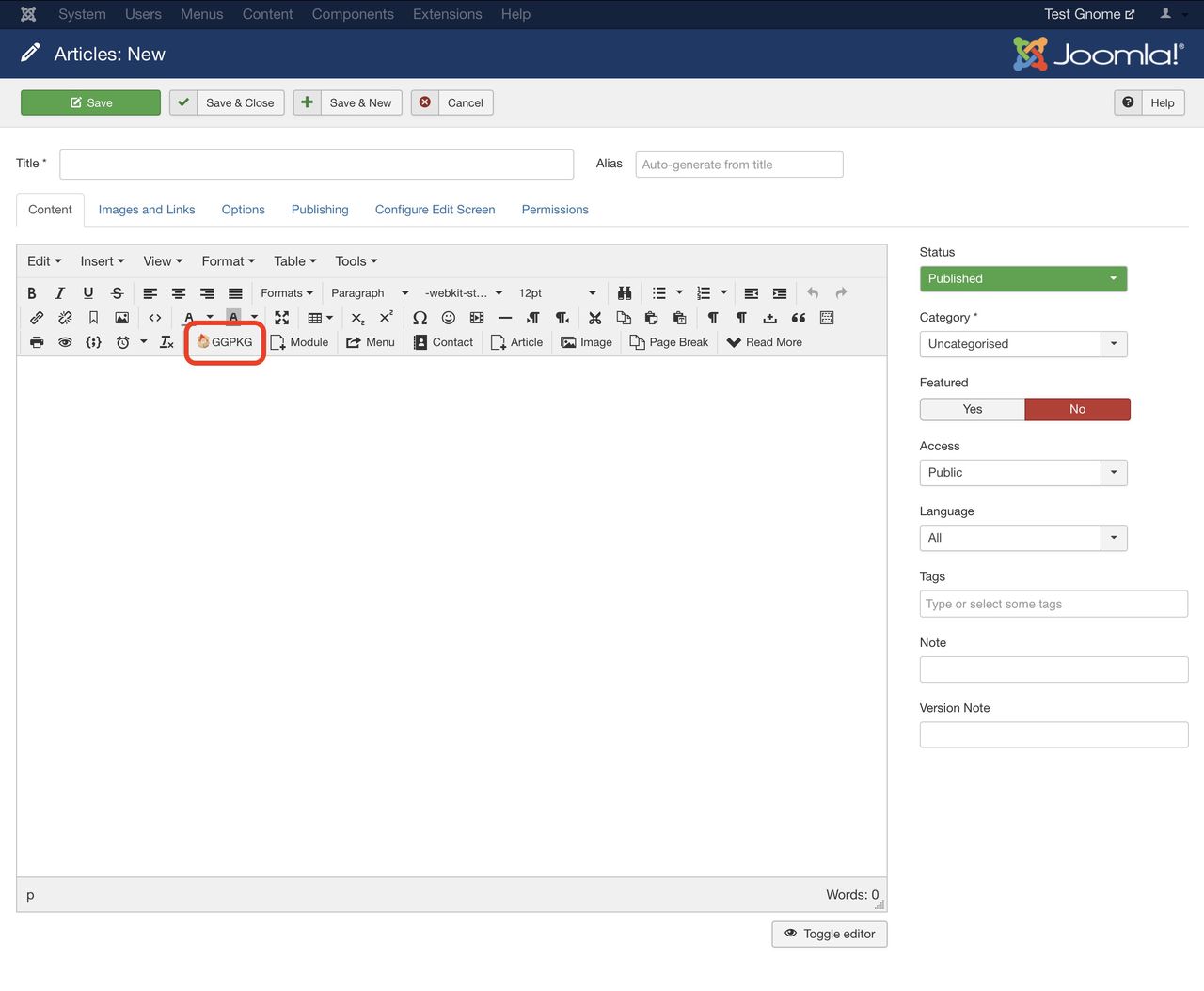
Start Preview – The player will load and start playing when the user clicks the preview image. This is handy for when there are multiple projects on one page and some or all, for example, have background sound. This prevents them all from playing at once.
Width and Height – Change the default player size.
If, for example, you set the width to 100%, the panorama player will always fit within the column’s width.
✭ Units are customizable. If no units are added, pixels (px) are assumed.
The editor will add the package using attributes.
Below is a list of a few examples. The string starts and ends with curly brackets
{ }and the attribute descriptors are encased in quotes:ggpkg file="put_filename_here".-
To show only the panorama or object:
{ggpkg file="Package_ID" display_userdata="false" display_map="false"} -
To show a preview image with a play button, a map and custom window size:
{ggpkg file="Package_ID" start_preview="true" display_map="true" width="320" height="240"} -
To show a map without a panorama:
{ggpkg file="Package_ID" map_only="1"}Using the number, 1, turns the
map_onlyfunction to, on.
-
Uploading Large Files
If you need to upload projects to Joomla but are limited by the upload file restrictions, then you can convert a normal web output to a light-weight package to get past the file size restrictions.