Learn how to create and use custom properties (extra data fields) to add your own information to nodes and hotspots.
If the project requires more user data fields or parameters for hotspots, you
can add them here. A Custom Property is a field you create yourself to store
extra information about a node or hotspot. Unlike Tags, which are simple labels,
custom properties can hold specific values (text, numbers, file names, etc.)
that can be used by the skin as a
variable.
Example use cases:
Show or hide skin/UI elements based on a value (e.g., accessibility =
Wheelchair shows an accessibility icon).
Display different images, text, or colors in the skin (e.g., season =
Spring hows a flower icon on the map).
Store coordinates, links, or file names for use in pop-ups or maps.
Add game or activity data (e.g., hunt_points = 10 for a scavenger hunt).
Add the Custom Property from User Data or a Hotspot
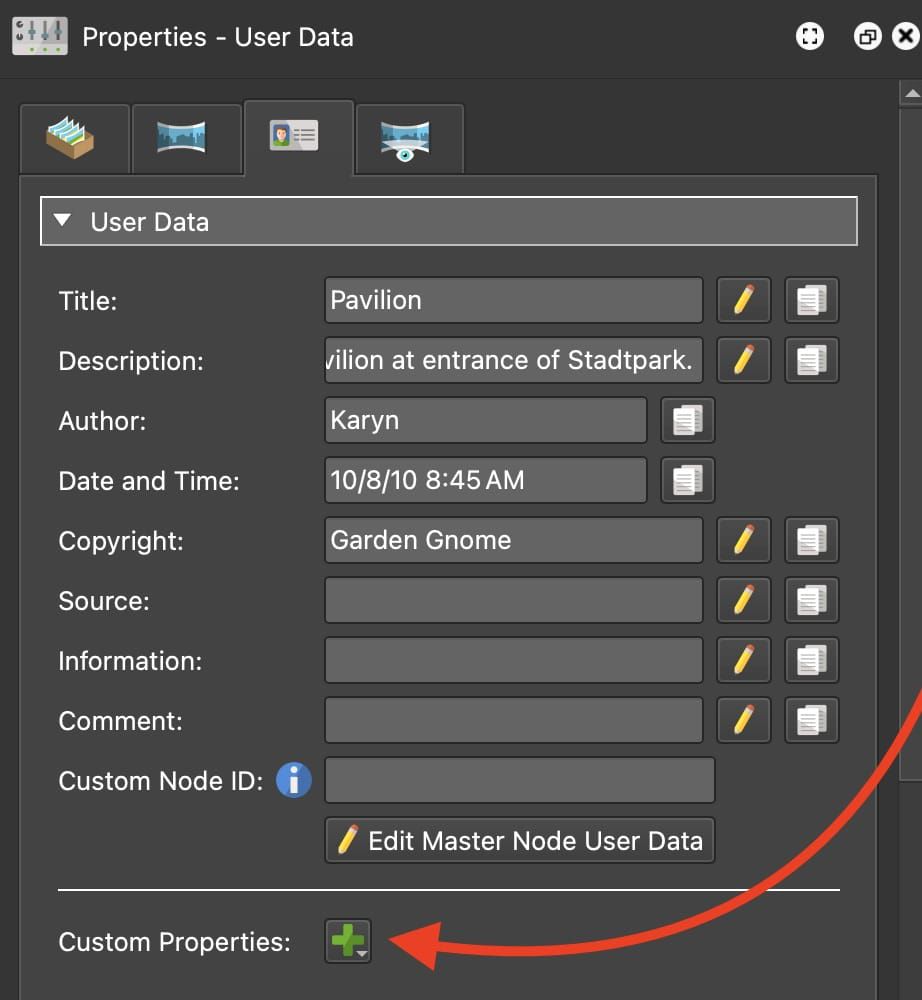
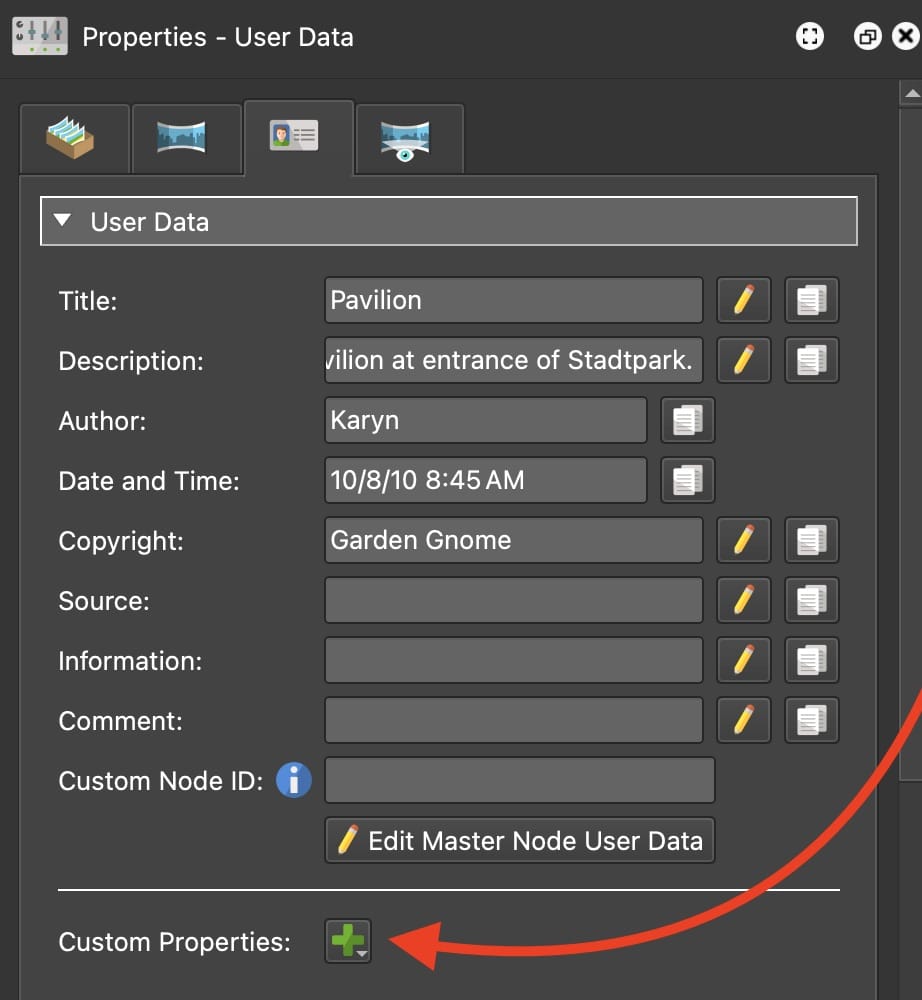
From the User Data, Point Hotspot or Polygon Hotspot properties, click the
plus button to add a custom property.
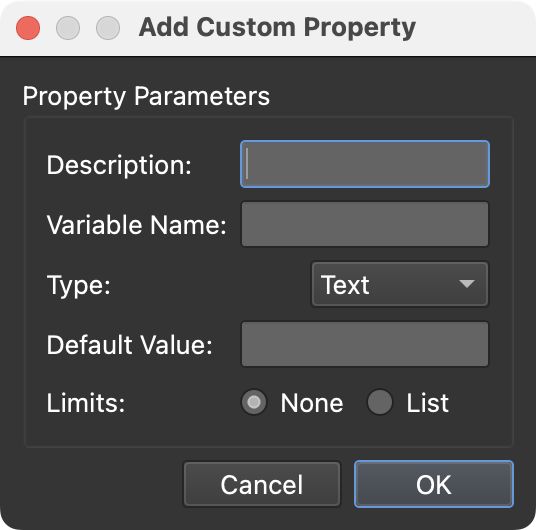
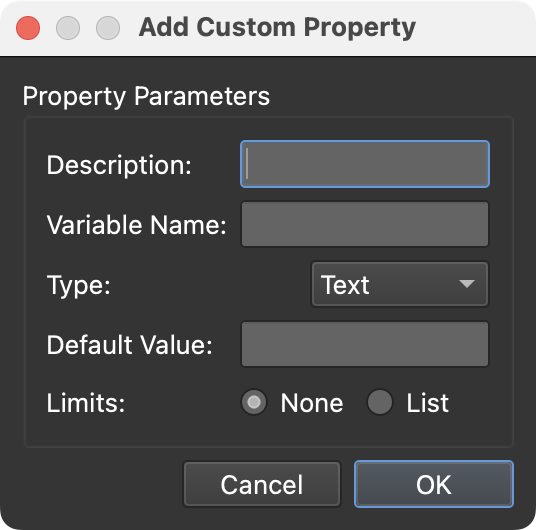
Click the plus to add a custom property. A dialog
will appear where you define the parameters of the custom
property:Custom Property dialog.
Enter the information needed depending on what type of values you need,
Text, Number, or True/False.
Added Text-type custom property.
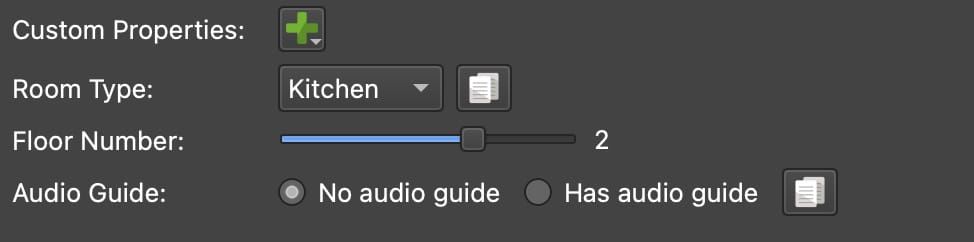
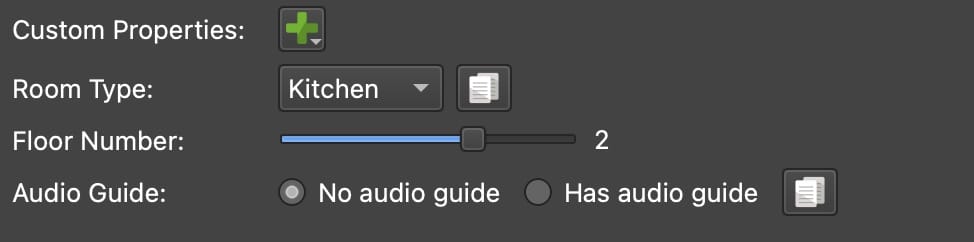
Depending on the property type, you’ll get to choose UI options to display
the data as a dropdown menu (a list for text, number, true/false), a slider
(number), number picker, or radio buttons (text, number, true/false).
A sampling of the UI options for custom properties.
Copy the value to the other nodes (or selected nodes) or hotspots. Use the
copy button to copy the value to the the other nodes or hotspots. The
custom property you’ve created in user data, will be visible in all nodes.
Likewise, the properties will be visible in all hotspots. However, the value
will be the default
value.Custom Property Copy to Nodes button
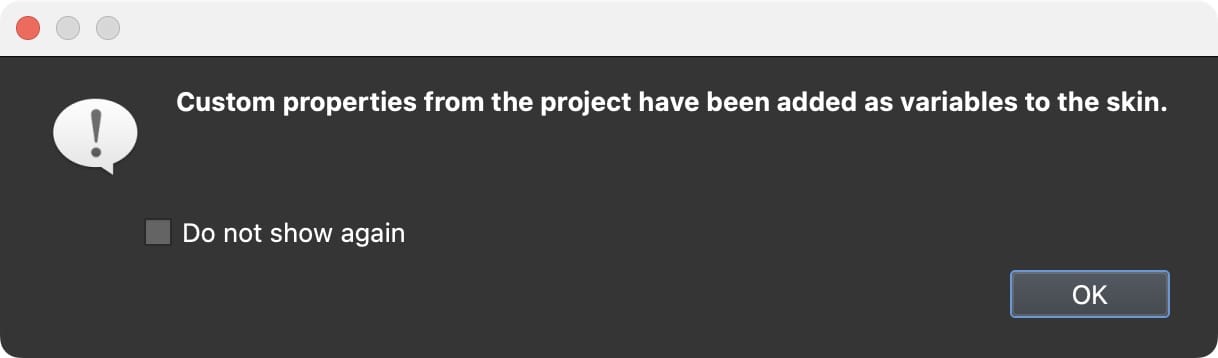
Once a skin is opened from the Web Output, the custom property created here will
be added as a variable in the skin properties.
Notice that custom properties will be injected to the skin.
Create a Custom Property from a Skin Variable
Custom Property for User Data added as a Skin Variable
Custom Property for Hotspots added as a Skin Variable
A custom property can also be created from an existing
skin variable.
Go to the skin’s settings and add a variable if none have been added.
Choose the variable source. After adding a variable or more in the skin’s
variables table, click in the Source column and choose User Data or
Hotspot as the source.
Go to the User Data or Hotspots properties and Long press the plus button
to add the custom property. Choose Create Property from Skin Variable.
Choose the variable from the list or choose all to add all User Data or
Hotspot type variables.
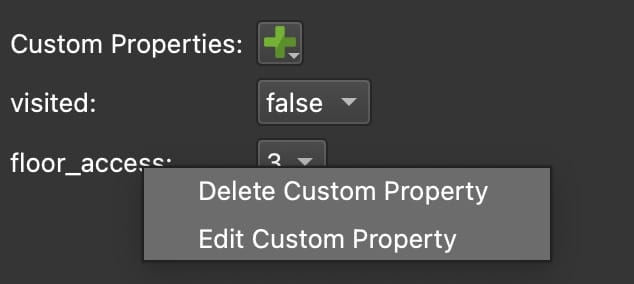
Right-click the label (description) of the custom property to change the
default value and the description, and to delete the custom property.
Edit Property
Webinars
Check out the following webinars on custom properties for more information and
for inspiration on how to use them.