Skin Editor
A skin, as a whole, is a graphical element (interface) that is layered over the panorama and can include images, maps, buttons, text, and sounds.
The Skin Editor has four main sections: the Tree, the Canvas, Properties, and the Toolbar.
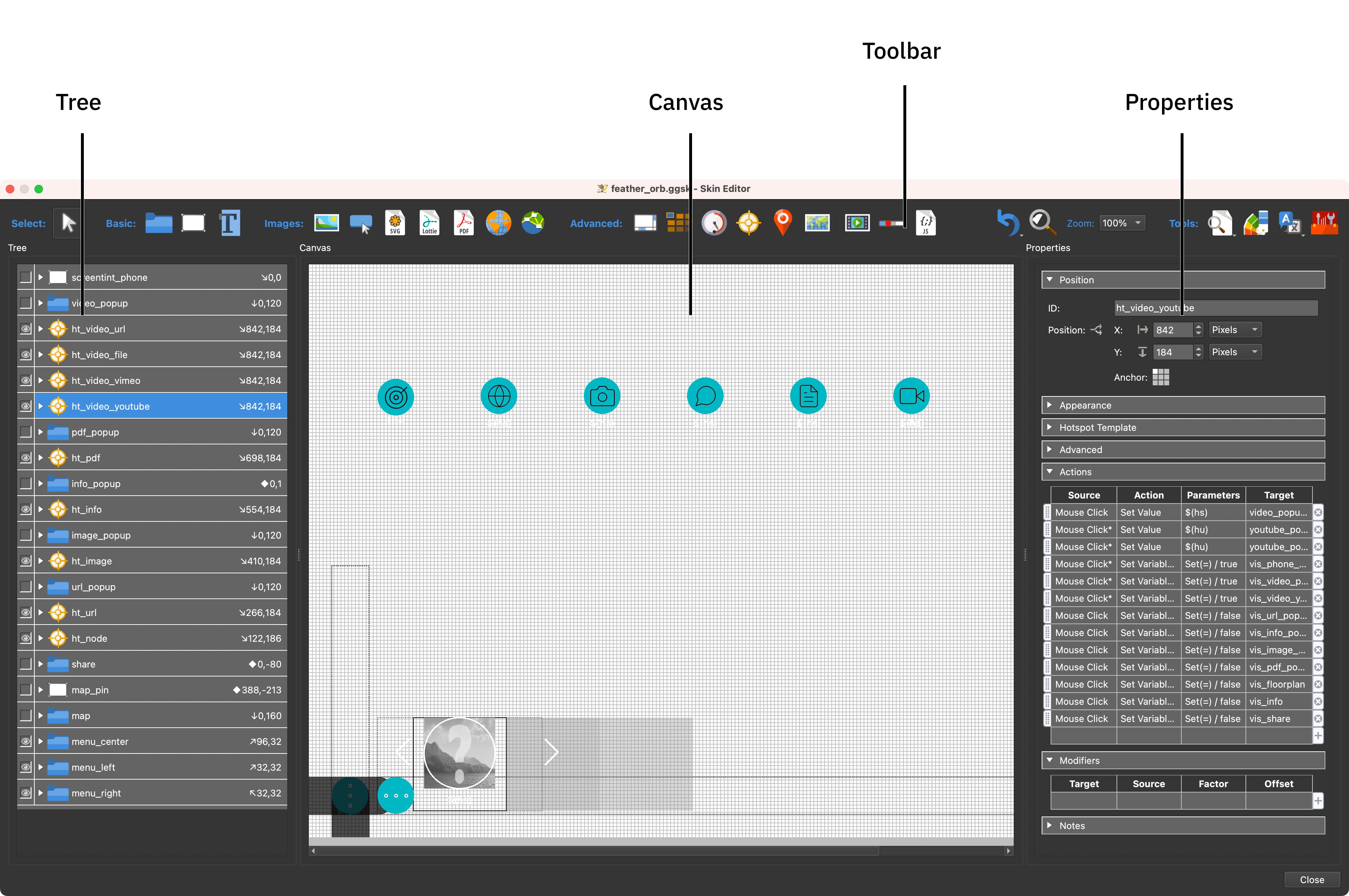
- The Tree is where the skin elements are organized.
- The Canvas is where you build and design the skin. It’s your workspace.
- The Properties section is where you can edit each element and change the way it behaves through actions.
- The toolbar and the menu bar hold the tools and commands.
Open the Skin Editor with the Skin Editor button in the main window’s toolbar or by choosing Tools > Skin Editor. To edit the skin of the web output you’re working on, click the Edit Skin button next to the skin in the Output panel, or choose Tools > Skin Editor (Current Output).
Saving and Closing
Skins are saved as .ggsk files. Choose File > Save to save the skin, or
File > Save as… to save it under a new name. To make a skin available in the
skins menu of every project’s Web Output, save it in the Skins folder with
File > Save as (default skins folder)…. See the
File menu for details.
The skins and VR skins that come with Pano2VR are installed in the
Skins folder as read-only files. Each time
Pano2VR starts, it puts back any of them that are missing, and an update
replaces them with their new version. To change a built-in skin, save your
changes as a copy under a new name. If you choose File > Save on a built-in
skin, Pano2VR tells you that it can’t be changed and opens the save dialog with
a name for the copy already filled in, such as venis_copy.ggsk. If you cancel,
nothing is saved and your changes stay in the Skin Editor. The same happens with
any other skin file that is write protected.
Pano2VR 8.1 saves skins in an updated file format. Pano2VR 8.0 can still open these skins, but it warns that the skin was created with a newer version, and features added in 8.1 may not work there. Keep a copy of the skin if you still need to edit it in an older version.
While the Skin Editor is open, Pano2VR backs up the skin at the interval set under Backup in the Settings. If the Skin Editor doesn’t close correctly, Pano2VR offers to load the last backup the next time you open it.
To close the Skin Editor, click Close in the lower right corner of the window or choose File > Close Window. If the skin has unsaved changes and contains warnings, you’re first asked whether you want to review the warnings; click Yes to open the list of warnings instead of closing. After that, choose to save the changes, discard them, or cancel.
Variable Picker
Wherever the Skin Editor lets you choose a
skin variable from a menu, a
skin with more than 30 variables gets a searchable picker instead of a long
list. It appears, for example, when you insert a $(*variable) placeholder,
choose a variable as a logic block trigger, or choose the variable of an action.
The Animation Editor uses the same picker to add a track for a skin variable.
- Type in the Filter field to show only the variables whose names contain what you type. The first variable that starts with it is highlighted.
- Use the Up Arrow and Down Arrow keys to move through the list, and press Return (macOS) or Enter (Windows) to pick the highlighted variable. You can also click a variable.
- Without a filter, the variables you picked most recently (up to five) are listed on top, under Recent, followed by All variables.
- Hover over a variable to see its description.
- Press Esc once to clear the filter, and again to close the picker.
Fields that take the name of a text variable, such as the subtitle text variable of a video, have a small search button next to them that opens the same picker, limited to text variables.