Animation Properties
The animation properties hold the project's sequences and the settings of the clip that is loaded in the Animation Editor.
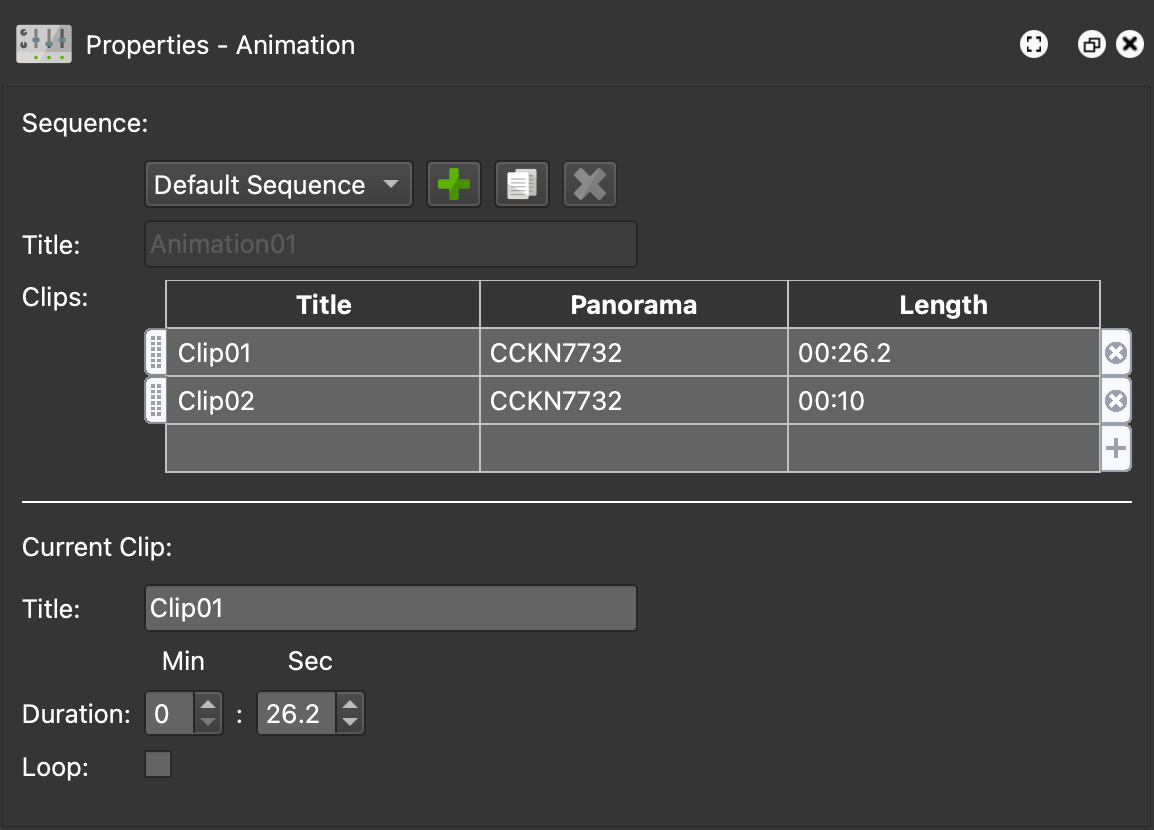
The animation properties appear in the Properties panel when you click in the Animation Editor, even if the current node does not have an animation clip yet.
Sequence
The upper part of the animation properties is about sequences: groups of clips that play one after the other.
Sequence – Choose one of the project’s sequences. The Default Sequence is created automatically, and it can be neither renamed nor deleted.
Add Sequence – Click the plus button to add a new sequence. Pano2VR asks for its title.
Duplicate Sequence – Click to copy the selected sequence.
Delete Sequence – Click to delete the selected sequence. Its clips stay in their nodes.
Title – The sequence’s title. Sequence titles must be unique.
Clips – The clips of the sequence, in the order they play. Clips you create in the Animation Editor are added to the selected sequence automatically. To add an existing clip, double-click an empty row (or click the plus icon) and choose the clip in the Pick a Clip dialog. Drag the handles to change the order. The table lists each clip’s title and length. In Pano2VR Pro, it also lists each clip’s panorama, and you can add clips from any node of the tour.
Current Clip
This part shows the clip that is loaded in the Animation Editor.
Title – The clip’s title. Clip titles must be unique within a node.
Duration – The clip’s length in minutes and seconds. It cannot be 0.
Loop – Select to play the clip over and over. After the last keyframe, the animation continues to the end of the clip and returns to the values of the first keyframe, so leave some time after the last keyframe. A warning symbol appears if a pan, tilt, or field of view keyframe sits at the very end of the clip.
Fly In clips and video panorama clips cannot be renamed or looped, and the duration of a video panorama clip follows its video.