The Workspace
A tour of Pano2VR's main window, its panels and tools, and how to get help for any control right from the app.
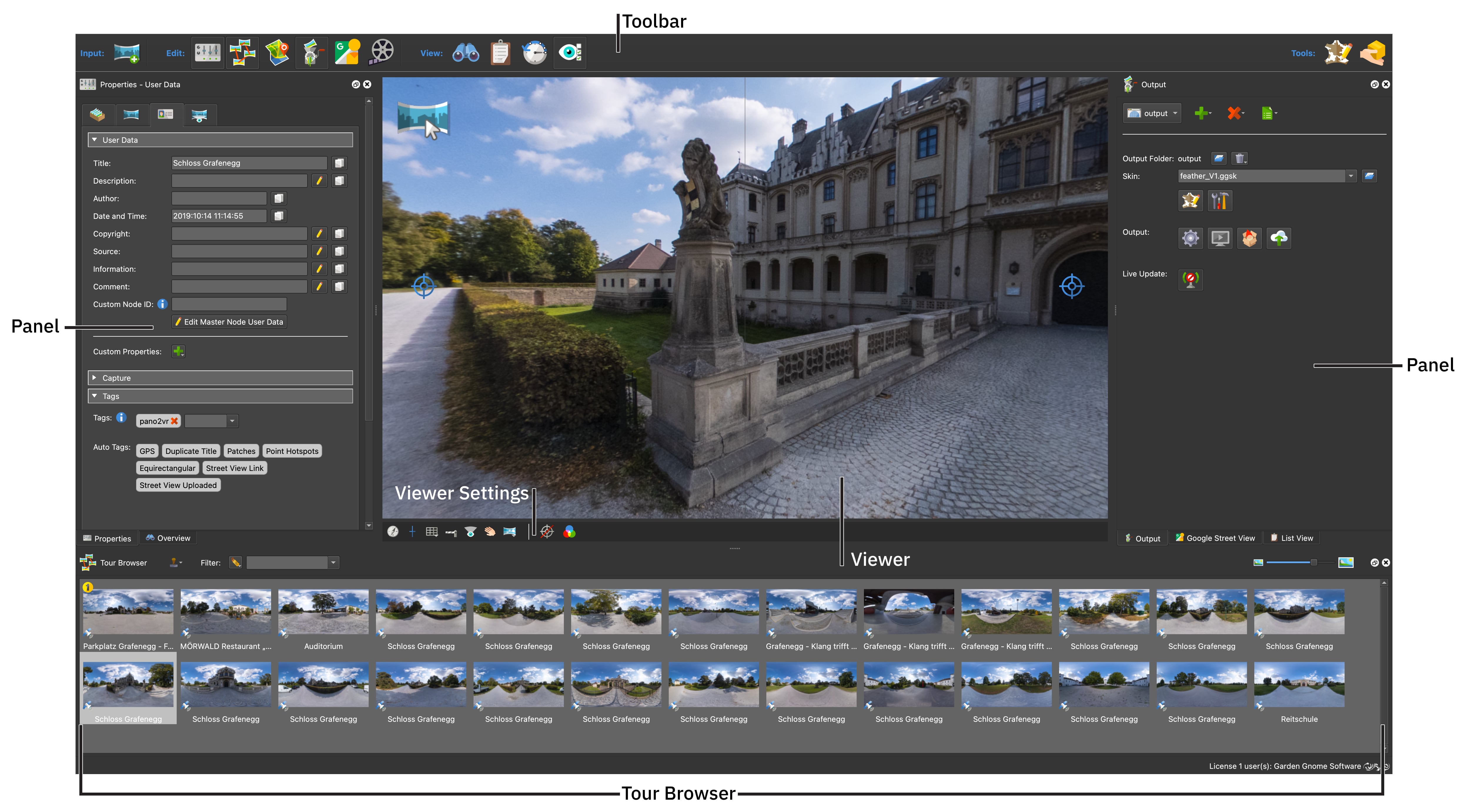
Pano2VR’s main workspace features the following:
-
Moveable panels for a customizable workspace
Getting Help
Every part of Pano2VR can take you straight to its documentation:
-
Press F1 to open the documentation for the control that has the keyboard focus. This works in the main window, the Skin Editor, dialogs, and floating panels.
-
Click Click for Help in the Toolbar, or in the Skin Editor’s toolbar, then click any control. Instead of doing its usual job, the control opens its documentation page. Press Esc (Escape) to cancel.
The page opens in your web browser, at the section about that control where there is one, or else at the page for the panel or dialog around it.
Spell Checking
Multi-line text fields, such as the text editor for descriptions in User Data and the text of skin elements, check your spelling with your operating system’s spell checker. Misspelled words are underlined in red. Right-click a word (Control-click on macOS) to see suggestions at the top of the shortcut menu, and choose one to replace the word.