Search in the Skin Editor
Use the Search tool in the Skin Editor to find elements and variables, list every element of one type, review the skin's warnings, and rename elements and variables everywhere they are used.
When you have a complicated skin with many elements and variables, it’s useful to have a way to search through all the skin elements and variables. Not only can you search for the usage of elements and variables, but you can also quickly rename them as well.
The search looks at text: IDs, variable names, values, tags, and notes. It ignores upper and lower case, and it starts once you’ve typed at least two characters, unless Exact Match is selected.
Search can be initiated from many places:
- The Search button in the Toolbar
- Right-click any element in the Tree
- Right-click any variable in the Variable table
- The Edit Menu
- Command-F on macOS, Ctrl+F on Windows
The search can be refined by searching for the element or variable in any of the following:
- Everywhere – Searches the entire skin.
- IDs – Searches the element IDs.
- Elements – Searches every place an element’s ID is used: the ID itself, action targets, element names in action values, proxy IDs, the Clone As elements of node markers and maps, and the media element of a seekbar. This is the scope Find Element Usage uses.
- Variables – Searches variables used in the skin.
- Action Targets – Searches the query as a target for any Action.
- Values – Searches the query as values: texts, URLs, file names, CSS, code, and the values in Logic Blocks, Action Filters, and actions.
- Tags – Searches the query as a tag.
- Notes – Searches the query in the notes section of an element.
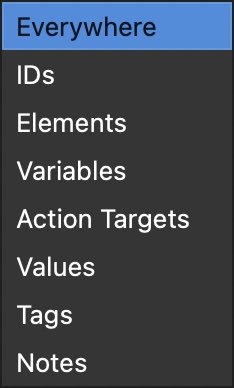
Next to the search scope is an element type filter. Use it to limit the results to one element type, for example only Text elements or only Hotspot Templates. Choose All (the first entry) to search all element types again.
Open Search
Click the magnifying glass in the Toolbar or press Command-F (macOS) or Ctrl+F (Windows) to open Search. When an element is selected, the search starts with that element’s ID and Exact Match selected.
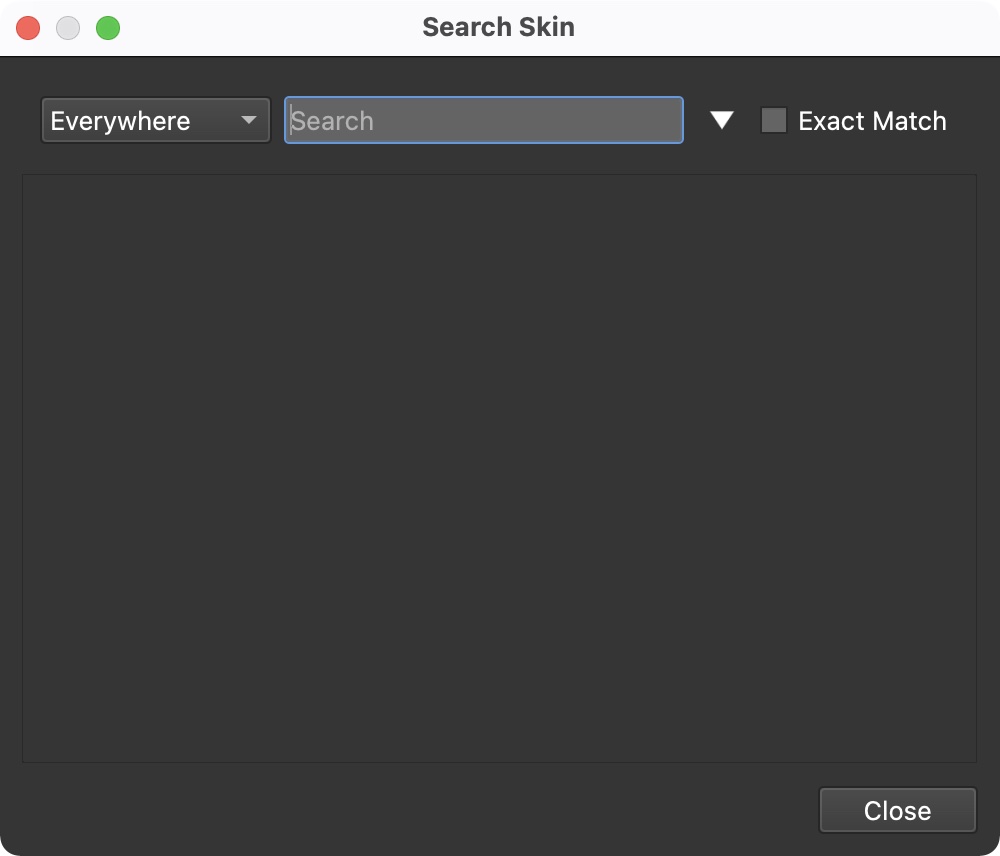
Enter your query. Search for text and variables.
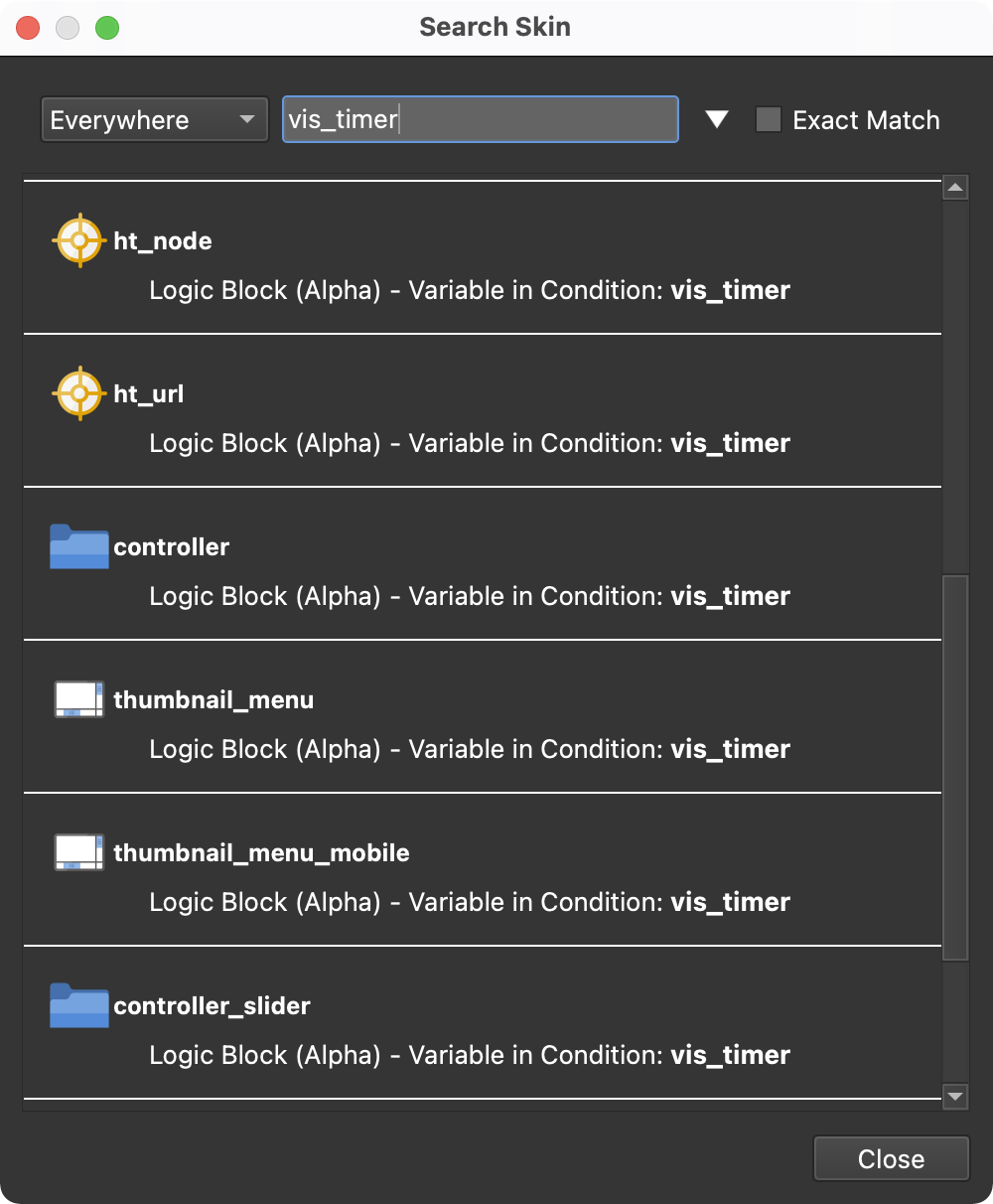
What you see above is the variable vis_timer, and it’s used in a logic block
for Alpha multiple skin elements.
Click a result to select its element in the Tree and the Canvas, or its variable in the Variables table. Double-click a result to select it and close the search.
You can also find elements by selecting them in the Tree and opening the context menu.
Find a Variable
To find where a variable is being used, go to the variables list, hover the mouse over the variable, and right-click to open the context menu.
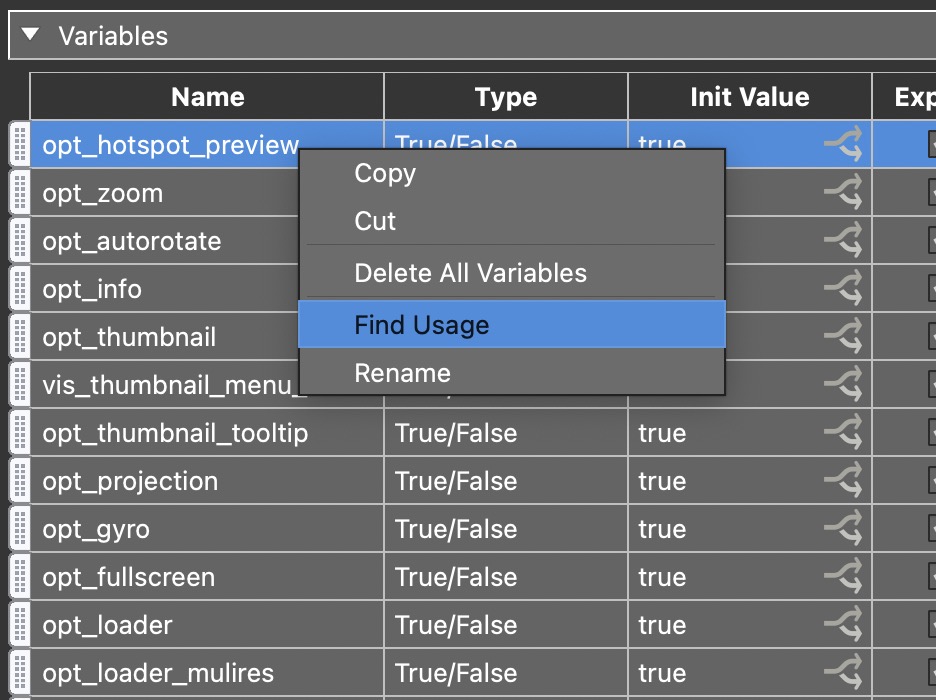
The Search will open showing where the variable is used throughout the skin. Variables and Exact Match will be selected automatically.
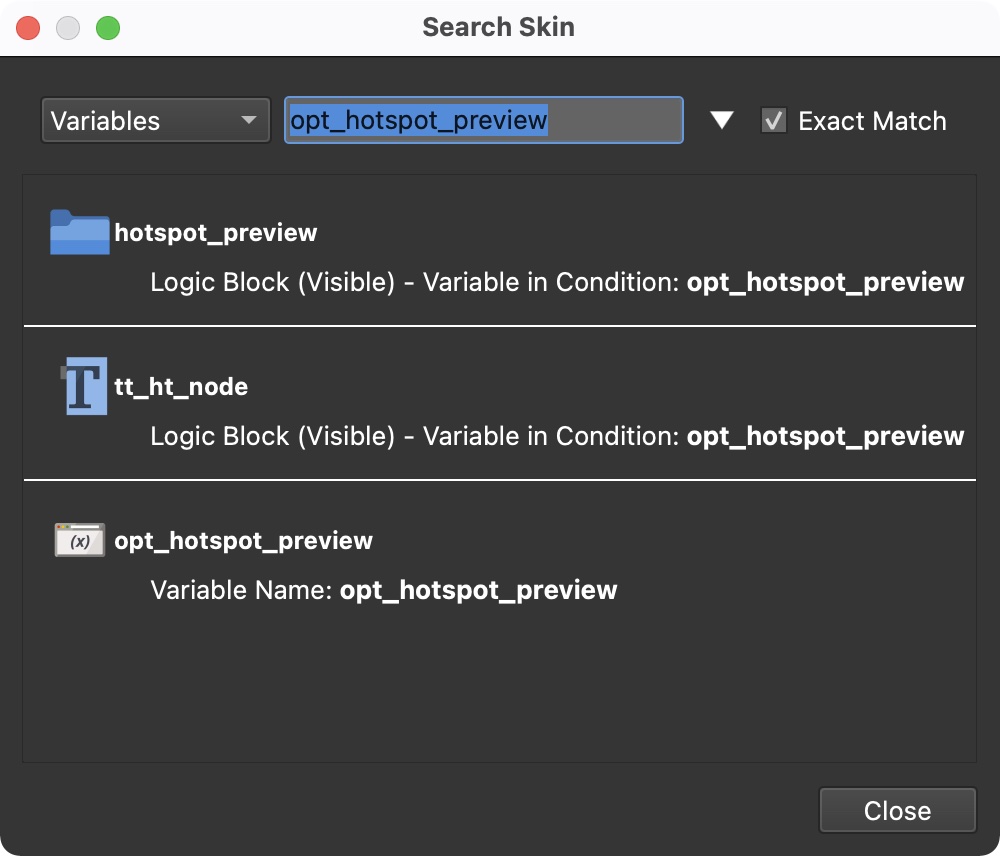
In the image above, we see that the variable is being used Visible logic blocks. The last result is the variable itself.
Click on one of the results to open the element in which the variable is used. This will highlight the element in the Tree.
Find an Element
An element can be found by right-clicking it in the Tree. From the menu, choose Find Element Usage.
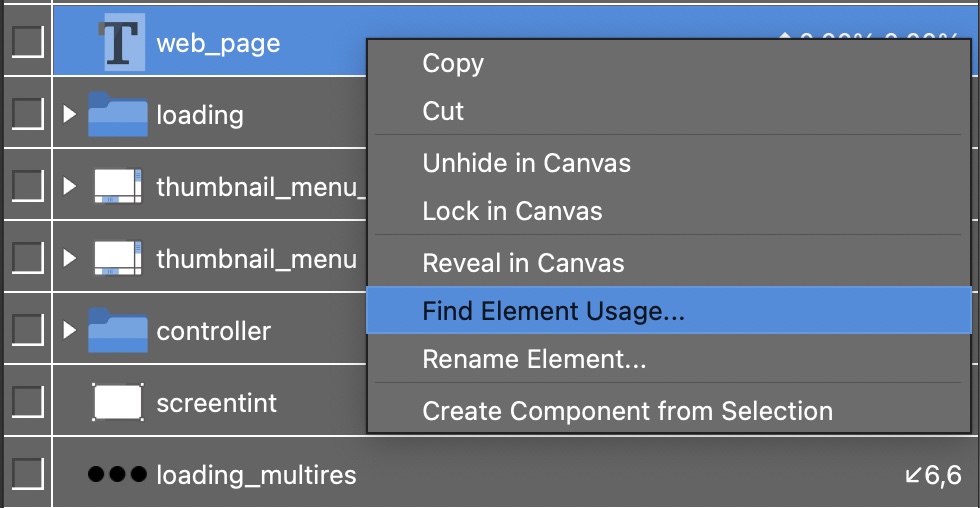
This will bring up the Search with Elements and Exact Match selected. From this list, we learn where the element is being used.
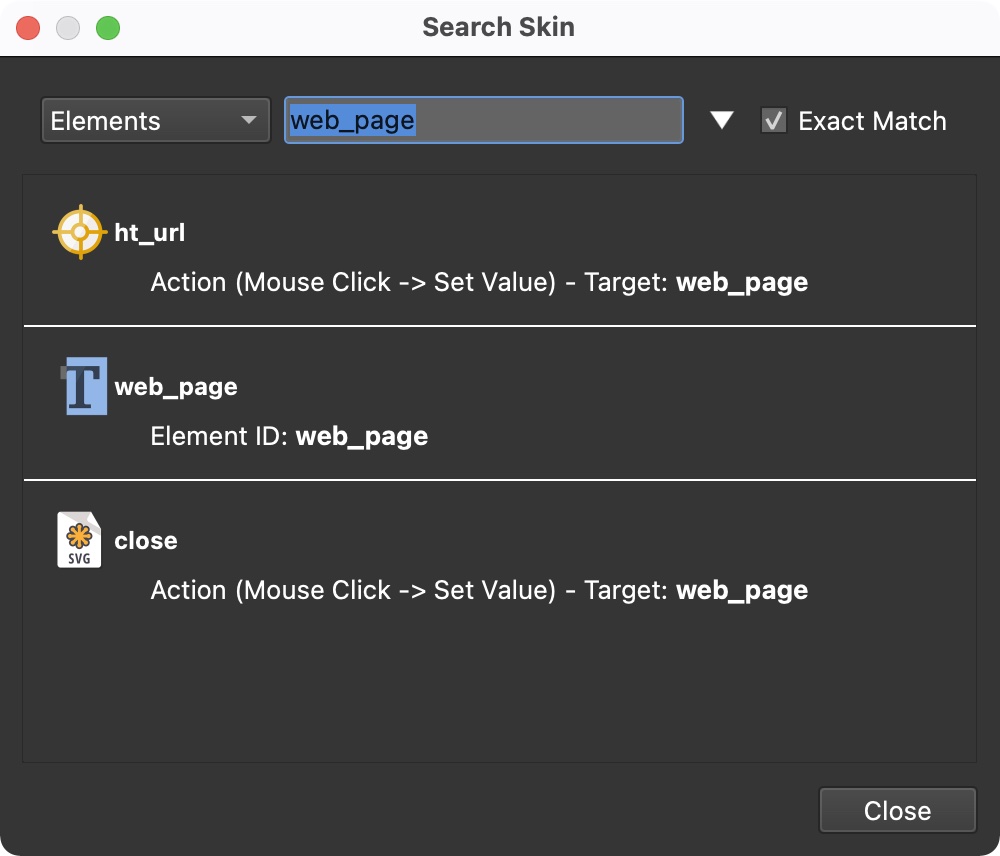
Here, we see the element is used as the Target in a hotspot template and a close button in the Action, Mouse Click > Set Value. We also get the element’s ID.
Selecting any of the results will highlight the element’s use in the Tree.
Find Warnings
Choose Edit > Find Warnings… (Option-Command-F on macOS, Ctrl+Alt+F on Windows) to list every element and variable that has a warning, with the warning’s text. Click a result to select the element in the Tree and the Canvas so you can fix it. When you close the Skin Editor with unsaved changes and the skin has warnings, Pano2VR offers to show this list first.
Renaming
To rename an element or a variable, search for its Exact Match. Then click the disclosure triangle to reveal a Replace field.
Or right click any element, and choose Rename Element. This is will open the search with the Replace field already revealed.
Each result in the list can be selected or deselected to be excluded from being replaced.
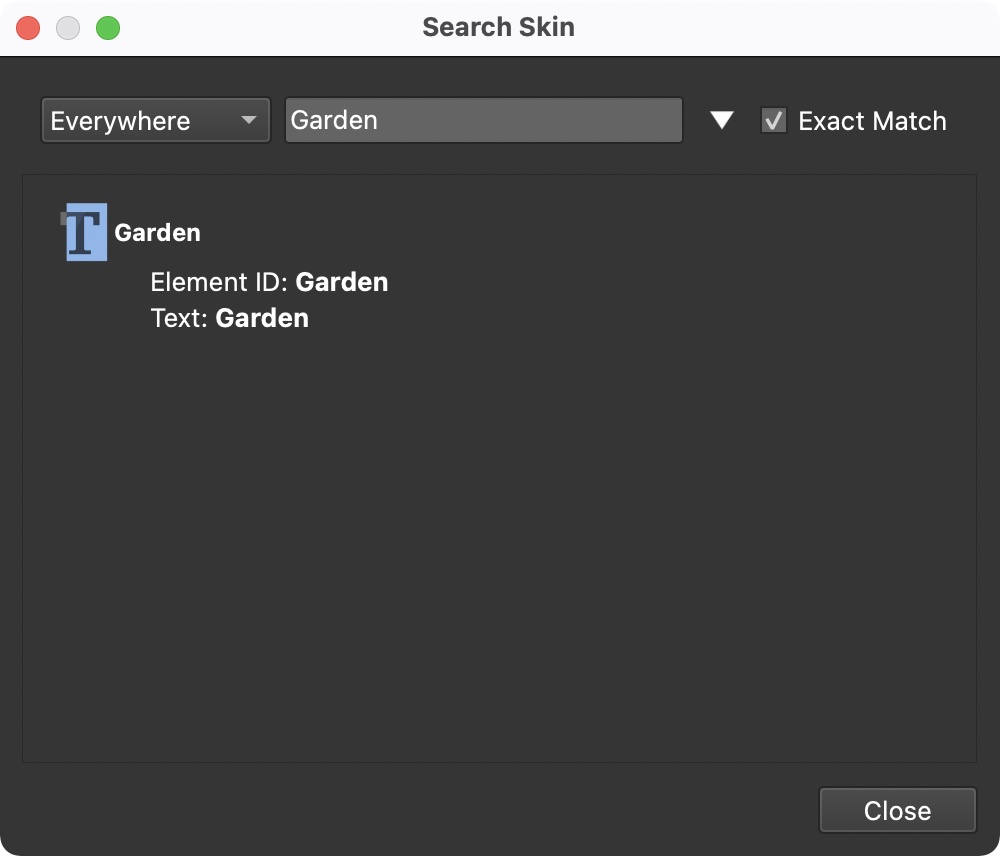
For example, we can rename an Element. The Text Element uses the ID, Garden, and the text inside that element also uses Garden. To change the text to use the German spelling, enter Garten in the Replace field and deselect the ID usage. This way, you’ll only change the text in the text box.
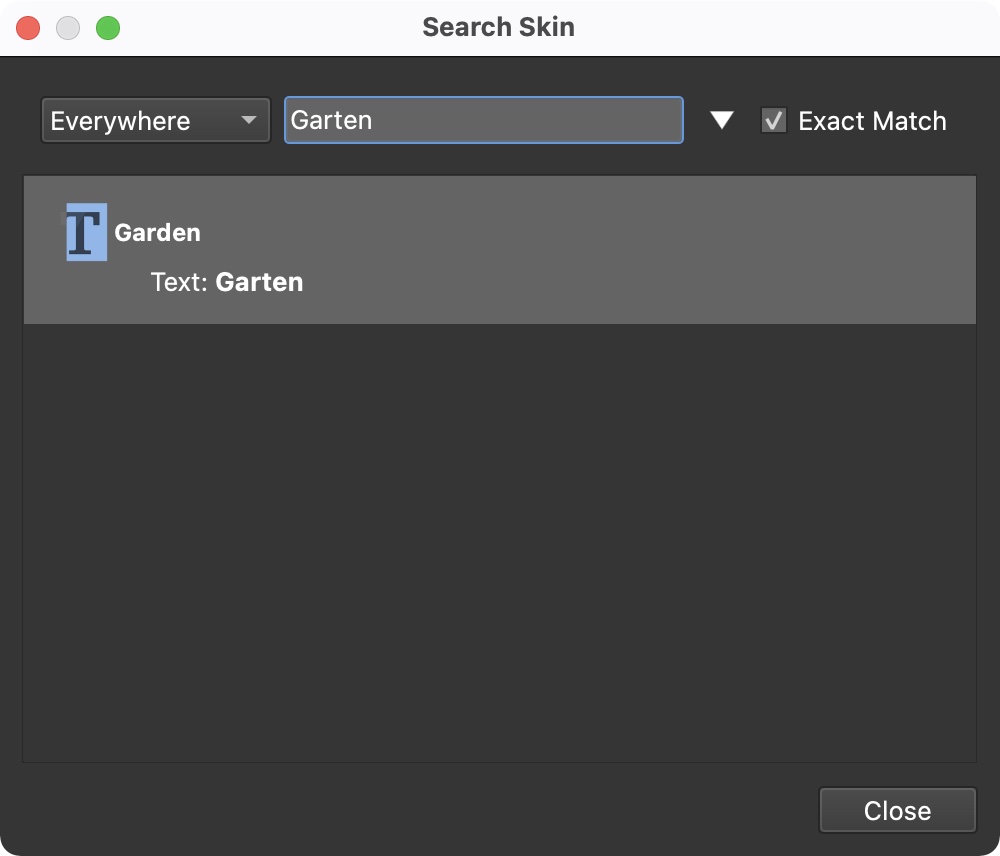
All replacements made with one click of Replace are a single step in the undo history, so choose Edit > Undo to take them all back.
See also…
- Project Search – search and replace across the whole project, including the skins of the web outputs
- Skin Editor
- Skin Elements
- Variables