Connecting Polygon Hotspots to the Skin
Polygon hotspots don't connect directly to the skin, like point hotspots with the hotspot template. But they can be connected using the Proxy ID. Learn how to toggle the color of multiple polygon hotspots when the mouse enters one.
Create the Polygon Hotspots
-
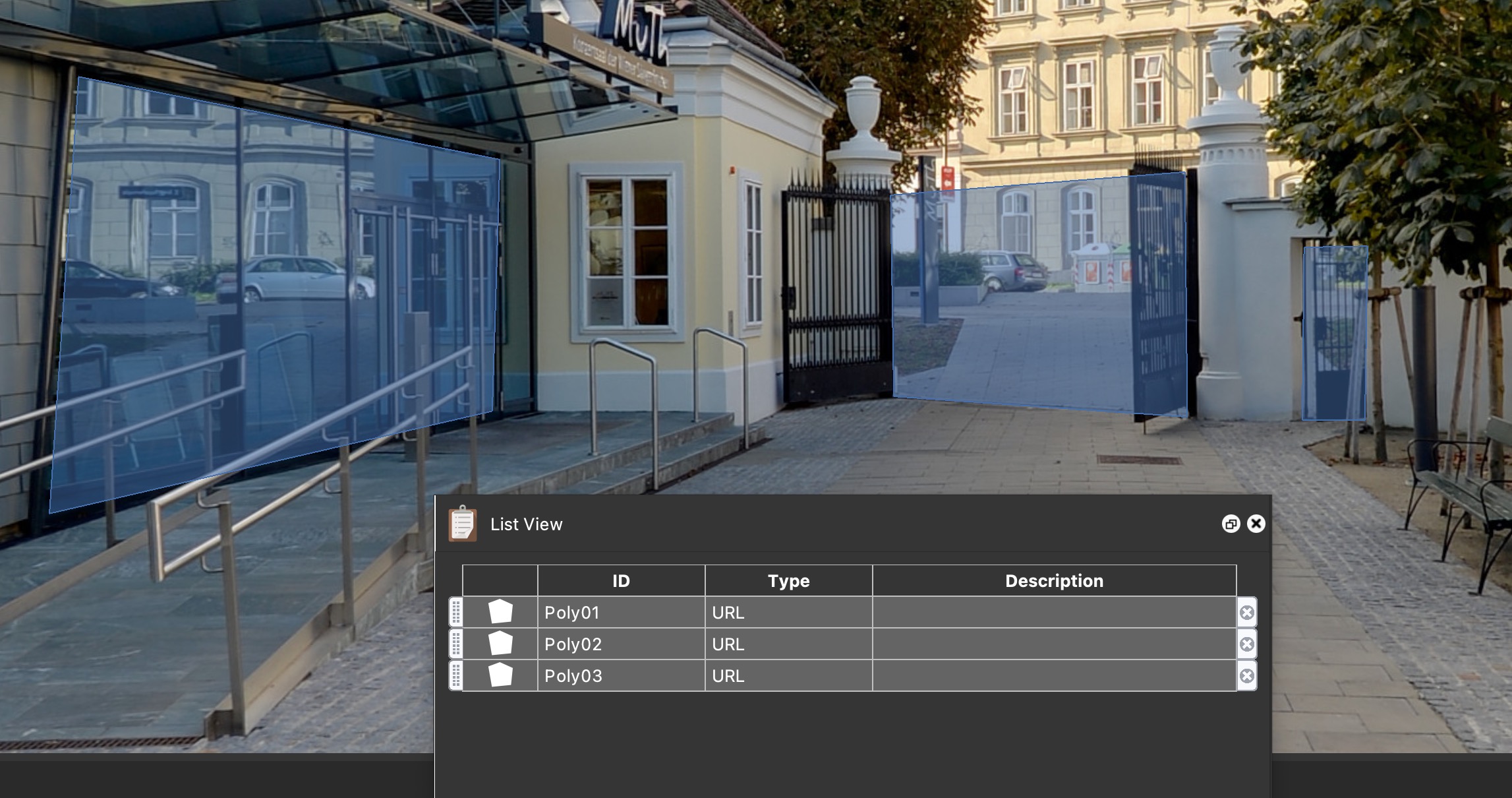
Draw three polygon hotspots.
-
Give each hotspot a unique ID. Pano2VR will automatically provide unique IDs, but you can change them.
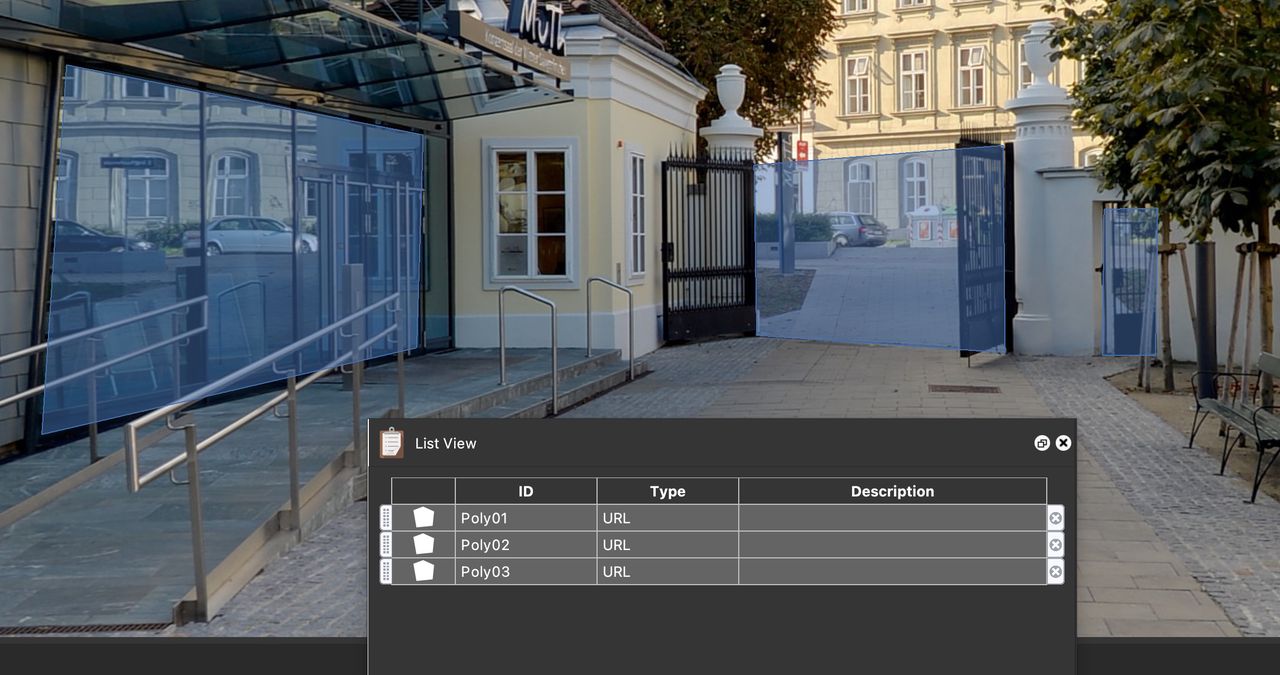
Draw three polygon hotspots -
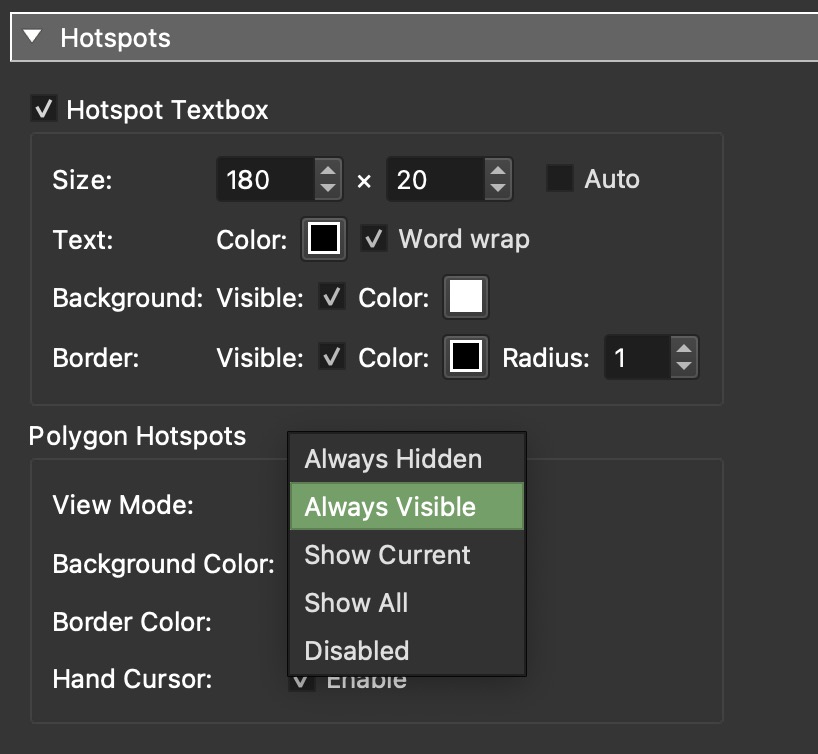
Open the web output settings and navigate to the Hotspots panel. In the Polygon Hotspots settings, change the View Mode to Always Visible.
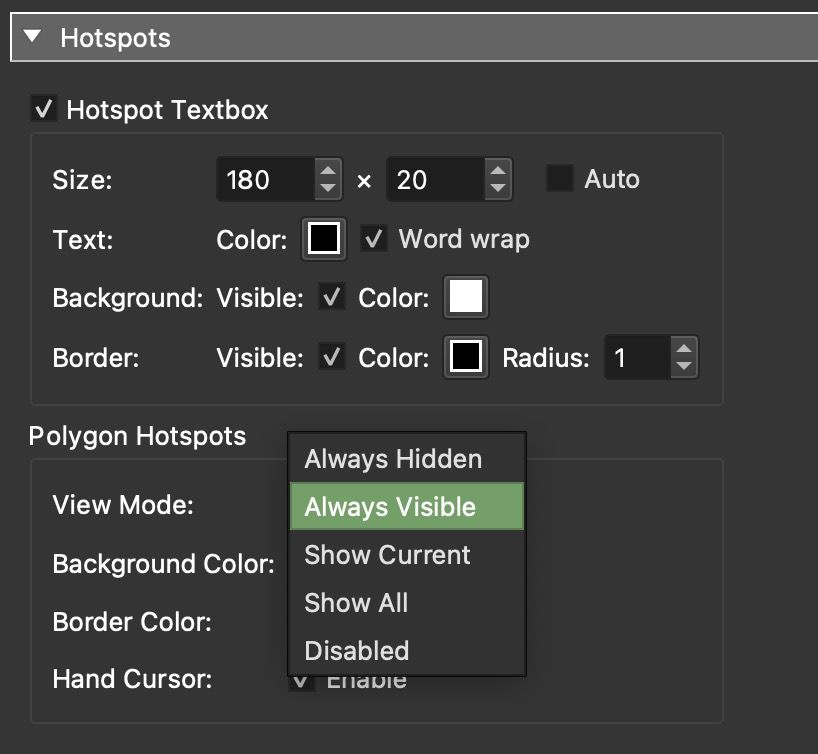
Hotspot Settings in Web Output -
[Optional] Change the default background and border colors of the polygon hotspots.
Toggle the Polygon Hotspot’s Colors
There are a few ways to do this, depending on what you want to happen. You can have one hotspot trigger the color change for all, have all hotspots trigger the color change, or change the color of a single hotspot.
Single Hotspot Triggers Color Change for All
In this first exercise, a single polygon hotspot changes the color of all polygon hotspots when the mouse enters it.
-
Open the Skin Editor.
-
Add a Container. (Or add a text field, button, or rectangle.)
-
Add a Proxy ID. Go to the container’s Advanced panel, and in the Proxy ID field, add the ID of one of the polygon hotspots. This ID belongs to the polygon hotspot that triggers the color change.
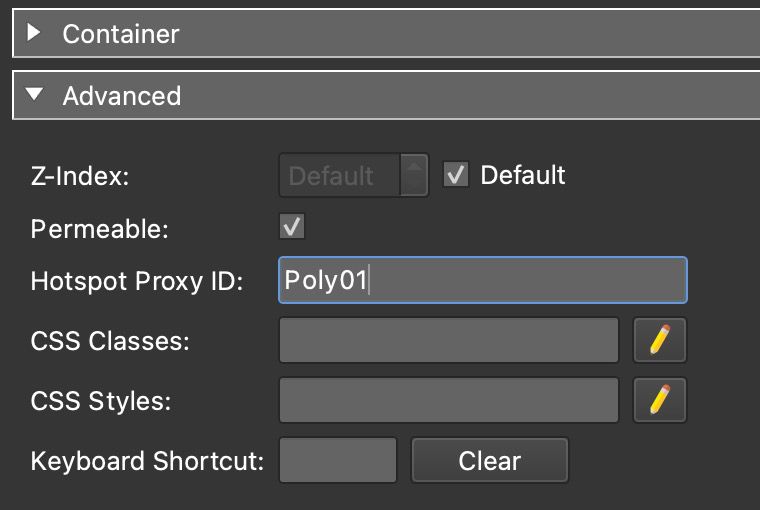
Proxy ID -
Add an action for when a mouse enters the polygon hotspot. In the Actions panel, double-click to add a new action:
- Source: Mouse Enter
- Action: Player Settings
- Type: Change Polygon Color
- Color: Define the colors
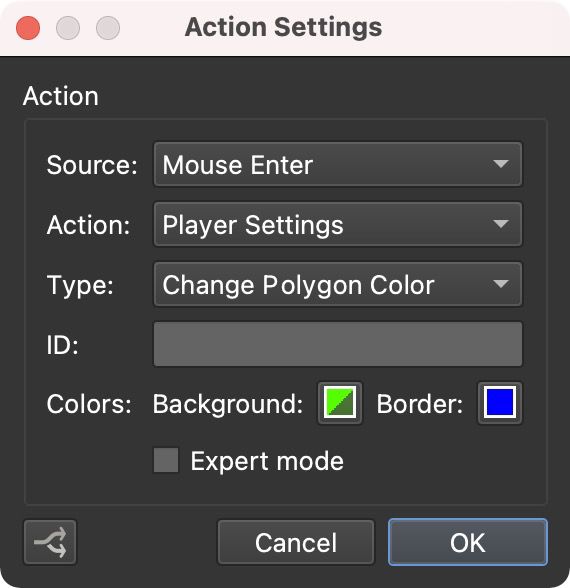
Mouse Enter Action -
Add an action for when the mouse leaves the polygon hotspot.
★ Tip To copy the action you just made, right-click it, choose Copy, then right-click again and choose Paste. Or press Command-C and Command-V on macOS, Ctrl+C and Ctrl+V on Windows.Double-click the copied action to open it. Change Mouse Enter to Mouse Leave and then change the colors.
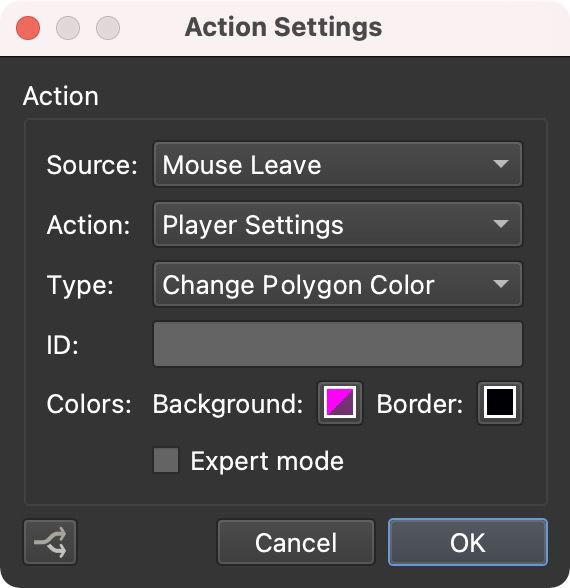
Mouse Leave Action -
Save the skin.
-
Output and test the project.
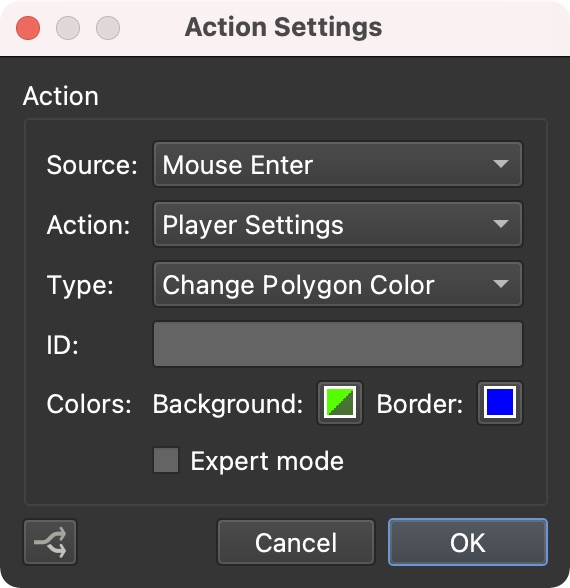
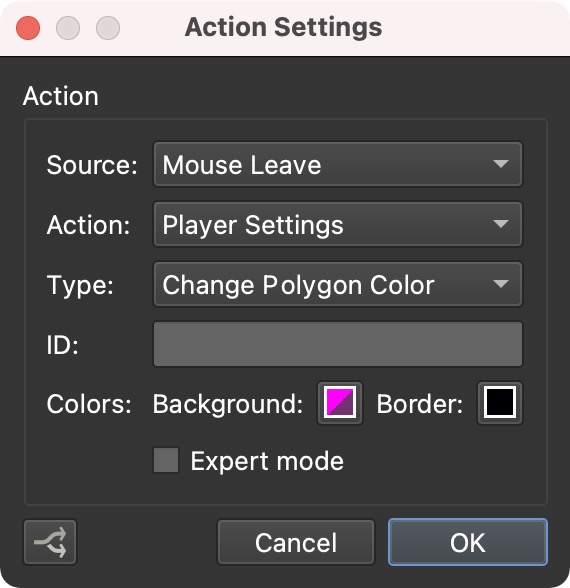
Now, when the mouse enters the polygon hotspot specified in the Proxy ID, all the hotspots change their colors.
All Hotspots Trigger Color Change for All
In the skin, keep all the same settings as done in the previous
section, but use an * in the
Proxy ID field instead. The asterisk addresses all hotspots (polygon and point
hotspots).
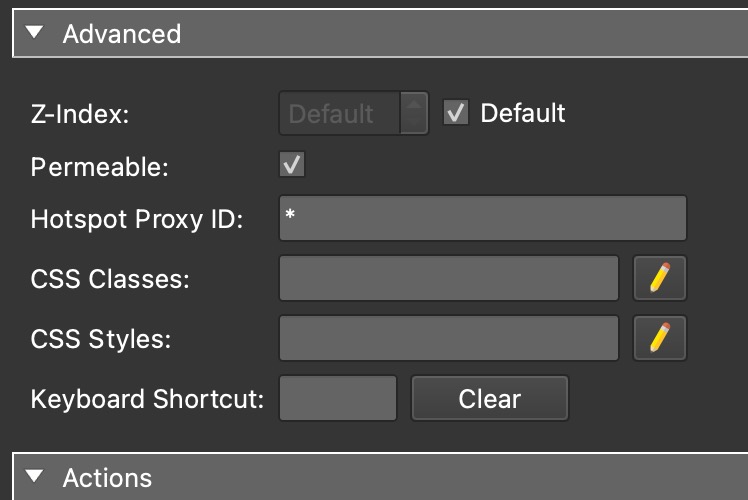
Save the skin and output the project. Now, when the mouse enters any polygon hotspot, all hotspots’ colors will change.
Change the color of one hotspot
If you want to have all the polygon hotspots change the color of a single
hotspot, add an * to the Proxy ID field as in the previous
section.
Then, in both actions, add the ID of the target hotspot.
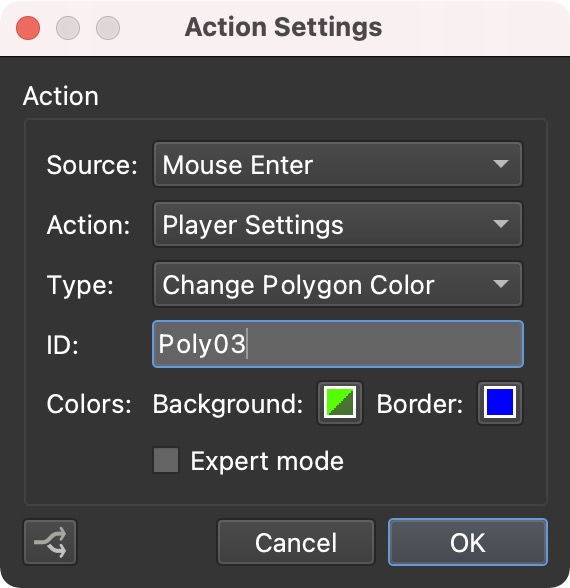
Save the skin and output the project. Now, any hotspot will change the color of only the polygon hotspot specified as the target.