Using Custom Properties
Learn how to create and use custom properties (extra data fields) to add your own information to nodes and hotspots.
If the project requires more user data fields or parameters for hotspots, you can add them here. A Custom Property is a field you create yourself to store extra information about a node or hotspot. Unlike Tags, which are simple labels, custom properties can hold specific values (text, numbers, file names, etc.) that can be used by the skin as a variable.
Example use cases:
- Show or hide skin/UI elements based on a value (e.g.,
accessibility=Wheelchairshows an accessibility icon). - Display different images, text, or colors in the skin (e.g.,
season=Springhows a flower icon on the map). - Store coordinates, links, or file names for use in pop-ups or maps.
- Add game or activity data (e.g.,
hunt_points=10for a scavenger hunt).
Add the Custom Property from User Data or a Hotspot
-
From the User Data, Point Hotspot or Polygon Hotspot properties, click the plus button to add a custom property.
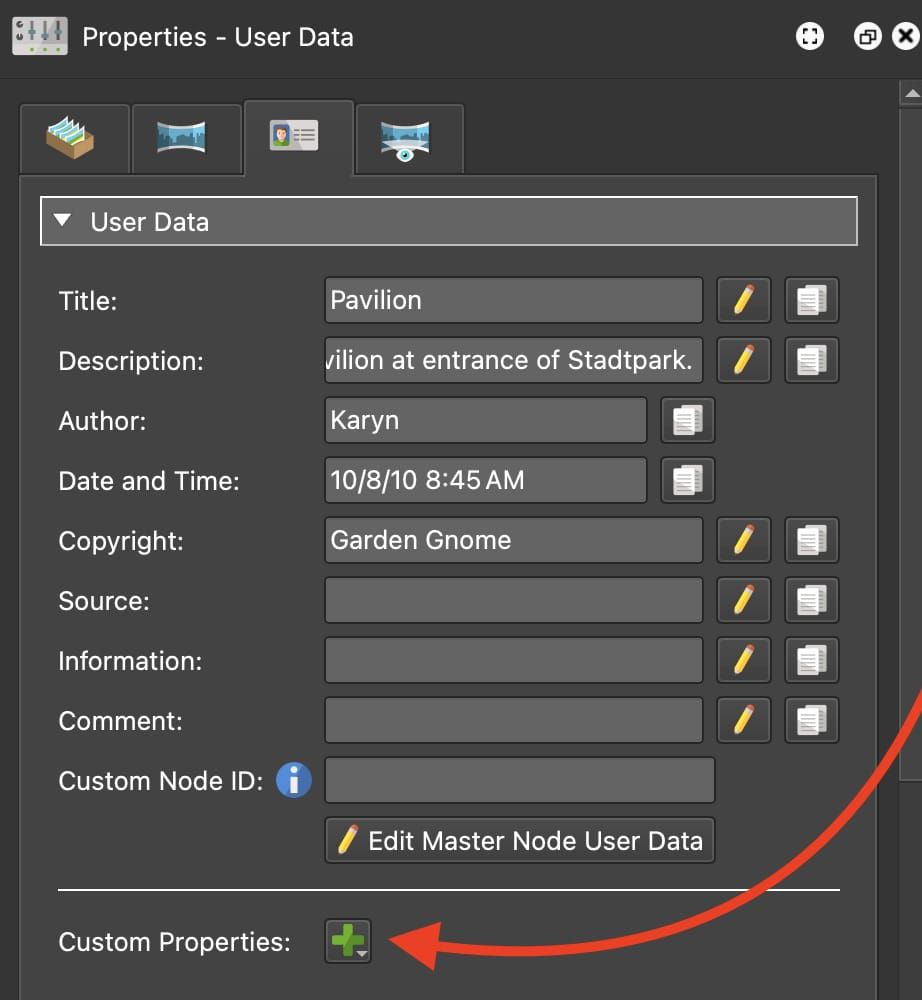
Click the plus to add a custom property. A dialog will appear where you define the parameters of the custom property:
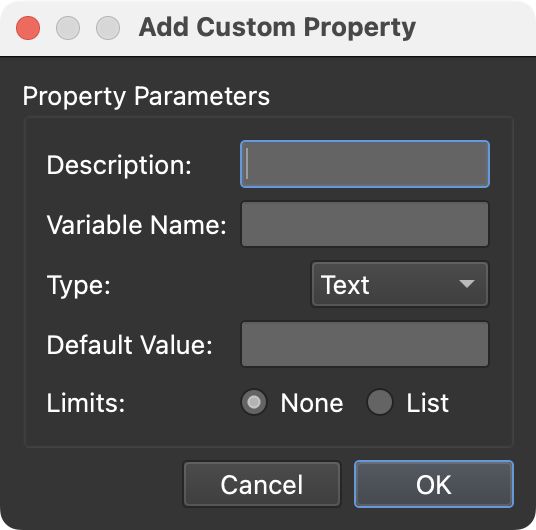
Custom Property dialog. -
Enter the information needed depending on what type of values you need, Text, Number, or True/False.

Added Text-type custom property. Depending on the property type, you’ll get to choose UI options to display the data as a dropdown menu (a list for text, number, true/false), a slider (number), number picker, or radio buttons (text, number, true/false).
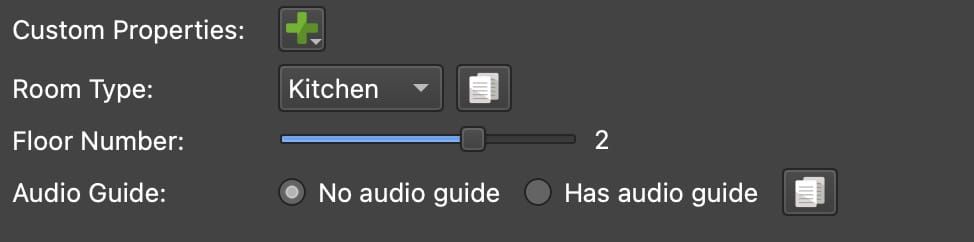
A sampling of the UI options for custom properties. -
Copy the value to the other nodes (or selected nodes) or hotspots. Use the copy button to copy the value to the the other nodes or hotspots. The custom property you’ve created in user data, will be visible in all nodes. Likewise, the properties will be visible in all hotspots. However, the value will be the default value.

Custom Property Copy to Nodes button


Once a skin is opened from the Web Output, the custom property created here will be added as a variable in the skin properties.

Create a Custom Property from a Skin Variable


A custom property can also be created from an existing skin variable.
- Go to the skin’s settings and add a variable if none have been added.
- Choose the variable source. After adding a variable or more in the skin’s variables table, click in the Source column and choose User Data or Hotspot as the source.
- Go to the User Data or Hotspots properties and Long press the plus button to add the custom property. Choose Create Property from Skin Variable. Choose the variable from the list or choose all to add all User Data or Hotspot type variables.
Right-click the label (description) of the custom property to change the default value and the description, and to delete the custom property.

Webinars
Check out the following webinars on custom properties for more information and for inspiration on how to use them.