Creating and Using Components
Components are a group of skin elements that are saved as a single element in the Components Toolbox and can be reused.
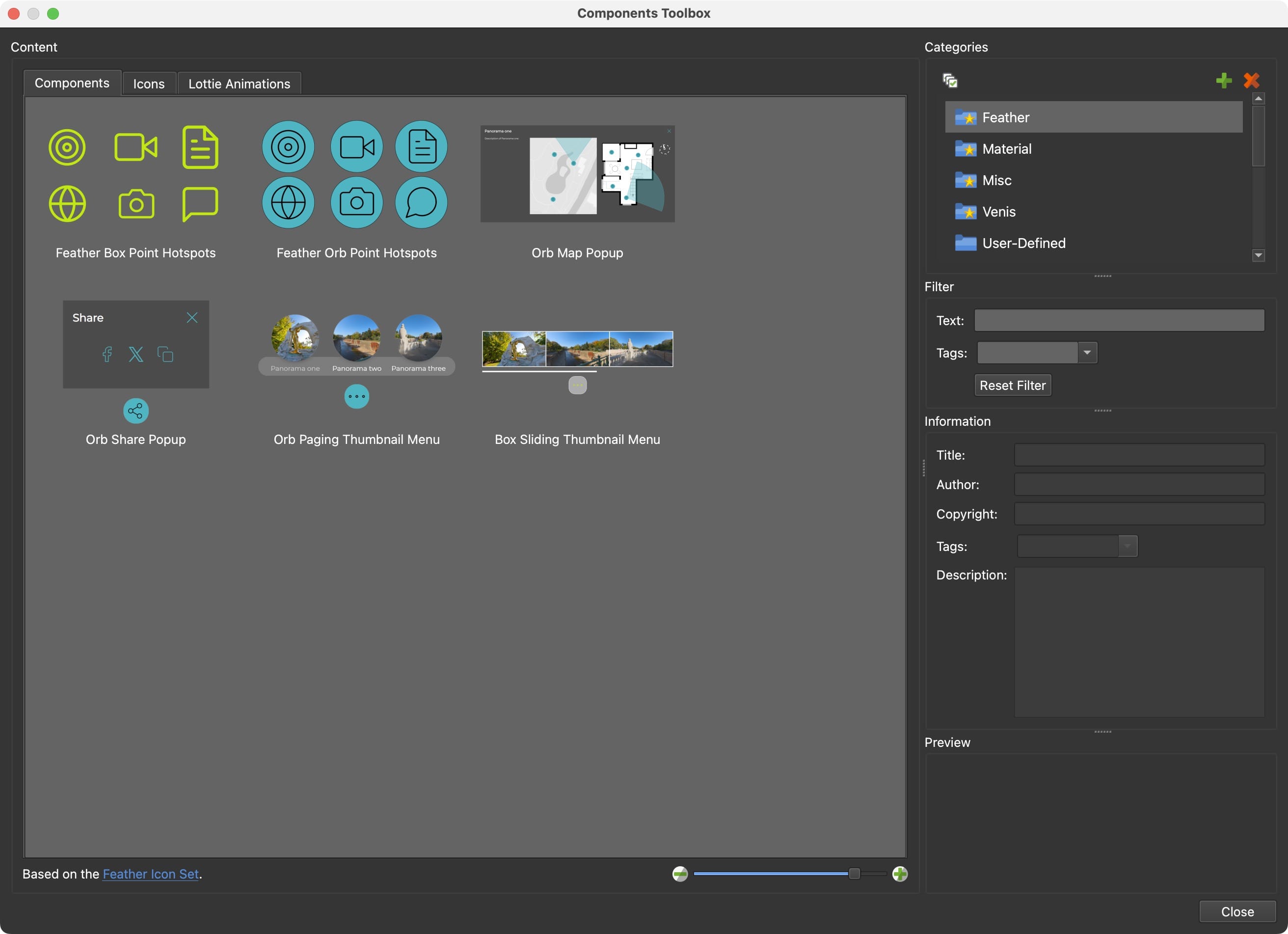
Understanding the Components Toolbox
The Components Toolbox is a feature in Pano2VR that allows you to store skin elements for reuse or sharing across different projects. It comes with built-in components that are free to use.
- Accessing Built-in Components: Open the Toolbox from the Toolbar or from Tools > Components Toolbox.
- Component Information: Click on a component to see details, such as a description, tags, and a preview image.
- The built-in categories are organized in Categories, while the components you create can be added to the User Defined category, or to a new category you create.
- Components Toolbox Interface
Adding Components to a Skin
To add a component:
- Double-click or drag the component into the canvas.
- Alternatively, use the context menu. Right-click and choose Add Component to Skin.
Example:
- Open a new skin.
- Add the Feather Box Point Hotspots component. This provides all the buttons and actions needed for all the point hotspot types. They will be arranged in a seemingly odd order. But because the hotspot template’s location in the skin arbitrary, there’s no need to rearrange them.
- Change the button’s background color to all buttons using the Color Tool. Make sure no element is selected and then open the Color Tool. Find the blue color and double-click the color in the right column to open the color picker to change the color.
- Save the skin and add it to your project. You now have a button set for all your hotspots.
Searching and Filtering Components
The Components Toolbox allows you to search and filter components by text or tags.
- Filter by Tags: Search using specific keywords (e.g., “feather”).
- Combine Filters: Narrow results by combining tags and text searches.
Example:
- Select all the Built-in Categories. Shift-click the last built-in category to select all the in list.
- In the Text Filter, type
menu. A number of menus should appear. - Now refine the search using Tags. Find the tag,
Categoriesand hit enter to filter. Now you should have menus that support categories/submenus.
Creating and Saving Custom Components
- Right-click the desired element in the tree or a group of components and select Create Component from Selection.
- Add it to an existing category or create a new one.
- Provide a title, or replace an existing component.
- Click, OK, to add it to the Components Toolbox.
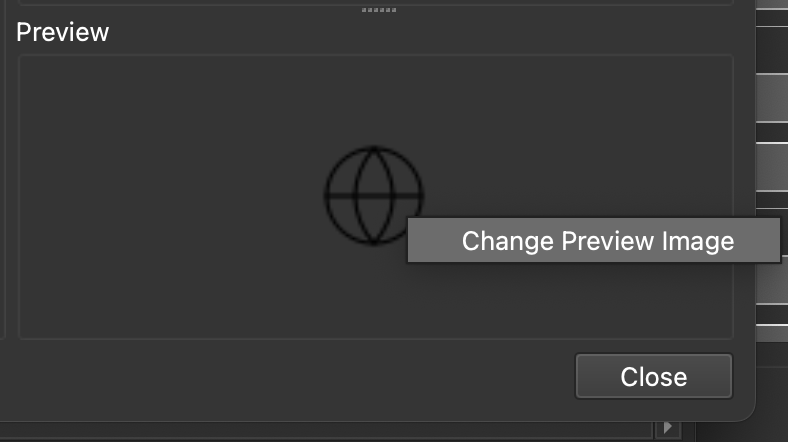
When the component is saved, it’ll take a screenshot of the skin’s Canvas or element for the preview image. You can change this preview image by right-clicking in the Preview and choosing Change Preview Image. Then navigate to the new image to set the preview image.
Sorting Components
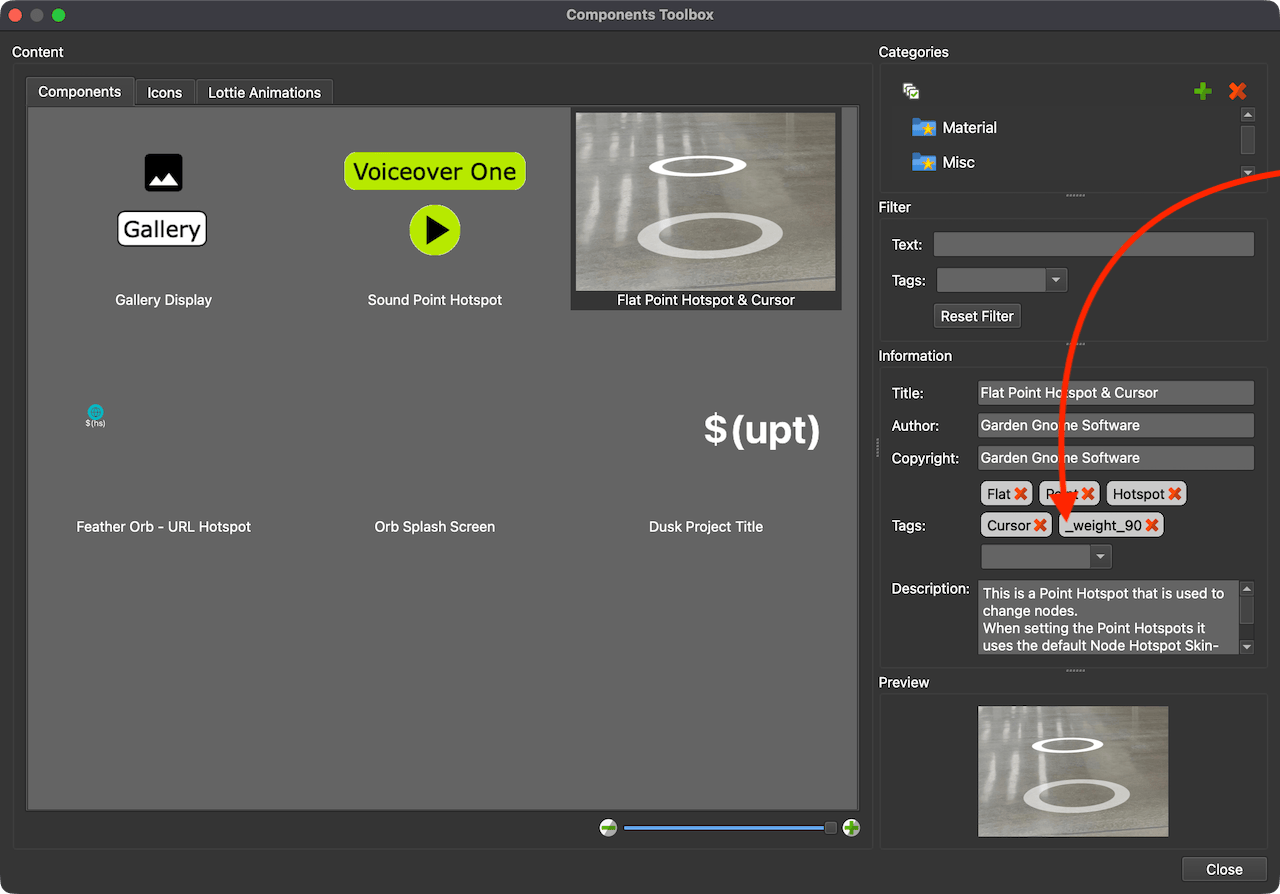
You can sort your components by adding tags with a weight number (for example:
_weight_10). Using a weighting system of sorting lets you determine which
componets you’ll see at the top of the list. The higher the number the higher
they’ll be in the in list. Anything given a weight tag will be sorted higher.
- Select the component you’d like to sort.
- Give it the special weight tag with your desired value:
_weight_100. You’ll see the component jump to the top of the list. - Add weighting to another component. Decide if it should be higher or lower
than the one you just sorted. Maybe something like
_weight_90. This will place the component after the one the given the weight of 100 in the list.
Sharing Components
Sharing components with collaborators or the community:
Exporting:
- Right-click a category in the toolbox.
- Select Open Category Folder in Finder (macOS) or Explorer (Windows).
- Share the component file. The file uses the extension,
ggskclikemap_popup_feather.ggskc. It’s a package file and can be shared to any other Pano2VR or Object2VR user.
Importing: Recipients double-click the GGSKC file to add it to their Components toolbox.